Lightburn Operation Tutorial (For MacOS)
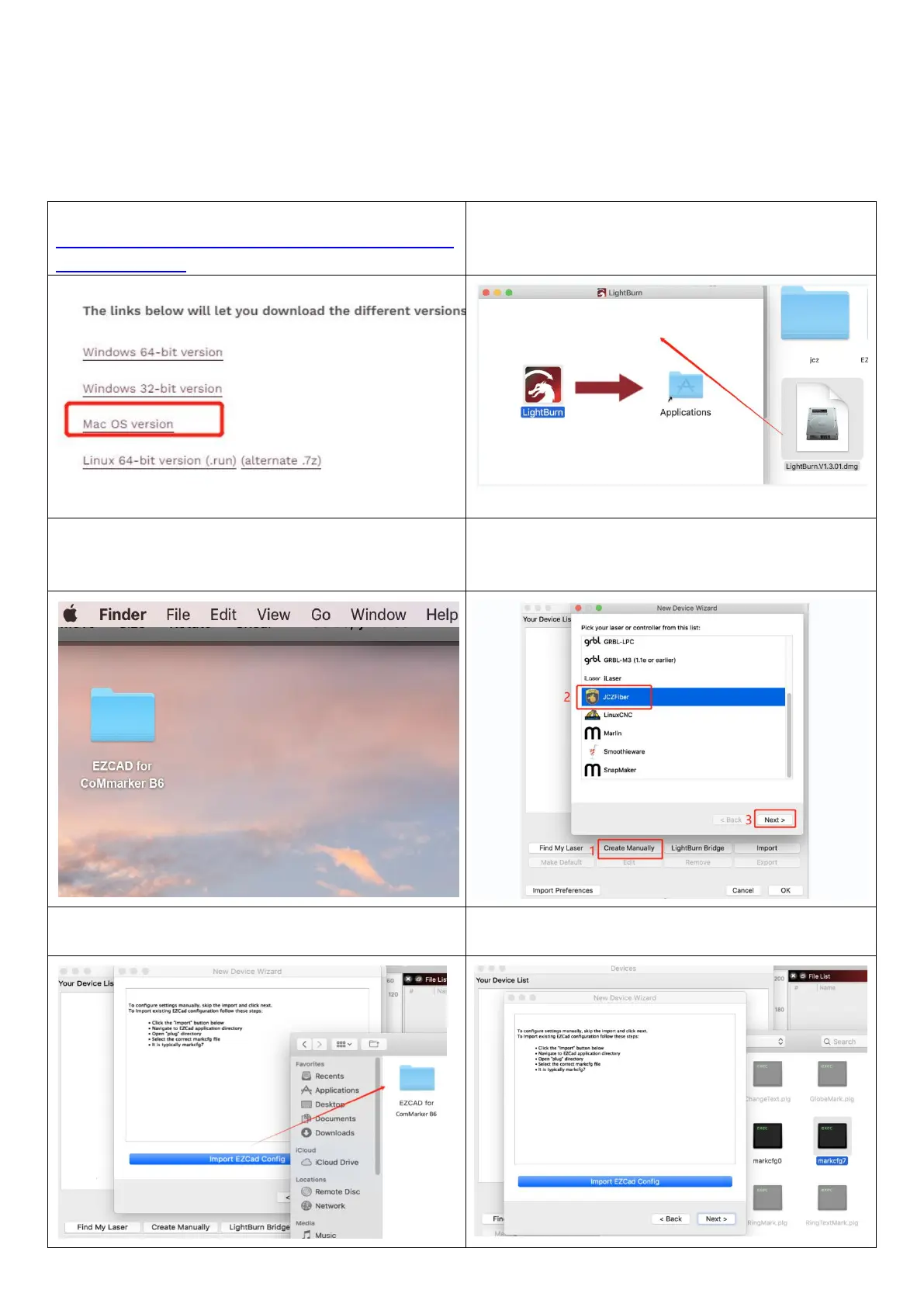
1. Download and install Lightburn software from the website
Note: It is not compatible with our machine if your Lightburn version is lower than V1.3.01, please
download a new version and reinstall.
And Lightburn is a paid software with 1 month free trial, you need to buy the licence key for Galvo version.
1. Down load the software from the website:
https://lightburnsoftware.com/pages/trial-version-tr
y-before-you-buy
2.Find downloaded file Lightburn V1.3.01, and drag
Lightburn icon to the Applications folder
3.Copy the folder “EZCAD for ComMarker B6” from the USB
to the desktop
4. A device window will pop out if the software is open the
first time, click “Create Manually”, Select “JCZFiber”
Note: Make sure the machine is on and connected via USB
5.Import EZCAD Config and select the folder
6.Select folder “EZCAD for ComMarker B6”---->“ Plug”, and
choose “markcfg7” and click “next”



 To Next Page