EasyManua.ls Logo

Commodore PC - How to Start Edlin; Starting Edlin; Creating a new file with Edlin; Editing an existing file with Edlin

Commodore PC
414 pages
Print Icon
To Next Page IconTo Next Page
To Previous Page IconTo Previous Page
Loading...
126
MS-DOS
User's
Reference
How
to
Start
Edlin
Starting
Edlin
Creating
a
new
file
with
Edlin
To
start
edlin,
you
simply
type
the
word
edlin
followed
by
a
filename.
If
you
are
creating
a
new
file,
filename
should
be
the
name
or
pathname
of
the
file
you
wish
to
create.
If
edlin
does
not
find
this
file
on
the
default
disk
drive,
it
creates
a
new
file
with
the
name
or
pathname
that
you
specify.
For
example,
if
you
want
to
create
a
file
called
budget.jun,
you
would
type
the
follow
ing
command
and
then
press
the
return
key:
edlin
budget.j
un
Edlin
would
then
display
the
following:
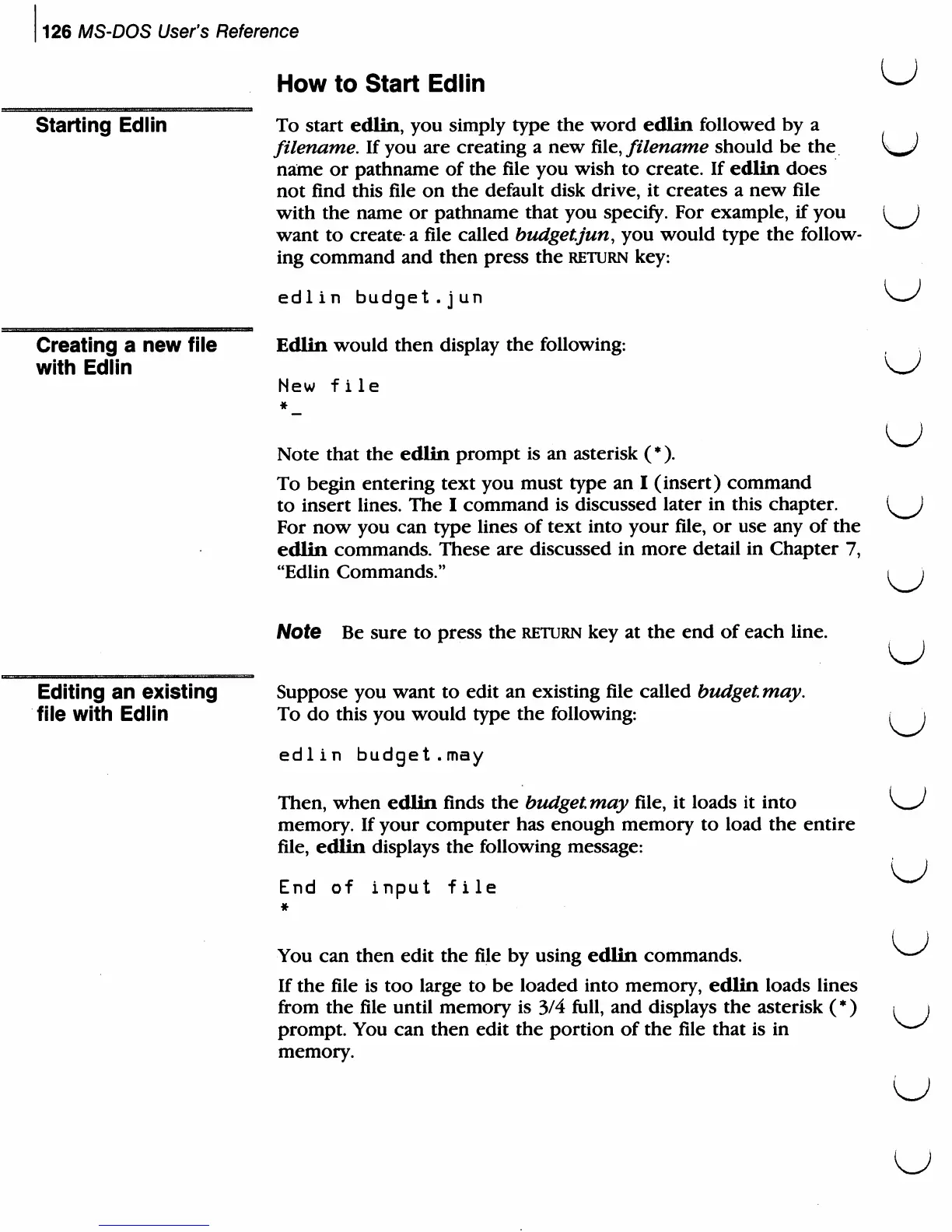
New file
#_
Note
that
the
edlin
prompt
is
an
asterisk
(*).
To
begin
entering
text
you
must
type
an
I
(insert)
command
to
insert
lines.
The
I
command
is
discussed
later
in
this
chapter.
For
now
you
can
type
lines
of
text into
your
file,
or
use
any
of
the
edlin
commands.
These
are
discussed
in
more
detail
in
Chapter
7,
"Edlin
Commands."
u
Editing
an
existing
file
with
Edlin
Note
Be
sure
to
press
the
return
key
at
the
end
of
each
line.
Suppose
you
want
to
edit
an
existing
file
called
budget,
may.
To
do
this
you
would
type
the
following:
edlin
budget.may
Then,
when
edlin
finds
the
budgetmay
file,
it
loads
it
into
memory.
If
your
computer
has
enough
memory
to
load
the
entire
file,
edlin
displays
the
following
message:
End
of
input
file
You
can
then
edit
the
file
by
using
edlin
commands.
If
the
file
is
too
large
to
be
loaded
into
memory,
edlin
loads
lines
from
the
file
until
memory
is
3/4
full,
and
displays
the
asterisk
(*)
prompt.
You
can
then
edit
the
portion
of
the
file
that
is
in
memory.
u
u
u

Related product manuals