EasyManua.ls Logo

Commodore Plus 4 - Keyboard colors

Commodore Plus 4
234 pages
Print Icon
To Next Page IconTo Next Page
To Previous Page IconTo Previous Page
Loading...
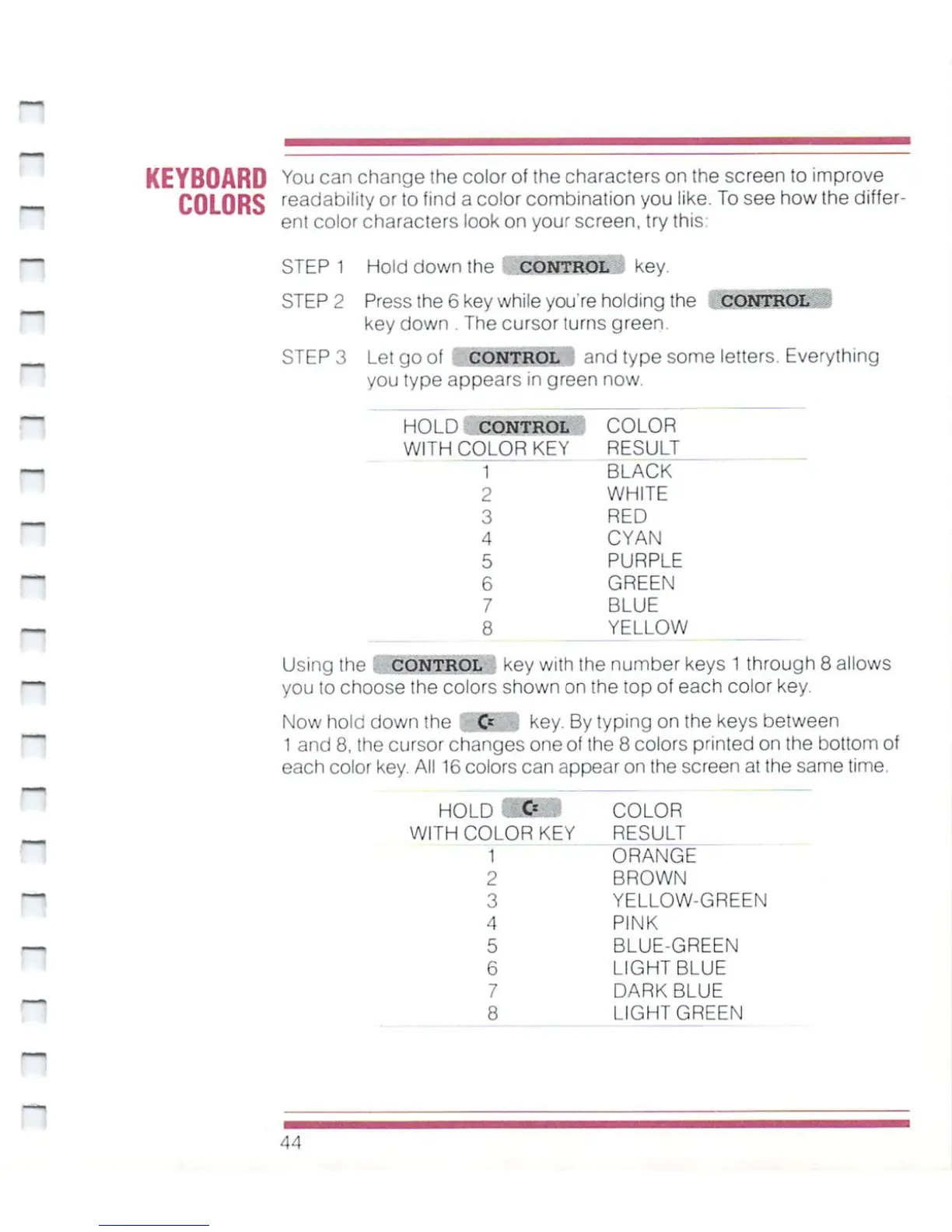
KEYBOARD
Y°u
can
change
the
color
of
the
characters
on
the
screen
to
improve
COLORS
readaDility
or
!o
fincj
a
color
combination
you
like.
To
see
how
the
differ
ent
color
characters
look
on
your
screen,
try
this:
STEP
1
Hold
down
the
CONTROL
key
STEP
2
Press
the
6 key
while
you're
holding
the
CONTROL
key
down
.
The
cursor
turns
green.
STEP
3
Le!
go
of
CONTROL
and
type
some
letters.
Everything
you
type
appears
in
green
now.
~
HOLD
CONTROL
WITH
COLOR
KEY
1
2
3
4
5
6
7
8
COLOR
RESULT
BLACK
WHITE
RED
CYAN
PURPLE
GREEN
BLUE
YELLOW
Using
the
CONTROL
key
with
the
number
keys
1
through
8
allows
you
to
choose
the
colors
shown
on
the
top
of
each
color
key.
Now
hold
down
the
Cc
key.
By
typing
on
the
keys
between
1
and
8,
the
cursor
changes
one
of
the
8
colors
printed
on
the
bottom
of
each
color
key.
All
16
colors
can
appear
on
the
screen
at
the
same
time.
HOLD
i#
•■■■
WITH
COLOR
KEY
1
2
3
4
5
6
7
8
COLOR
RESULT
ORANGE
BROWN
YELLOW-GREEN
PINK
BLUE-GREEN
LIGHT
BLUE
DARK
BLUE
LIGHT
GREEN
44

Other manuals for Commodore Plus 4

Related product manuals