Chapter
6:
Graphics
175
example,
the
following
short
program
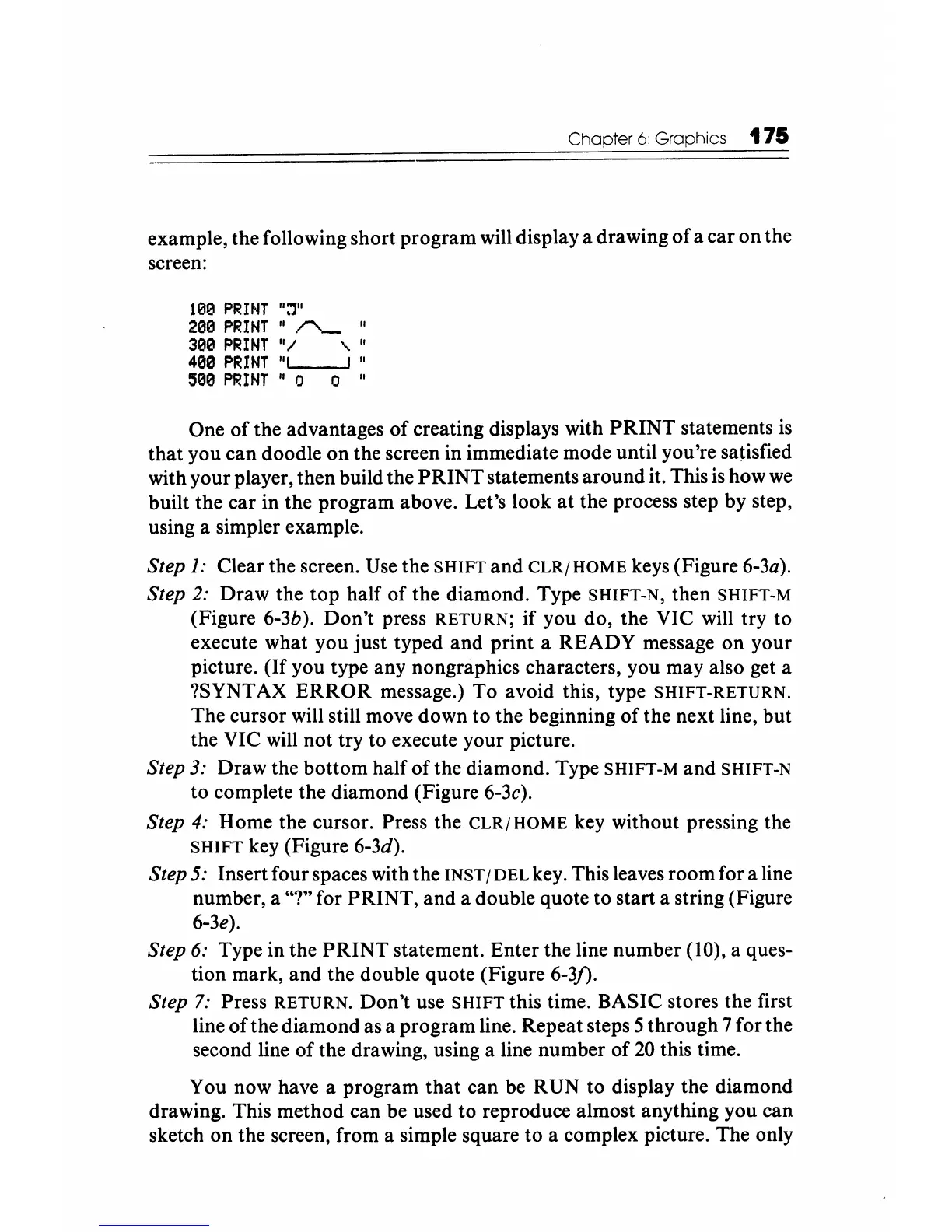
will display a drawing
of
a
car
on
the
screen:
100
PRINT
":'l"
200
PRINT
"~
"
300
PRINT
"/
, "
400
PRINT
"I
I "
500
PRINT
"0
0 "
One
of
the
advantages
of
creating displays with
PRINT
statements is
that
you
can
doodle
on
the screen
in
immediate mode until you're satisfied
with
your
player,
then
build the
PRINT
statements
around
it. This is
how
we
built
the
car
in
the
program
above. Let's
look
at
the
process step
by
step,
using a simpler example.
Step 1: Clear the screen. Use the SHIFT
and
CLR/HOME
keys (Figure 6-3a).
Step
2:
Draw
the
top
half
of
the
diamond. Type SHIFT-N, then SHIFT-M
(Figure 6-3b).
Don't
press RETURN;
if
you
do,
the
VIC will try
to
execute
what
you
just
typed
and
print
a
READY
message
on
your
picture.
(If
you
type
any
nongraphics characters,
you
may also get a
?SYNTAX
ERROR
message.)
To
avoid this, type SHIFT-RETURN.
The
cursor
will still move
down
to
the
beginning
of
the next line,
but
the VIC will
not
try
to
execute your picture.
Step 3:
Draw
the
bottom
half
of
the
diamond.
Type SHIFT-M
and
SHIFT-N
to
complete the diamond (Figure 6-3c).
Step
4:
Home
the cursor. Press the
CLR/HOME
key without pressing the
SHIFT key (Figure 6-3d).
Step
5: Insert
four
spaces with
the
INST / DEL key. This leaves
room
for a line
number, a "?" for
PRINT,
and
a double quote
to
start a string (Figure
6-3e).
Step
6: Type in
the
PRINT
statement.
Enter
the line
number
(10), a ques-
tion mark,
and
the double quote (Figure 6-3j).
Step
7:
Press RETURN.
Don't
use SHIFT this time.
BASIC
stores the first
line
of
the
diamond
as a
program
line. Repeat steps 5
through
7
for
the
second line
of
the drawing, using a line
number
of
20 this time.
You
now
have a
program
that
can
be
RUN
to
display the
diamond
drawing. This
method
can
be used
to
reproduce almost anything you
can
sketch
on
the screen, from a simple square
to
a complex picture. The only





 To Next Page