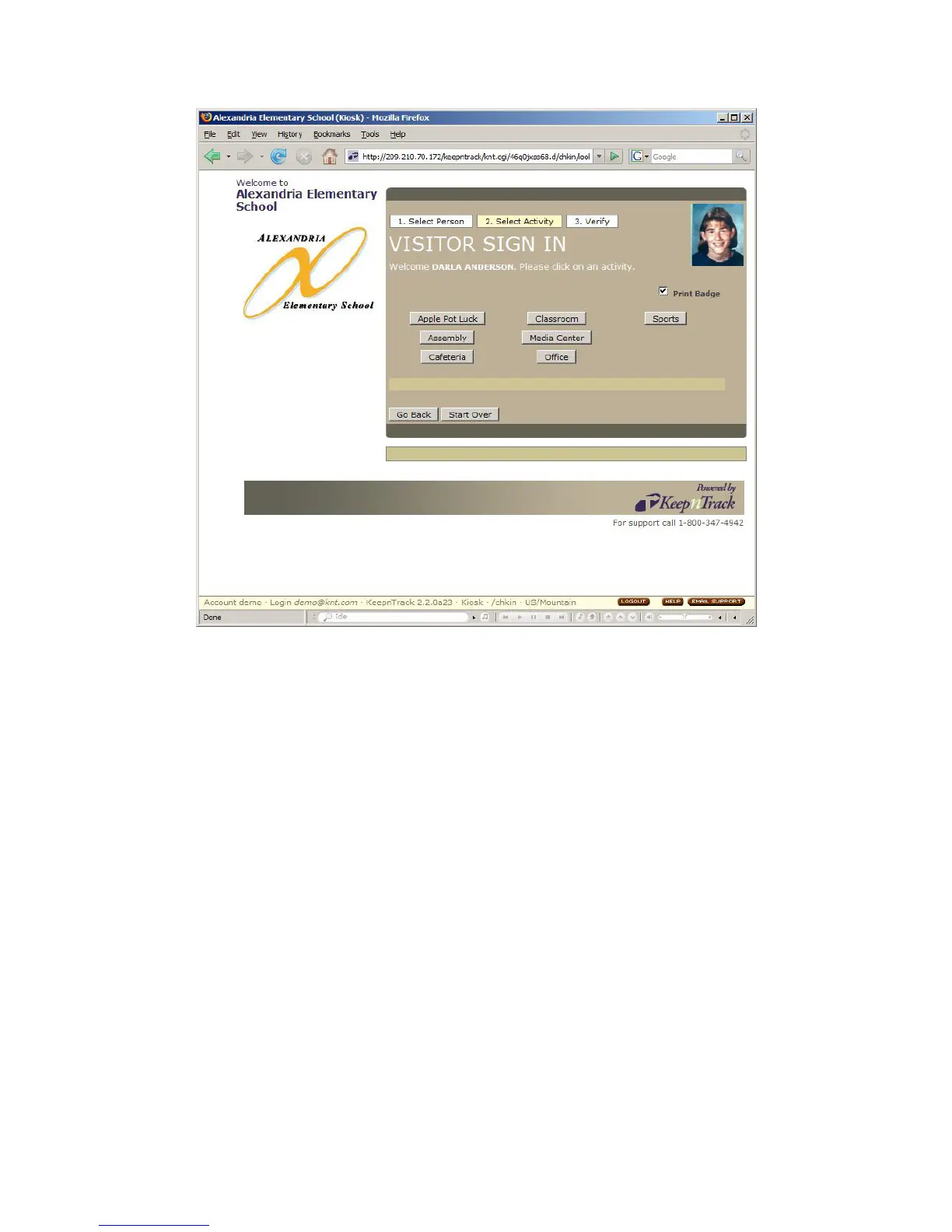
Image 26
Visitors or other people who do not require further review may then select an activity
and print a badge if required (Image 26). The badge will display the visitor’s full
name, picture ID, activity and the date and time of their visit.
Additional Settings for the Drivers License Scanner
KeepnTrack has several settings available which allow you to further customize how
the ID scanner performs at your facility. Below is an overview of these control which
can be modified independently for each operator as desired (Image 27).
The following Drivers License Scanner controls are located under the Operators
permissions in the Operator Control Panel in Administration:
1) ID Scanner is Enabled: this control allows you to hide the ID scan button on the
Kiosk.
2) Show Scanner State Menu in Kiosk: This control allows you to enable the state
issuing ID control at a kiosk.
3) Default ID Scanner State Pulldown: This control allows you to select which state is
set by default when scanning ID’s. Auto Detect is the default setting.
IG0069.2 — V6450 Driver’s License Optical Scanner Page 15 of 16


 To Next Page
 Loading...