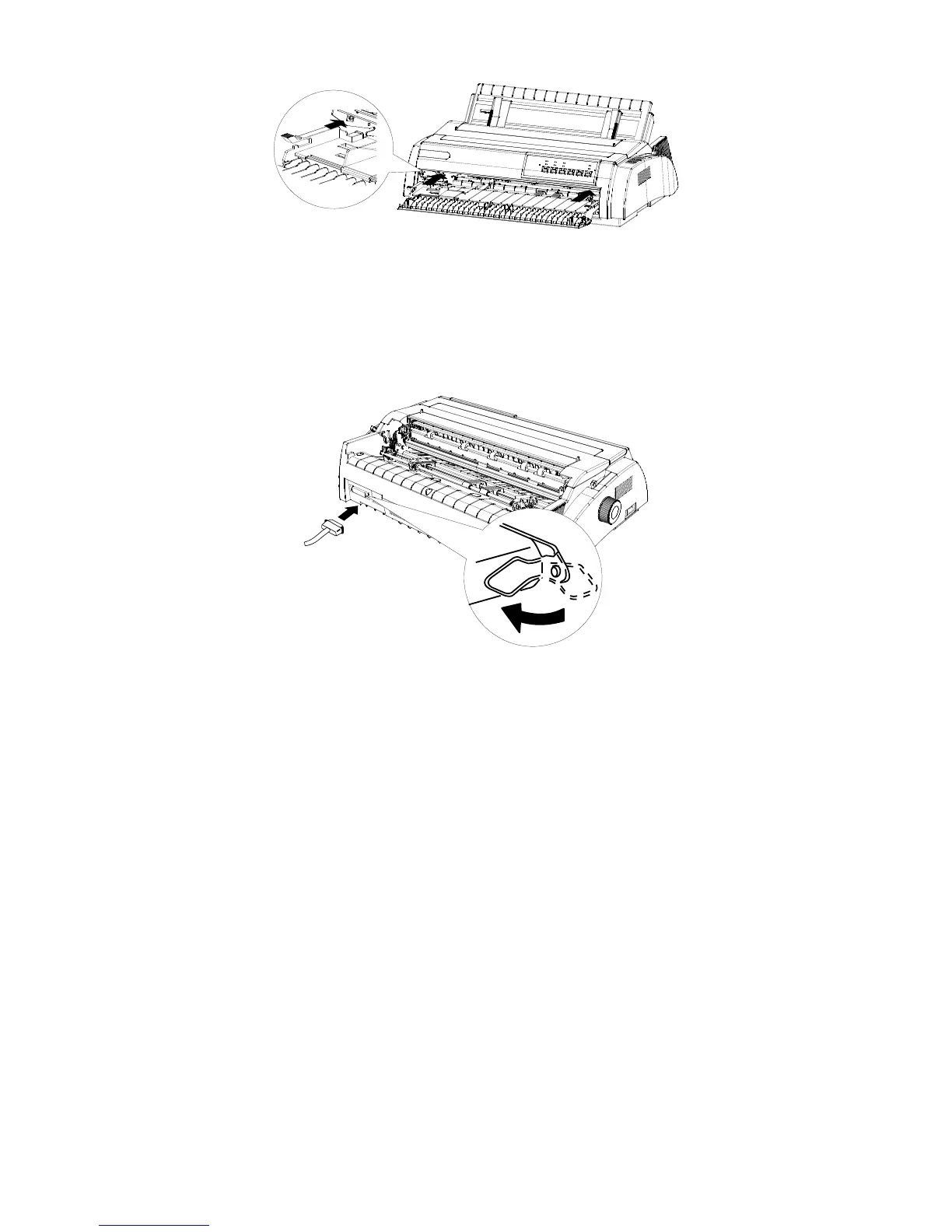
Figure 8
Host Computer Connection and Driver Installation
Connect Printer with Computer
Through parallel interface:
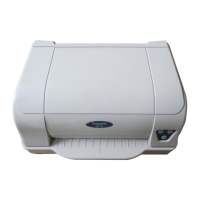
1. Switch the printer off, then connect the interface cable to the printer and computer.
Figure9
If your printer is equipped with the USB optional interface:
1. Make sure the printer is switched off.
2. Insert the USB interface cable plug into the USB interface outlet of printer.
3. Connect the other end of USB interface cable to your computer.
USB Port Usage
W
INDOWS 2000 and XP: the USB device driver is installed automatically.
WINDOWS 98: USB device driver is needed additionally. The installation steps are as
follows:
1. Connect USB interface. If the system finds USB device, a dialog box prompting for the
location of the driver installation files appears.
2. The System will find the driver installation files and start the installation.
3. When the system finishes installing the USB device driver, it adds a USB port named
"USB00x" to the port options of printer attribute page (x means the number of USB port
drive that the current system has already installed).
4. Select the newly added USB port in the attribute page of the printer driver.



 To Next Page