DEEP LEARNING PLUS QUICK START GUIDE8
CREATING DEEP LEARNING RULES
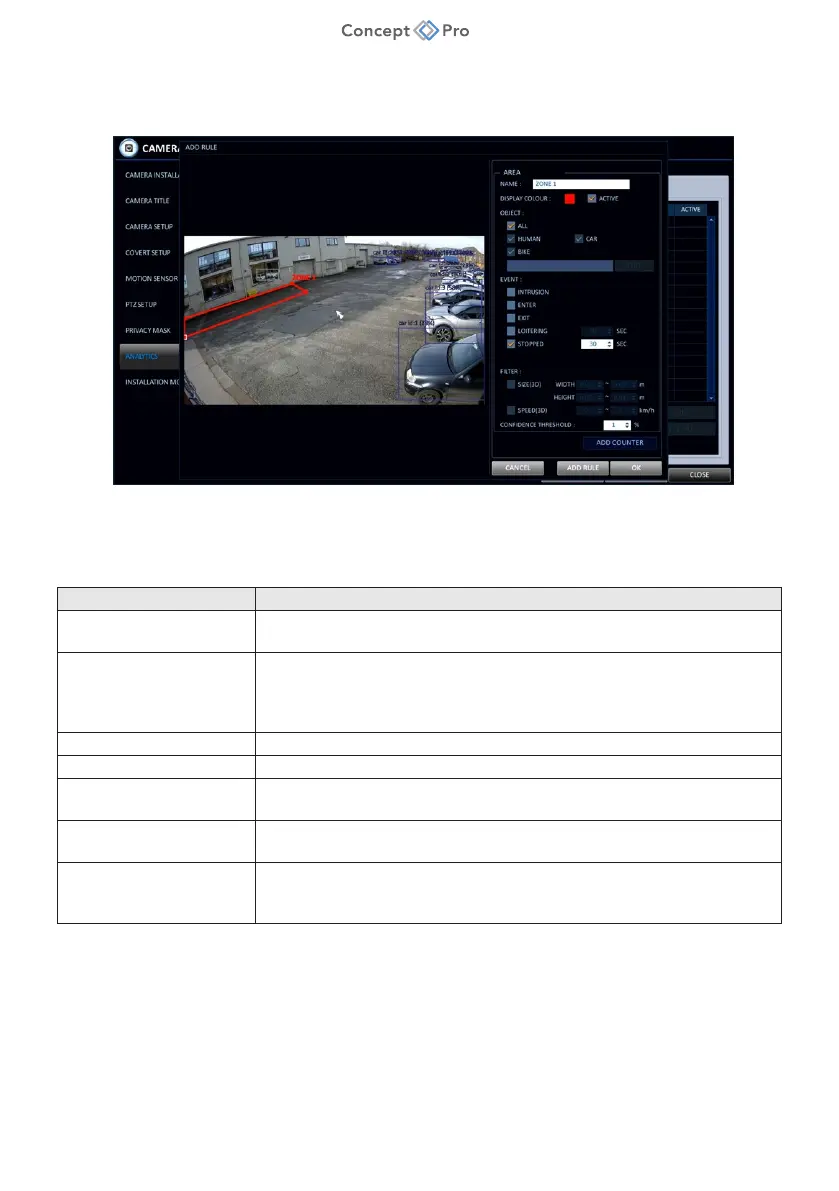
1. After completing the steps above, navigate to the <PROPERTY> tab and select a desired
video channel from the <CHANNEL> drop-down menu .
2. Refer to the top section to the right. Set <ACTIVATION> to <ON>, select a DL algorithm
(e.g., Human/Vehicle Detector), and select <EDIT> under <RULE ENGINE> to add, edit, or
delete Deep Learning rules for the selected channel. The following rule types are supported
by DL PLUS and Concept Pro recorders:
Rule Type Description
Line Crossing Detection
Triggers when a target object is detected crossing a custom-drawn line;
can detect forward, reverse, or both directions.
Intrusion Detection
Triggers continually when a target object is detected entering and
remaining inside a custom-drawn area. Note: objects remaining inside the
area will continue to trigger Intrusion Detection alerts until they exit the
area.
Enter Area Detection Triggers once when a target object enters a custom-drawn area.
Exit Area Detection Triggers once when a target object exits a custom-drawn area.
Loitering Detection
Triggers when a target object remains inside a custom-drawn area for a
configured time period.
Stopped Detection
Triggers when a target object enters and stops inside a custom-drawn
area for a configured time period.
Object Counter
Triggers when a target object is detected a specified number of times; can
be configured to reset count and can be linked to up to two other rules
(increase count rule and/or decrease count rule).
a. DL PLUS supports human, car, and bike target object identification/detection.
b. Configure a CONFIDENCE THRESHOLD when creating a DL rule to limit event
detection to cases where the DL PLUS product is X% confident in its target object
identification.


 To Next Page
 Loading...