NETWORK VIDEO RECORDER QUICK START GUIDE
Bit Rate Control, then press <APPLY>.
Regions of Interest
Some Concept Pro cameras, such as the CVP5325 series, support regions of interest directly
through Concept Pro NVRs, others can be congured through web browser. Regions of
Interest can be manually set from the <CAMERA SETUP> menu with the area denoted ‘of
interest’ or ‘not of interest’. According to the setting, the camera will apply optimal image
quality to the area and low image quality to outside areas to help reduce bit rate further.
Auto ROI is another option that allows the camera to intelligently track moving objects and
apply optimal image quality to moving objects only while the background image quality
would be lower.
Smart Storage Compression
Concept Pro NVR products support Smart Storage Compression (SSC), a feature designed
to limit the camera bit rate according to the recording FPS value. With Smart Storage
Compression (SSC) off by default, the system will record video streams at higher bit rates, and
preserve this bit rate no matter the record FPS.
With Smart Storage Compression (SSC) set to ON, the system will reduce the maximum bit rate
to 4Mbps for the main stream and 1Mbps for the sub stream. It will also automatically adjust
the max bit rate according to the record FPS setting. SSC therefore attempts to balance
image quality with recording frame rate for additional savings in bandwidth and storage.
H.265
H.265 is a new video compression codec that allows for more optimal compression of video
streams compared to the H.264 video codec. When combined with VBR, this can result in a
considerable reduction in bit rate compared to H.264 without a major trade off in image quality.
Note: Performance of bit rate control schemes and video compression codecs depends
upon the installation environment.
9. Archiving Recorded Video
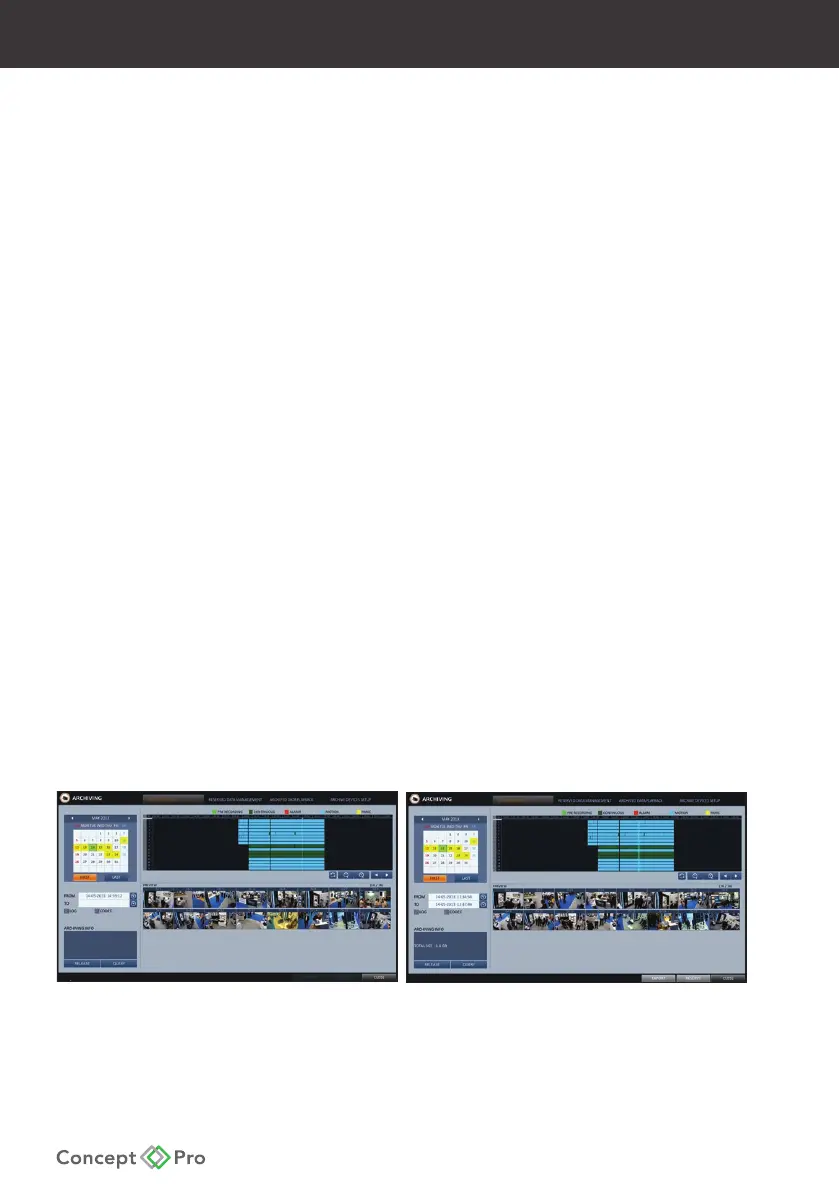
1. Click <MENU> and select <ARCHIVING>. This can be selected from either the Live or
Playback screens. From <ARCHIVING>, select <NEW ARCHIVING>.
2. Select a date for the archive from the calendar to the left. Any dates containing
recorded data will be coloured boxes.FIRST: Automatically select the rst date with
recorded video.LAST: Automatically select the last date with recorded video.Check the
<START> and <END> times. Drag the timeline to specify the start and end times.
3. Check the appropriate boxes for desired <CHANNEL>, <LOG>, <CODEC>, and <PLAYER>
to be included in the archive.


 To Next Page