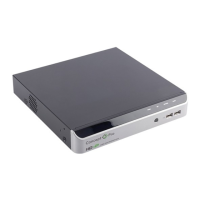
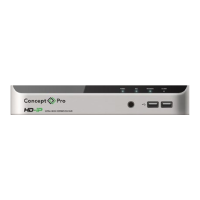
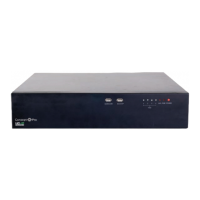
NETWORK VIDEO RECORDER QUICK START GUIDE
7. Optimising video for image quality & storage requirements
All Concept Pro cameras & recorders come with features designed to help balance the
need for high quality images and lower storage requirements. Selecting the proper settings
for each camera can help optimise your system and balance image quality with storage
requirements.
Constant Bit Rate
Constant Bit Rate (CBR) applies a specic bit rate for the video stream and the camera will
transmit at approximately this bit rate without regard to time, light level, scene complexity, or
other factors. As a result, the image quality will appear improved, but bandwidth and storage
requirements will be the high.
Variable Bit Rate
Variable Bit Rate (VBR) automatically adjusts the bit rate according the scene being
monitored. With VBR enabled, the image quality will decrease when there is less or no motion
occurring and increase when scene complexity increases. As a result, bandwidth and
storage requirements can be considerably reduced while the image quality will be focused
on scenes of actual importance.
To congure VBR+ from the Concept Pro NVR, navigate to <MENU> - <SYSTEM SETUP> -
<CAMERA> - <CAMERA SETUP> - <STREAM SETUP>. Select the desired channel and bit rate
control scheme, then press <APPLY>.
VBR+
Some Concept Pro cameras, such as the CVP5325 series, support a special feature named
VBR+. Similar to other smart codecs, VBR+ is a more intelligent video processing feature that
can more aggressively apply techniques to dramatically reduce the bit rate by only focusing
optimal image quality according to scene complexity.
To congure VBR/CBR from the Concept Pro NVR, navigate to <MENU> - <SYSTEM SETUP> -
<CAMERA> - <CAMERA SETUP> - <STREAM SETUP>. Select the desired channel and VBR+ from
Bit Rate Control, then press <APPLY>.
Regions of Interest
Some Concept Pro cameras, such as the CVP5325 series, support regions of interest directly
through Concept Pro NVRs, others can be congured through web browser. Regions of
Interest can be manually set from the <CAMERA SETUP> menu with the area denoted ‘of
interest’ or ‘not of interest’. According to the setting, the camera will apply optimal image
quality to the area and low image quality to outside areas to help reduce bit rate further.
Auto ROI is another option that allows the camera to intelligently track moving objects and
apply optimal image quality to moving objects only while the background image quality
would be lower.


 To Next Page
 Loading...