2.2 Register in the app
Registering in the app is very simple.
1. Once the app is installed, access it. The next screen will appear:
2. Set all the parameters. Once you do so, you are ready to go.
3. Make sure to accept all the permissions that the app requests.
2.3 Pairing iOS / Android devices
1. Enable your smartphone’s Bluetooth.
2. Enter the Da Fit app and tap on the bottom middle icon to
access the device section.
3. Tap on the add a device option. Once you do so, the available
devices list will show. Tap on “CONTACT WATCH”.
4. Once you tap on the device the binding process will start.
When you do so, hold the watch close to your smartphone.
5. A message from your smartphone’s Bluetooth will pop up.
Make sure to accept the pairing.
2.4 Troubleshooting
- If the app cannot find the device, power o the smartwatch and then on again.
- If the device connects and disconnects quickly there may be an obstruction between the
device and the phone. Wearing metal jewelry may interfere with the stability of the
connection.
- If the device does not charge, it may be due to a dirty or rusted charging port.
3. Usage and functions
It is very important to always accept all the permissions requested by the app so that the
smartwatch functions optimally. Also activate all the desired features from the device option
within the profile section in the Da Fit app.
3.1 How to browse through the smartwatch
The usage method of the Contact smartwatch is very simple and intuitive:
· Via screen swipe
Swipe your finger to the left from the main screen to access the quick access menu. A few
functions are set by default (heart rate, blood pressure, pedometer…). To add more
functions to the quick access menu keep swiping your finger to the left until you see the “+”
option and tap on it.
Swipe your finger downward from the main screen to enter the options menu. In here you
will find dierent functions, such as the do not disturb mode, settings, low power mode,
brightness, among others. To access any of these options, simply tap on their corresponding
icon. If you want to delete any quick access menu function, long tap and tap on the “-” red
icon to delete it.
Swipe your finger upward from the main screen to view app notifications, missed calls, text
messages and other notifications.
Swipe your finger to the right from the main screen to access the auxiliary menu. In here you
will see the latest app functions that you have accessed. From here you can also access the
smartwatch main menu. To do so, tap on the grey icon that shows 9 dots.
·Via dial button
Press the dial button to block and unblock the smartwatch screen. You can also use it to go
back to the main screen whenever you are making use of a function or in any of the various
menus. You can also use it to turn o the smartwatch, as previously explained in the manual.
·Via inferior button
Press the inferior button to access the smartwatch main menu. Long press it to access the
voice assistant.
3.2 Changing the watch face
There are 3 options when it comes to changing the Contact smartwatch’ main screen theme
and dial:
- The first option is from within the smartwatch. On the main screen, long tap on the display
and you will see multiple watch faces. Tap on the one that you like the most to make it your
watch face.
- The second option is also from within the smartwatch. Swipe your finger downward from
the main screen to enter the options menu. Access the setings (gear icon), tap on the display
option and then on the watch face option to
change the watch face.
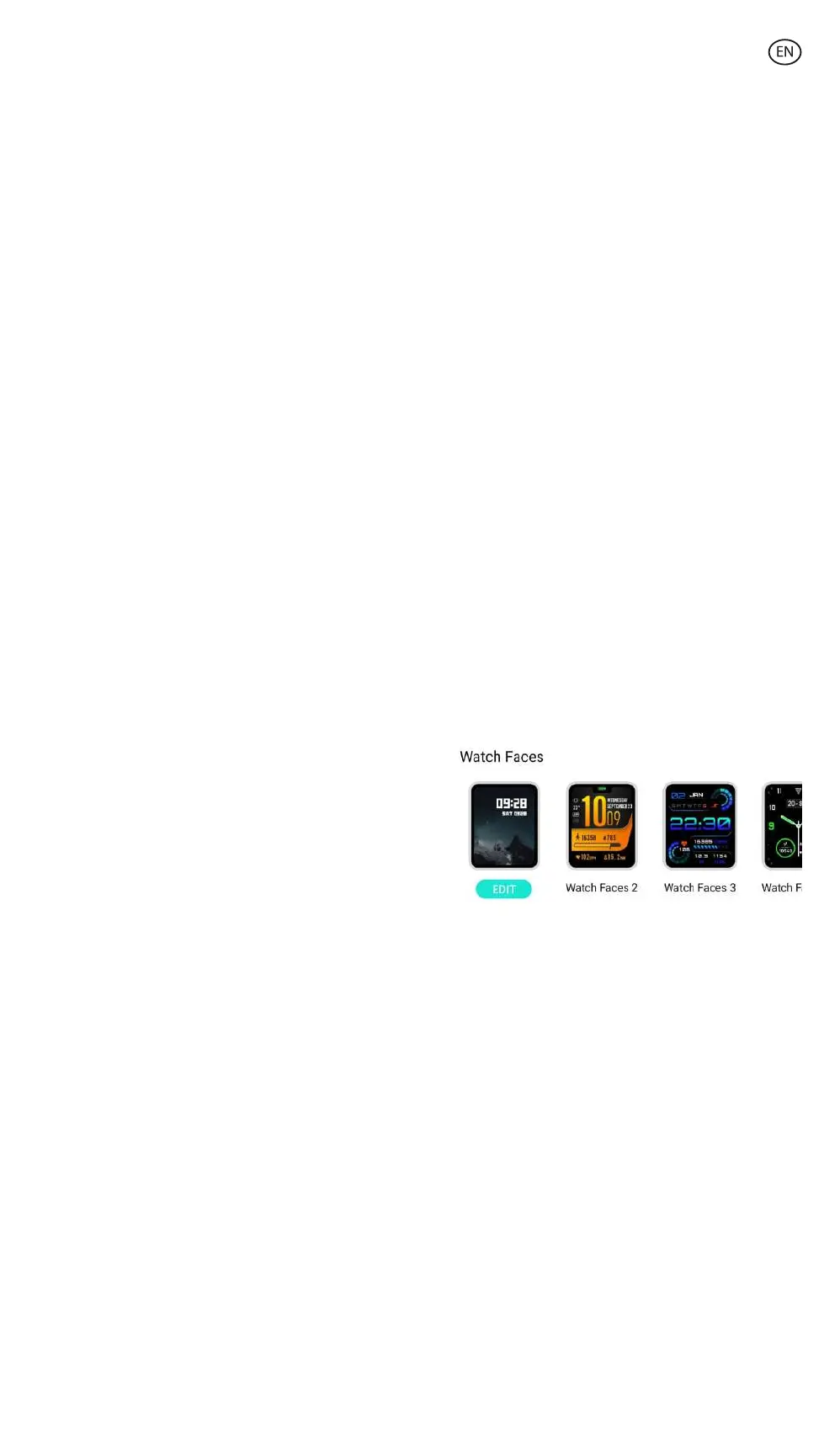
- The third option is from the Da Fit app.
From the device section you will see the watch
faces option. From here you will be able to
select a wide variety of watch faces to
download and set them as your main screen
theme. The watch latest watch face that you
download will be stored in the smartwatch face
change function. You will also be able to edit and create your own watch face.
3.3 Calls
The Contact smartwatch allows you to make, receive, answer and reject calls. You can
maintain a phone call conversation with just the smartwatch thanks to its built-in
microphone and speaker.
· Receiving, answering and rejecting calls
Calls will appear in real time on the screen and the watch will vibrate.
Calls can be accepted by pressing the green icon and rejected by pressing the red icon.
If the call is accepted, it can be ended by pressing the red icon. To reject the call, tap on the
red icon before answering it. A lost call notification will appear on the smartwatch’s display.
· Making calls
There are three options when it comes to making calls. All of them can be accessed by
entering the smartwatch main menu and tapping on the green icon showing a phone.
- Call a contact: Choose up to 8 contacts from the favorite contacts option within the Da Fit
app device section. Once you do so, access the smartwatch main menu and tap on the green
icon showing a phone. Tap on the contacts' option; you will see that the 8 contacts that you
have chosen will show. Tap on the contact that you want to call.
- Dial pad: Tap on the dial pad option to dial any phone number. Once dialed, tap on the icon
showing a phone to start the call.
- Recent calls: Tap on the recent calls option to access a register of calls that you have made
and received. To call one of the contacts/phone numbers that appear, simply tap on the
corresponding contact/number.
3.4 Notifications
The smartwatch displays your smartphone notifications.
This includes apps such as: WhatsApp, Gmail, Instagram,
Twitter, LinkedIn, among many others. Make sure to enable them
through the Da Fit app.
To enable them, simply access the notifications option
in the Da Fit device section and tap on the box to enable them.
3.5 Voice assistants
To make use of the voice assistant function, simply access the auxiliary menu and tap on the
talk after tap option, on top of the menu. To correctly configure the voice assistant function,
you must have successfully synchronized the smartwatch to your smartphone via Da Fit app
and enabled all accesses.
3.6 Music control
The smartwatch features a music control tool. Access the smartwatch main menu and tap on
the musical note icon. Once inside, you will see several options:
- Play/Pause: Tap on the icon to pause or play the music that you are listening to.
- Previous song/Next song: Tap on the previous or next icon to play the previous or the next
song.
- Increase/Decrease volume: Tap on the speaker icon to increase or decrease volume.
When your phone is paired with your smartphone, all the audio
files and videos will play on the smartwatch. This includes
YouTube videos, WhatsApp voice notes, WhatsApp videos, etc.
To stop this from happening, access your smartphone Bluetooth
settings and enter the Contact Smartwatch device option. Once
inside you will see the following:
Unselect the media audio setting so that all the music, videos,
voice notes and other files that contain audio play on the phone
and not on the smartwatch.
3.7 Remote camera control
The Contact smartwatch allows you to take pictures from your smartphone remotely. Access
the smartwatch main menu and tap on the camera icon. If your smartphone is unlocked and
correctly paired to the smartwatch, your smartphone will automatically display a camera. To
take remote pictures, simply place your smartphone wherever you want and tap on the red
circle inside the remote camera function of your smartwatch.


 To Next Page
 Loading...