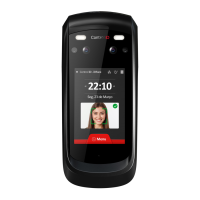
Quick Guide iDFace Max Version 1.1 Control iD 2024 ©
iDFace Max – Quick Guide
Thank you for purchasing the iDFace Max Facial
Recognition Access Controller! For detailed
information on how to use your new iDFace Max,
please refer to:
www.controlid.com.br/userguide/idface-max.pdf
By using Control iD products, you agree to the Terms
and Conditions of Use and Personal Data Protection
Information available at:
www.controlid.com.br/legal/eula.pdf
Required Material
To install your iDFace Max, you will need the
following items: a drill, wall plugs with
corresponding screws, a flathead or Phillips
screwdriver, a 12V power supply with at least 2A,
and an electric lock.
The device can also be powered via the Ethernet
connection using PoE infrastructure compatible with
IEEE 802.3af. In this case, the device will also provide
power to the External Activation Module (EAM).
1
1
The use of the 12V provided by PoE is
exclusively for powering the EAM. Any other use
(such as parallel connections with other devices)
constitutes a warranty violation and exempts the
manufacturer from liability.
Installation
For the optimal operation performance of your
iDFace Max, the following precautions must be
taken:
• Install in a location without direct sunlight
exposure. Lighting should be considered for
better image capture quality.
• Avoid placing metallic objects near the back of
the device to prevent interference with the
proximity card reader range. If unavoidable,
use insulating spacers.
• Before securing the device, ensure all
connection cables have been properly routed
to the equipment.
• Mount the top of the iDFace Max at 1.5m from
the ground for pedestrian use or at 1.35m for
vehicle use.
Installing the equipment is simple and must follow
the diagram below:
1. For increased installation security, place the
External Activation Module (EAM) in a secure
area (inside the premises).
The iDFace Max EAM is compatible with the rest
of the Control iD product line, but EAMs
manufactured before July 2024 are not compatible
with the iDFace Max due to current consumption (2A
peaks).
2. Use the template on the back of this guide to
drill the 5 mounting holes for the iDFace Max
and insert the wall plugs.
3. Connect the EAM to a +12V power source and
to the lock being controlled using the provided
cables.
4. Run a 4-conductor cable to interconnect the
EAM and the iDFace Max. For distances greater
than 5m, use thicker cables and twisted pairs
for the data signals. If using a Cat5 cable to
connect the EAM to the iDFace Max, use 3
pairs for power and 1 pair for data signals. In
this case, the distance should not exceed 25m.
Remember to use the same pair for signals A
and B.
Recommended installation configuration for Cat5 cable:
The iDFace Max can continuously consume
over 1A, so use thick-gauge cables or combine
multiple pairs to facilitate current conduction.
5. Connect the wiring harness provided with the
iDFace Max to the 4-conductor cable from the
previous step.
6. Remove the wall mount bracket from the
iDFace Max.
7. Screw the wall mount bracket into the wall
plugs.
8. Remove the sealing cover on the back and
connect the iDFace Max to the 4-conductor
cable.
9. Reposition and secure the cover and sealing
gasket.
The cover and sealing gasket are essential
for ensuring IP65 protection. Make sure they
are properly positioned and secured on the
back of the product.
10. Place the iDFace Max on its wall mount and
secure it with the screw and tool provided
along with the connection cables.
Description of Connection Pins
On your iDFace Max controller, there is a connector
input on the back of the device in addition to the
network (Ethernet) connector input. On the External
Activation Module (EAM), there are 4 other
connectors that will be used for connecting locks,
REX, sensors, and readers as explained below.
iDFace Max - 4-pin connector (Power + Data)
iDFace Max - 7-pin connector (Expansion)
The GPIO pins and the relay integrated into the
equipment are configurable via firmware.
iDFace Max - 8-pin connector (Expansion)
EAM - 4-pin connector (iDFace Max connection)
EAM - 2-pin connector (Power)
Connection to a +12V source of at least 2A is
essential for the correct operation of the equipment
EAM - 5-pin connector (Wiegand In/Out)
External card readers must be connected to the
Wiegand inputs WIN0 and WIN1. If there is a
controller board, we can connect the Wiegand
outputs WOUT0 and WOUT1 so that the user ID
identified on the iDFace Max is transferred to the
controller.
EAM - 6-pin connector (Door Control/Relay)
The REX and door sensor inputs are
configurable as NO or NC and must be connected to
and the respective pin.
EAM – Communication Modes
• Standard: EAM will communicate with any
equipment
• Advanced: EAM will only communicate with
the equipment to which it was configured in
this mode
To reset the EAM to its default mode, turn it off,
connect the WOUT1 pin to BT, and then turn it on.
The LED will blink quickly 20 times, indicating that
the reset has been completed.
Configuring your iDFace Max
All parameters of your new iDFace Max can be
configured through the LCD display (Graphical User
Interface GUI) and/or through a standard web
browser (provided the iDFace Max is connected to
an Ethernet network and has this interface).
To configure, for example, the IP address, subnet
mask, and gateway via the touchscreen, follow these
steps: Menu → Settings → Network. Update the
Green/Wh + Orange/Wh + Brown/Wh
Power for
iDFace Max and
Communication
Relay, door sensor and REX panel


 To Next Page
 Need help?
 General