ENGLISH
ENGLISH
3
MICROPHONE CONTROL
VOLUME CONTROL
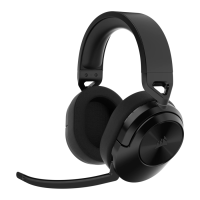
Flip-up microphone to mute. Flip-down microphone to unmute. Alternatively, you can use the mute button on
the headset.
For best performance, bend the exible microphone boom to best t near the left corner of your mouth. A
30-degree bend is a good place to start, but you can adjust this if your mic is too loud or too soft.
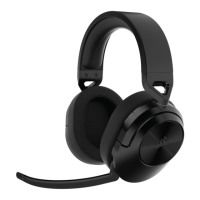
Use the volume control / EQ select wheel to adjust volume up or down. In addition, pressing the volume wheel
cycles through four audio EQ presets: Standard, Bass Boost, Movie Theater, and FPS Competition.
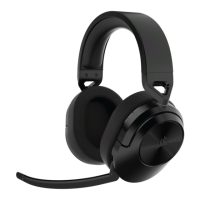
The CORSAIR HS55 WIRELESS CORE headset must be fully charged before its rst use.
> Connect the USB charging cable to any working USB port on your PC.
> Connect the USB charging cable to the CORSAIR HS55 WIRELESS CORE Headset.
The CORSAIR HS55 WIRELESS CORE headset battery has no “memory effect”, so there is no need to completely
discharge it before recharging. Remember that the USB charging cable requires a high power (USB 2.0 or better)
port. Some USB ports found on older devices do not support USB 2.0.
> When the receiver is connected to the headset and operating normally, the LED will turn solid white.
> If the receiver cannot connect to the headset, the LED will blink red rapidly.
The status LED will pulse while being charged and turn solid green at full charge. When not being charged, the
status LED will blink based on the power levels shown above.
LOW MEDIUM HIGH
RED ORANGE GREEN
WIRELESS STATUS LED INDICATIONS (ON WIRELESS RECEIVER)
BATTERY STATUS LED INDICATIONS (ON HEADSET)
CHARGING



 To Next Page