Upon poweri ng on the key boar d or using the check battery life short cut FN+ Ent er , an in dicat ion (H) will de not e curr ent batt ery char ge lev el.
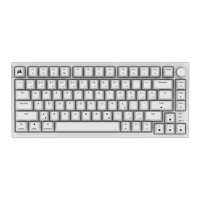
K65 PLUS WIRELESS
75% RGB MECHANICAL GAMING KE YBOARD
QUICK START GUIDE
GETTING TO KNOW YOUR KEYBOARD
BEFORE FIRST USE
Charge the keyboard f ully b efore f irs t use by connecti ng the US B ca ble (F) to the keyboard USB Type-C port (E) and to an available USB
3.0 or better Type-A p ort on a comp ati ble d evi ce includ ing:
Wi nd ows PC®
Appl e Mac®
Microsoft Xbox One*
Microsoft Xbox Series X
|
S*
Sony PlayStation 4**
Sony Pla yStatio n 5**
*Keyboard is compatible out of the box, see corsair.com/xbox -support for d etails.
**S ee Co nne cting to S ony PlayStatio n se ctio n.
MULTI-PURPOSE INDICA TO R (H)
MPI serves as an indicator for different sce na ri os such as
Sta tus ind icat ions when device is turned on
Indica tion when a connecti on is made (wired/2.4G Hz/BT)
Macro recordi ng seque nces
Displaying difference dial functi ons
Sequence of indication when power on:
1. Battery status
2. Wired/Wireless sta tus
3. BT pairing (only when BT pairing is t rigger ed in BT mode )
CHARGING & BA TTE RY LIFE
NOTE:
1. All backlighting except indicators t ur ns off when battery level is 20% or below.
2. Dev ice turns off automatically when ba ttery is b elow 5%.
3. Battery indicator only shows for 3 sec ond s a nd turns off a fter each status c hange.
4. Multi-purpose i ndic at or (H) will brea th e batt ery status while char ging and turns off when charging is complete.
BUTTON & SWITCHES
Button/Switch Function Rem arks
3-Way Mod e
Swi tch (D )
•
On - 2.4GH z
•
Off
•
On - BLE
•
On-2.4G Hz & BT: The keyb oard remai ns in wireless mode even w hen a
cable is p lugged (to cha rge).
•
Off: Wi re d mode
•
2.4GH z mode: Indicat ion (H) LED turns so lid white 3 seconds i f connected,
pulsi ng white if not connected.
WIN/MAC
Swi tch (C )
•
Window s
•
Ma cOS
Back light
Button ( I )
On/off toggle
This button rem ai ns functional even when the screen is locked.
CONNECTING VIA BLUETO OTH WIRELESS
K65 PLUS Wi reless can st ore up to three pairing info and ca n be swi tch ed via FN ke y (see belo w table for de tail s).
Steps to connect to your host device:
1. Turn on Bluetooth func tion of your host d evi ce such as a phone or tablet. (Bluetooth 4.0 or higher)*
2. Flip to BT mode of the 3-wa y mod e swi tch (D) at the r ear of the keyboard, and it will be in pairing m ode automatically.
3. Follow the pairing ins tru ctio ns on your host dev ic e to finish pairing.
4. Press ESC to ca ncel the pairing process and erase the pairing info.
5. To store or toggle to a different BT p rofil e, simply ho ld FN and BLE ( BLE1, BL E2, BL E3) for 3 sec ond s. Any exist in g pa iri ng info wi ll be
erased when new pairing is triggered.
Short cut
Function Indication (F )
Status
FN +
(Pr ess)
Swi tch to
Bluetooth host
1 mode
Solid Blue (3 sec) Connecte d
Pulsi ng Blue or timing out aft er 60 secs
Dis connect ed
FN +
(Hold)
Start Bluetooth
host 1 pai ri ng*
Rapi dly Blinking Blue (120 sec)
Pairing
FN +
(Pr ess)
Swi tch to
Bluetooth host
2 mode
Solid Blue (3 sec) Connecte d
Pulsi ng Blue or timing out aft er 60 secs
Dis connect ed
FN +
(Hold)
Start Bluetooth
host 2 pai ri ng*
Rapi dly Blinking Blue (120 sec)
Pairing
FN +
(Pr ess)
Swi tch to
Bluetooth host
3 mode
Solid Blue (3 sec) Connecte d
Pulsi ng Blue or timing out aft er 60 secs
Dis connect ed
FN +
(Hold)
Start Bluetooth
host 3 pai ri ng*
Rapi dly Blinking Blue (120 sec)
Pairing
CONNECTING VIA USB WIRED
1. Connect the ke yboar d via USB ca ble to a USB 3.0 Type-A p ort or b etter.
2. The k eyboa rd wi ll automatically switch to USB wired mode w hen mode s witch t oggles to off.
CONNECTING TO SONY PLAYSTATI ON
The keyboard also has a special mode to support Sony PlayStation 4 and 5 v ia 2.4GHz wireless and USB wired modes that can be
acti vat ed v ia shortc ut.
Short cut
Function Indication (H)
FN +
(Hold for 5 s ec)
Swi tch to Pla ySta tio n Mode
Blink s B lue 5 times over 5
sec onds then Solid Blue
FN +
(Hold for 5 s ec)
Swi tch back to standard mode
Puls e B lue 2 tim es
NO TE: Avai lable funct ions ma y be limited dependi ng on ga ming console support a nd application.
SOFTWARE MOD E
When iCUE is runni ng the keyboard operates in softw are mod e and is controlle d by i CUE. Download i CUE from corsair.com/downloads
and inst al l on a Wi ndows PC or Apple Mac to connect a ll of your COR SAI R iCUE co mpati ble produ cts together in a single interface, giving
you complete control of everything from lighting to powerful macros.
HARDWARE MOD E
When iCUE is not running or t he k eybo ard is connected to a devic e t hat doe s not support iCUE, the ke yboard operates in hardware m ode
which uses profiles and settings saved to the onboard storage.
STANDARD
SHORTCUTS
Window s Onl y
All below definitions assume FN key is b eing held a nd actio n is output upon press unless othe rwi se noted.
Key Icon Function Remarks / Alt
FN + F1
Reduce the scr een's brightness
FN + F2
Incr ease the screen's b ri ghtness
FN + F3
Togg le task v iew for wi ndows
FN + F4
Launch File Explorer
FN + F5
Reduce KB b ackli ght b rightness
FN + F6
Incr ease KB back lig ht brightne ss
FN + F7
Last track command
FN + F8
Pause/play command
FN + F9
Next tr ack com man d
FN + F 10
Mute
FN + F 11
Volume Down
FN + F 12
Volume Up
FN + [ {
INS
Insert key
FN + ] } END End key
FN + L
Toggle Wi n L ock on and off
Press and release
FN + E nter
Battery power status c hecking
FN + Z
Cycle onb oard 4 profiles MPI (F) blink s in color defined
for the profile:
1. White - Wat er Color
2. Red - S pi ral Ra i nbow
3. Green - Rain
4. Blue - Ra inb ow Wave
FN + /?
PRTS C
Print scr een key
FN + O
SCRL K
T ogg les S cro ll Lo ck o n and off
FN + P PA US E Pause b reak key
FN + Up
Change dia l mode to vo lume up (clockwise) / down
(counterclockwise)
Default mode
Pres s: Mute / unmut e
FN + Down
Change di al mod e to scroll up (counterclockwise) / down
(clockwise)
Works o nly when
windows support scroll
func tio n
Pres s: End of page
FN + L eft
Change d ial mode to KB backlight bri ghtness up
(clock wise) / down (counterclockwise)
Press: Turn on / o ff lig ht
FN + Ri ght
Change dia l mod e to zoom in (clo ckwis e) / out
(counterlockwi se)
Press: Reset to defau lt
zoom
FN + Delete
Delete
Press FN + Delete for 3 seconds to enable 2.4GHz mod e
pairing. Delete & MPI will blink for 120 seconds, during
which user should insert dongle t o complete pairi ng
process
MAC FUN CTIO N DEFINITION
Just press the following keys to enab le the functions when Mac mode is tur ned on.
Key Icon Function Rema rks / Alt
F1
Reduce the scr een's brightness
F2
Incr ease the screen's b ri ghtness
F3
Togg le task v iew for wi ndows
F4
Launch File Explorer
F5
Reduce KB b ackli ght b rightness
F6
Incr ease KB back lig ht brightne ss
F7
Last track command
F8
Pause/play command
F9
Next tr ack com man d
F10
Mute
F11
Volume Down
F12
Volume Up
Option
Op tion ke y in Mac OS
ALT
⌘
Command key in Mac OS Both left Alt and rig ht A lt
HARDWARE LIG HTI NG
Key Icon Function Remarks / Al t
FN + 1
Backli ghting effect - W ater Color
FN + 2
Backli ghting effect - Spiral Rai nbow
FN + 3
Backli ghting effect - Rain
FN + 4
Backli ghting effect - Rai nb ow W ave
FN + 5
Backli ghting effect - Typ e Lighting Per-key
FN + 6
Backli ghting effect - Type Lighting Ripple
FN + 7
Backli ghting effect - Color Shift
FN + 8
Backli ghting effect - Color Pulse
FN + 9
Backli ghting effect - Color Wave
FN + 0
Backli ghting effect - S tatic Color
8 colors cycle t hrou gh
FN SHORTCUTS LIGHTING INDICATOR
When pressing FN k ey, all lighti ng will momentarily t urn O FF except for:
Keys that have FN shor tcut functions, including predefined o nes and mac ros assi gned by us er, will hav e back lighting tur ned ON in
WHITE.
Asi de from current FN shortcuts, indication (H) will also show current p rofile color.
Exception cases: when adjusting lighting effect shortcuts such as FN+1~0, or FN+F5/F6, override to show the lighting effect which
keeps p laying unti l either FN i s releas ed or a diff erent FN + combo is pressed.
MAC RO RECO RDI NG
St ep 1: Ho ld FN + M key to start recording, a nd indication (H) breathes red.
St ep 2: Pres s any seri es of standard keys to be gin rec ordi ng, and indication (H) b li nks red.
-Only standard keyboard functions can be recorded and not specialty or onboard functions like
Profile
Backli ghting effects
Bright ness
Media
Win lock
St ep 3: Press FN + M ke y to stop re co rdi ng, a nd indication (F) rapid ly b link s red .
Step 4: Assign Macro keys by pressing any keys, FN + key, or modifier (CTRL /SHI FT/A LT /AL TGR ) + key.
If keys we re record ed: Pres sin g that ke y or combi natio n sav es the ma cro
If no ke ys were recorded: P ress ing that key or c ombin ati on c lea rs a ny original mac ro or funct ion sav ed
-Ex cep t cannot reco rd over these ke ys or key combina tions:
FN
All exis ting predefined FN shortcu t combinations
-Indication (H) disp lays Win Lock status
NOTE: Once a macro i s record ed, it will be remembered even after device is shut dow n and turned back on, and will not change unti l
users make any changes or enable factory reset.
SWAPPING KEYSWITCHES
The keys wit ches can be r emove d and r ep laced wi th a ny v ari ety or combi nation of CHERRY MX RGB mechanical keyswitches. Othe r t hird
pa rty mechanical ke yswit ches wit h 3-pi n and 5-pin desi gn may be c ompa tib le, b ut are not guaranteed to work d ue to phys ica l
differences.
1)
Push the 2-in-1 keyswitch/keycap puller GI) over the keycap,
then li ft to remov e.
3)
Align t he new keyswitch's pins a nd base with the socke ts and
openi ng.
2)
Positio n the tips of the 2-in- 1 k eyswitch/keycap pulle r (G) under
the keys witch top and bottom tabs , then press in and lift t o
remove.
4)
Caref ully press t he k eyswi tch in until it cli cks i nto place . If you
feel any resistance, remove and try again.
NO TE: Be sure to a lign the new keyswitch p roperly before insertion to prevent be nt pi ns or dama ge.
FA CTO RY RESET
Press and hold FN + Ba ck lig ht but to n (I) fo r 5 sec onds. Mult i-p urpose i ndica tor (H) will blink RED for 5 seconds once reset is activated.
The keyboa rd wi ll turn o n with fa ctory d efaults.
BATTERY REMOVAL INFORMATION
1)
Remove the 8 screws fastening the top
and bottom c ove rs
4)
Remove the battery from the lower
cover mounting comp art ment
2)
Remove the antenna and battery bar
ca bl es from the motherboard
5)
Recycle b atteries according to lo cal
battery disposal rules
3)
Remove the lower cove r and batt ery
assembly fr om the k eyboa rd
COPYRIGHT / LEGA L INFORMATION
FCC ID: 2AAFMRGP0156
FCC ID : 2A AFM RGP0170
IC: 10954A -RGP0156
IC: 10954A- RG P0170
© 2023 CORSA IR MEMOR Y, Inc. All righ ts reserved. CORSAI R and the sa ils logo are registered trademarks of CORSA IR in the United
Sta tes and /or other coun tri es. All other trad ema rks are t he property of their r esp ectiv e owners. Pr od uct may va ry slightly from those
pict ured.
HOME GAM ING GEAR S TR EAMI NG GEAR PC C OMPONENTS GAM ING PCs


 To Next Page
 Need help?




 General