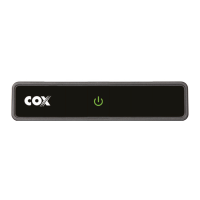
Lastly, connect the power cord 3 to an electrical outlet and the Mini Box.
TIP: Plug the coax cable into a centrally located cable outlet or use the same outlet where the old device was
connected.
2. Activate the Mini Box
Turn on your TV. Then using your original TV remote, press the source or input button and select the correct
HDMI connection. Then wait a few minutes for the activation to finish.
3. Set up your new Cox remote
Follow the steps listed on the back of the Cox remote to pair it with your TV.
We’re here to help.
Tips
Channel Lineup: go to Cox.com → Products → TV Channel Lineup.
On-Demand SM: watch movies and your favorite shows on your schedule.
Splitter: installing two devices from the same cable outlet requires a splitter.
FAQs
Why isn’t my Mini Box working?
Try rebooting it— just unplug the power cord from the wall outlet, wait about 10 seconds, then plug the power cord
back in. It may take a few minutes to fully reset. Also, make sure all of the connections are tight and completely
plugged in.
How do I fix a “No Input” message on my TV?
The input/source might not be set correctly. To fix this, press the “input” or “source” button on your TV remote until
you select the HDMI connection that matches the port your HDMI cable is plugged into on your TV.
How do I make the text on the Guide larger?
Press the “settings” button on the Cox remote and follow these steps:
Guide Options → Other Settings → Guide Text Size → picks the size you want → Press the “select” button on the
remote. Visit Cox.com/remote-help for more support and troubleshooting.
APP: Cox app has 24/7 support & helpful videos
WEB: Cox.com/installhelp & Cox.com/learn
CHAT: live chat on Cox.com/chat or text an agent at 54512
CALL: 1-888-556-1193
ACCESSIBILITY: Cox.com/accessibility
Help us send zero waste to landfills by recycling the kit once you’re finished. It’s made with 100% recyclable
materials.
File Downloads


 To Next Page
 Loading...