1
This guide contains abbreviated “Quick Reference” procedures for the
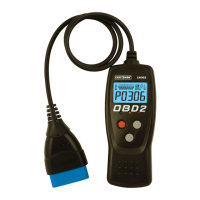
OBD2+ABS diagnostic tool. Please visit www.craftsman.com to
download a copy of the complete Owner’s Manual.
Retrieve Codes
Connect the diagnostic tool to the vehicle’s test connector.
Turn the ignition key "On.” DO NOT start the engine.
The diagnostic tool will automatically link to the vehicle’s computer.
View Results
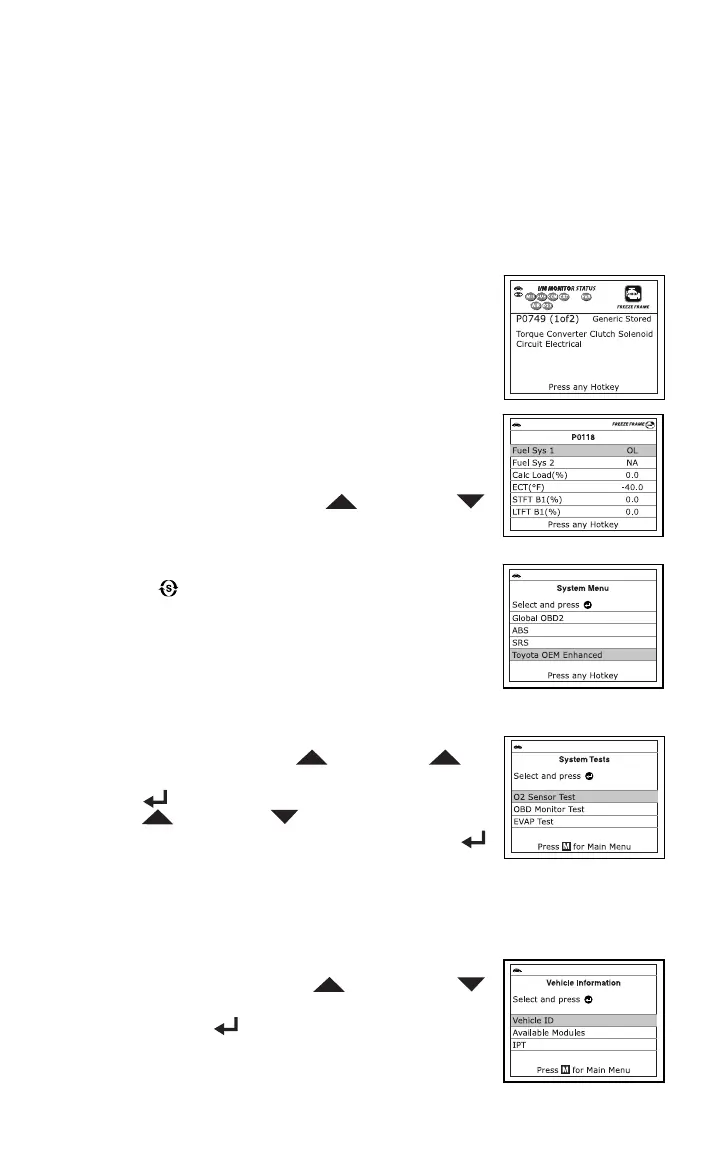
The diagnostic tool retrieves stored codes, Freeze
Frame data and System Status.
Codes, I/M Monitor Status and Freeze Frame data are
disp
layed on the Diagnostic Tool’s display screen. System
Status is indicated by LED indicators.
If more than one DTC was retrieved, press and release
the DTC/FF button, as necessary. Freeze Frame Data (if
available) will be displayed after the Priority Code by
pressing the DTC/FF butt
on.
In the case of long code definitions, or when viewing
Freeze Frame Data, use the UP
and DOWN
buttons, a
s necessary,
to view the additional
information.
To view OEM Enhanced DTCs (if available), press the
SYS
TEM
button; the System menu displays. The
O
EM Enhanced mode provides the ability to retrieve OEM
enhanced DTCs, Anti-Lock Brake System (ABS) DT
Cs
and
Supplemental Restraint System (SRS) DTCs from
most Chrysler/Jeep, Ford/Mazda, GM/Isuzu,
Honda/Acura and Toyota/Lexus vehicles.
Perform Additional Tests
While linked to a vehicle, press the M button. The Main
Menu displays. Use the UP
and DOWN
as
ne
cessary, to highlight System Tests, then press th
e
EN
TER
button. The System Test Menu displays. Use
the UP
and DOWN
buttons, as necessary, to
highlight the desired option, then press the ENTER
but
ton.
You can use the Scan Tool to perform additional diagnostic tests (O2 Sensor
Test, OBD Monitor Test, EVAP Test
).
View Vehicle Information
While linked to a vehicle, press the M button. The Main
Menu displays. Use the UP
and DOWN
buttons,
as necessary, to highlight Vehicle Info, then
press the ENTER
button.
You can use the diagnostic tool to view vehicle
inf
ormation stored in your vehicle's on-board computer.


 To Next Page