TRC458
Crawler Smart Panel
36
1 Crawler Smart Panel
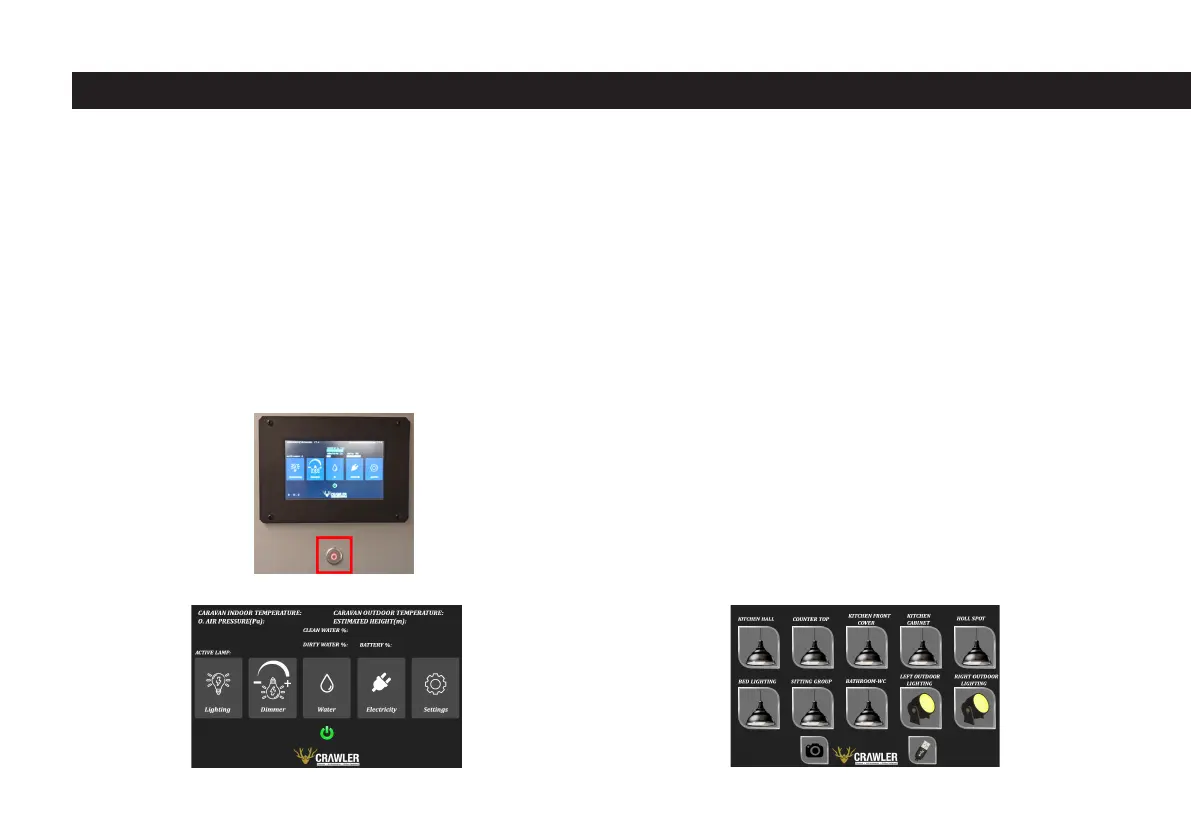
Crawler Smart Panel is started by pressing the button under the touch panel
once, every time this button is pressed, the system will reboot, even when the
panel is open, if pressed, the system will reboot again. As soon as the button is
pressed, electricity will be given to the panel and the system will start. This pro-
cess completes the process by counting from 0-100 on the bottom right of the
screen. When the numbers reach 100 and disappear, it means that the system
has been started correctly. This button is shown in the red square in the picture
below.
There is a button group that controls all the lighting system connected to the
panel inside and outside of the battery, on the button on which the illumination is
written. In addition, the buttons that control the power of the USB units and the
camera module are located in this section. In the dimmer section, the proportio-
nal control of the bedroom, sitting group and right exterior lighting is performed.
In the water section, information about the status of clean and gray water tanks
and the on-off buttons for hydrophore and frost protection are also found in this
section. In the electrical section, there is information about the battery and solar
status. In this section, the user does not control any control components, this
page is used for informational purposes only. In the settings section, there is the
capacity of the battery on the vehicle, the time and date adjustment menu, and
the section to adjust the screen brightness. In addition, the green power button
under the buttons closes the Crawler smart panel and the system.
1.1 Illumination Page
The lighting page is accessed by clicking the lighting button on the main page,
and when the screen is opened for the rst time, a page will appear as shown in
the image below.
When the screen was rst turned on, a visual like the image below would appear



 To Next Page