
 Need help?
Do you have a question about the Creative Sound Blaster K3+ and is the answer not in the manual?
Adjusts reverb type and amount. LED display shows selected reverb or amount.
Selects Auto-tune keys or adjusts Reverb Delay amount.
Mixes mic and other inputs for recording.
Enables monitoring of your own voice through headphones.
Monitors your voice with effects through headphones.
Enables mic with effects for output to internet/computer.
Enables +48V phantom power for XLR connectors.
Suppresses background music when speaking.
Details the input and output ports on the front panel.
Details the input and output ports on the back panel.
Instructions to reset the device to factory default settings.
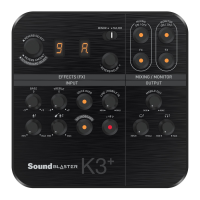
The Sound Blaster K3+ is a versatile audio interface designed for various recording and monitoring applications, offering a comprehensive set of functions for both novice and experienced users. Its front panel features a clear layout of controls, while the back panel provides a range of connectivity options.
The device's core functionality revolves around its audio input and output capabilities, coupled with a robust suite of effects and mixing controls.
The K3+ features two microphone inputs, each with independent gain control. Microphone 1's volume is adjusted via the Microphone 1 Volume Knob (17), while Microphone 2's and the Guitar input's gain are controlled by the Microphone 2 & Guitar Volume Knob (16). For condenser microphones requiring power, a +48V Phantom Power Switch (13) is available, enabling +48V phantom power to the XLR connectors. It's crucial to ensure that +48V phantom power is only activated for microphones that support it, as applying it to incompatible microphones can cause permanent damage. The device also includes Bass (19) and Treble (18) knobs to fine-tune the tonal characteristics of the microphone inputs.
A significant feature of the K3+ is its Reverb Select & Reverb Amount Knob (1), which allows users to choose from various reverb types (e.g., Room, Hall, Plate, Stadium, Concert, Chorus, Echo, Cathedral) and adjust the reverb amount. The LED display (2) indicates the selected reverb type or amount. This knob also facilitates the adjustment of Reverb Delay when in the appropriate mode. The Auto-tune Key & Reverb Delay Knob (5) enables the selection of 24 base key tunes for an "electric voice" effect, with the LED display (3) showing the selected key. This knob also controls the Reverb Delay amount. A Minor/Major Switch (4) allows users to toggle between minor and major keys for auto-tune.
The K3+ provides extensive mixing and monitoring capabilities. The Mixing ON/OFF button (6) mixes microphone and other inputs (Line In, USB, Guitar) and outputs the combined signal for internet or computer recording. The Monitoring ON/OFF button (7) allows users to hear their own voice through headphones, while the Monitoring FX ON/OFF button (8) enables monitoring of their voice with effects. The Mixing FX ON/OFF button (9) enables microphone effects and outputs the processed signal for internet or computer recording. Dedicated volume knobs are provided for Mobile Out (10) and Headphones 1 & 2 (12), allowing precise control over output levels.
The Sound Board Switch (15) activates the soundboard mode, allowing users to select and play various sound clips (e.g., Entrance, Cheers, Baby, Laughter, Gunshots, Crow). The Reverb Amount Knob (1) acts as the sound clip selector in this mode, and pressing it plays the selected clip.
The Voice-Over Switch (20) is designed to suppress background music automatically when vocal input is detected through the microphones. The music volume is restored when there's no microphone input, making it ideal for hosts or DJs who need to speak over music.
The back panel of the K3+ offers a comprehensive array of connections. It includes a Ground Terminal for eliminating humming noise by connecting to a computer's metal surface. Audio outputs consist of Line Out (Left and Right) and Mobile Out. Inputs include Mobile I/O, Line In (Left and Right), and a USB port for computer connection.
The Sound Blaster K3+ supports various operation modes, catering to different user needs:
The device's mixing/monitoring operation behavior varies depending on the status of the Mixing, Mixing FX, Monitor, and Monitor FX buttons, influencing what is recorded and what is heard through the headphones. For example, with Mixing Off and Mixing FX Off, recording is mic-only, and monitoring is silent. With Mixing On and Mixing FX On, recording includes mic with effects and other inputs, and monitoring includes mic with effects and other inputs.
The auto-tune keys are represented by letters and symbols (R, b, c, d, E, F, 9) corresponding to musical notes (A, B, C, D, E, F, G), with a flat tone indicated by a specific symbol. Users can select Minor/Major keys by sliding the switch.
Reset to Factory Settings: To reset the device to its factory default settings, press and hold the Reverb Adjust button (1) until LED 2 and LED 3 display specific symbols (a. and E.).
Ground Terminal: The Ground Terminal on the back panel is crucial for maintenance, allowing users to connect a ground cable (not provided) to the metal surface at the back of their computer. This helps eliminate humming noise, ensuring cleaner audio output.
Phantom Power Management: When using condenser microphones, it is vital to manage the +48V phantom power correctly. Always ensure that +48V power is "OFF" before inserting or removing phantom power condenser microphones to prevent permanent damage to the microphone. The device's manual provides a detailed table illustrating microphone usage scenarios with different types of microphones (condenser, dynamic, built-in battery) and their compatibility with the XLR and TRS inputs, emphasizing the importance of proper connection and phantom power usage.
 General
| USB Connectivity | USB 2.0 |
|---|---|
| Phantom Power | Yes (+48V) |
| Bit Depth | 24-bit |
| Channels | 2 |
| Headphone Output | 1 x 1/4" TRS |
| Sampling Rate | Up to 96kHz |
| Compatibility | Windows, macOS |
| Microphone Input | 1 x XLR |

 To Next Page