THE SOUND BLASTER ROAR 2 PRODUCT GUIDE 23
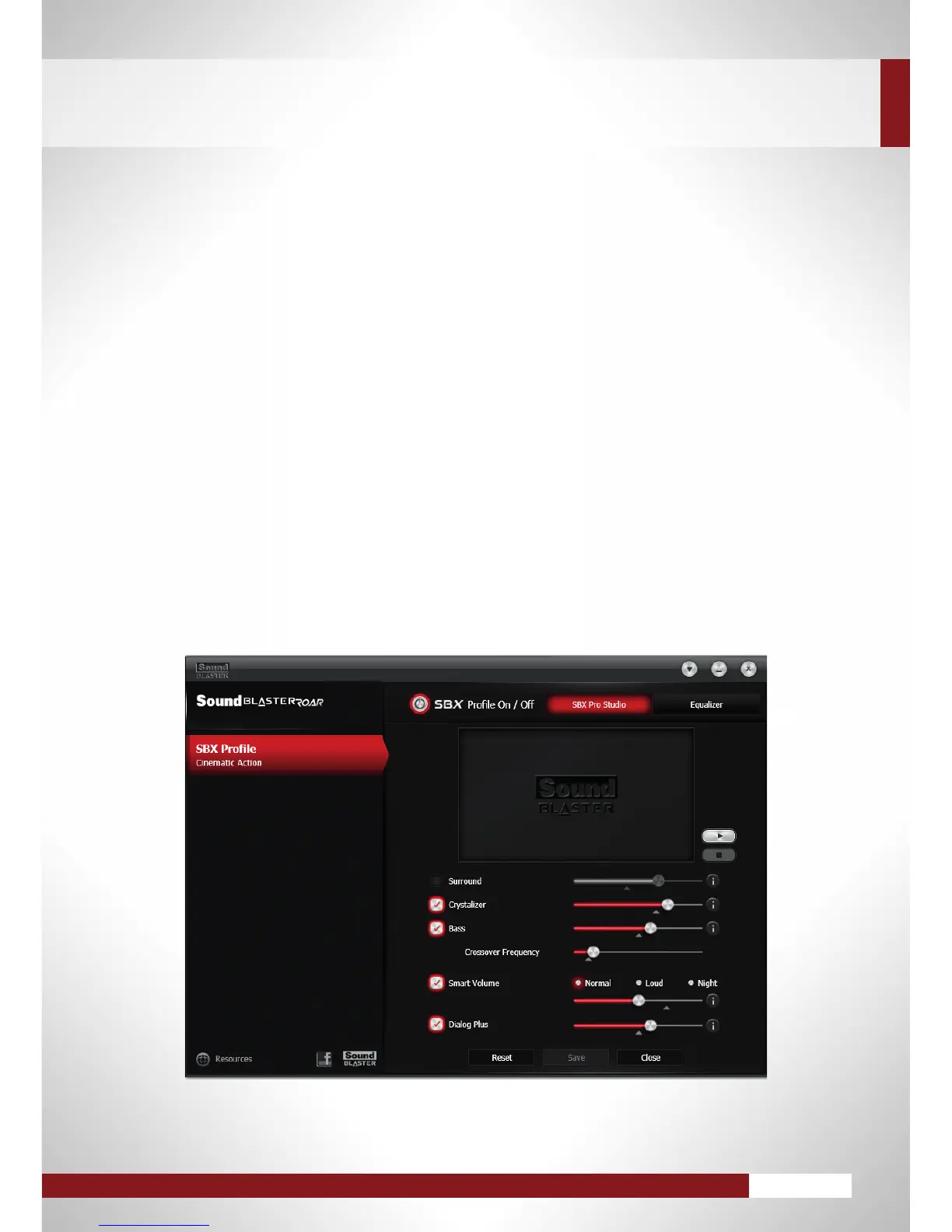
In the SBX Profilescreen,clickthe[Edit]buttononthetoprightcornerandmodifytheoptionsasdesired.
CUSTOMIzING PRE-DEFINED AUDIO PROFILES
TO SUIT YOUR NEEDS
SBX Surround–Movethesliderhigherto“open”upalargersoundeldandsimulateasurround
speakersetup.Alowerpercentagegivesamore“centered”audio.
SBX Crystalizer–Ahigherpercentagemeansalargeramountofaudiodetailsrestored.
SBX Bass–Slidetheslidertoadjusttheenhancementofbasssounds.Moreharmonictoneswillbe
addedthehigheryougo.YoucanalsoadjusttheCrossoverFrequencytosetthetransitionofbass.
SBX Smart Volume–ActivateSmartVolumetonormalizevolumelevels(Normal),pumpupthe
volume(Loud),orreduceloudburstofsoundsforthoselatenightsessions(Night).Movethesliderto
adjusttheintensityaccordingly.
SBX Dialog Plus – To hear dramatically clearer dialog, slide the slider higher for more voice enhancement.
You can also configure Equalizer settings of the active SBX Profile.
IntheSBXProlescreen,click[Edit]andthenclick[Equalizer].




 To Next Page