
 Need help?
Do you have a question about the CryptoDATA Tech BASM and is the answer not in the manual?
Introduces the BASM laptop and its target audience for people and organizations.
Details the various input and output ports available on the BASM laptop, including USB, HDMI, and power input.
Identifies key components visible on the top surface of the BASM laptop, such as display, keyboard, and LEDs.
Highlights components found on the bottom and rear of the BASM laptop, including second display and speakers.
Explains the BASM laptop's dual operating system capability and storage media for enhanced functionality.
Initiates the initial configuration process for the BASM laptop, guiding users through setup.
Instructions for inserting the unique private key into the BASM laptop as the first setup step.
Guide to powering on the BASM laptop using the designated power button.
Procedure for selecting the CryptoDATA OS during the initial setup process.
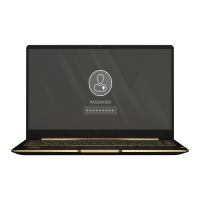
Instructions for entering the password to decrypt the BASM laptop's disk.
Steps for selecting the guest account on the BASM laptop during setup.
Guidance on setting the password for the guest account on the BASM laptop.
Details on configuring language, keyboard, location, and time zone for the user account.
Instructions for setting a strong password for disk encryption on the BASM laptop.
Guide to creating a user name and account details on the BASM laptop.
Instructions for setting a password for the new user account on the BASM laptop.
Process for authenticating new disk encryption and user creation passwords.
Completing the setup process by opening the CryptoDATA OS on the BASM laptop.
Guidelines for safe handling, cleaning, and maintenance of the BASM laptop.
Lists specific prohibitions to prevent damage and ensure safe usage of the BASM laptop.
Covers safety related to battery, operating temperature, air circulation, and power input.
Information on proper disposal of the laptop and battery, and safe use of peripherals.
Details purchase limitations, user agreement, and contact information for CryptoDATA Tech.
 General
| Brand | CryptoDATA Tech |
|---|---|
| Model | BASM |
| Category | Laptop |
| Language | English |

 To Next Page