The Cube Controls CSX3 is a high-performance steering wheel designed for simulation purposes, offering advanced customization and connectivity features.
Function Description:
The CSX3 steering wheel provides a comprehensive interface for simulation racing, featuring a variety of buttons, dials, encoders, and paddles. It is designed to offer a highly customizable and immersive experience for users. The wheel integrates with proprietary software, CubeSet App, and is natively compatible with Simhub, allowing for extensive configuration of its functionalities and visual elements.
Important Technical Specifications:
- Display: 800x480 LCD with touch screen functionality.
- LEDs: 17 RGB LEDs, fully customizable in color and brightness.
- Connectivity: Q-CONN USB Cable for reliable connection.
- Bolt Patterns: Universal hub on the back with M5x0.8 metric holes and 5.5mm through holes, supporting both 70mm and 50.8mm bolt patterns. Through holes are rotated by 180°.
- Encoder Pulse Width: Adjustable from 40ms to 240ms for optimal input recognition and reaction time.
- Shifter Torque: All steering wheel screws are tightened with a torque of 3.5 Nm, except for two specific screws tightened at 4 Nm.
- Software Compatibility: CubeSet App (V5) for configuration and firmware updates; native Simhub support (compatible with Simhub 8.1.2).
- Screen Type: Uses a Vocore screen, requiring specific drivers for proper Simhub functionality.
Usage Features:
- Interface: The wheel features numerous input options, including:
- POV switches/funky switches/joysticks with clicky feedback for directional inputs (up, down, left, right) and a center click button.
- Toggles (24 and 32) with LED indicators for on/off features like headlights, wipers, ABS/TC. These activate a button for a few milliseconds when flipped, rather than staying pressed.
- Encoders (15-14, 46-47) for precise adjustments, with push functionality (13, 45).
- Various other buttons and dials (1, 3-4, 5-6, 7, 8, 9-12, 16, 17-18, 19-20, 21, 22, 23, 25-26, 28-27, 29, 30, 31, 33, 35-36, 37-38, 39, 40, 41-44, 48).
- Steering Wheel Installation: The universal hub allows for direct connection to an FFB base or installation with various adapters, supporting common bolt patterns.
- Shifter Paddles Adjustment:
- Length Adjustment: Carbon paddles can be slid forward/backward by loosening two screws (TX10 drive needed).
- Reach Adjustment: The lever body can be rotated upwards/downwards by loosening two screws on the paddle and two on the opposite side.
- Clutch Paddles Adjustment:
- Travel Adjustment: Similar to shifters.
- Spring Resistance: Adjustable by turning a screw using the provided TX10 Allen Key.
- Bite Point: Configurable via the CubeSet App. Users can enable/disable clutches, select a slave clutch (left or right), and limit its percentage. The Bite Point can also be adjusted on the fly during a driving session by binding an encoder and a save button.
- Master/Slave Clutch: By default, the right clutch is the Master, operating from min to max value. The Master Clutch can be swapped to the left, and paddles can be set to operate separately instead of combined. This feature can also allow paddles to function as Throttle and Brake for users with leg impairments, though this disables Launch Control.
- Additional Paddles: The CSX3 supports two extra paddles (purchased separately). Installation involves removing backplate covers, connecting to a white connector, and tightening with the same screws.
- Connecting the CSX3: Connect the Q-CONN USB connector to the device, then press the On/Off button on the back of the wheel. The operative system should recognize the device, and a USB connection sound will be heard.
- CubeSet App (Software Navigation):
- Inputs Page: Check button/encoder functionality, modify Encoder Pulse Width, and calibrate clutches.
- RGB Page: Customize color and brightness of all 17 RGB LEDs. Offers basic color selection, a manual color picker, a screen color picker, custom color saving, and direct RGB, Hue, Saturation, Value, and HTML code input.
- Paddles Page: Configure clutch settings (enable/disable, Bite Point, slave clutch selection, percentage limit) and calibrate shifters (left, right, extra L, extra R).
- Device Page: Update firmware (online check or manual upload) and perform a Factory Reset (Clear Flash Data).
- About Page: View firmware version and other information.
- Simhub Integration: Native compatibility allows for advanced customization of RGB LEDs (blinking, color changes, on/off) based on Simhub configurations. Users can create multiple profiles and edit effects.
Maintenance Features:
- Firmware Updates: The CubeSet App allows users to check for and install firmware updates, either online or manually from a downloaded file.
- Factory Reset: The "Clear Flash Data" button on the Device page allows for a complete factory reset of the steering wheel, clearing all stored memory.
- Calibration:
- Clutch Calibration: Essential for correct recognition of analogue clutch paddles. Performed on the Inputs page by pressing "CALIBRATE" and fully depressing the clutch, then saving.
- Shifter Calibration: Addresses missing or double shifts due to system incompatibilities. Performed on the Paddles page by clicking "CALIBRATE," then pressing and holding the corresponding shifter and clicking the button again. This procedure applies to both main and additional shifter paddles.
- Cleaning: Before applying stickers, ensure the surface is clean.
- Cable Management: Install the USB coiled cable loosely around the FFB motor shaft/adapter to prevent strain during steering rotations.
- Grounding: Ensure the simulation rig is correctly grounded.
- Drivers: For Simhub compatibility, ensure the correct Vocore screen drivers are downloaded from the Simhub website.
- Warranty: Any modifications, tampering, changes, or unauthorized uses of the product will void the warranty.
- Storage: Disconnect the USB cable from both sides if the product will not be used for a long time.
- Water Resistance: The steering wheel is not waterproof; keep it away from water, rain, moisture, and liquids.

 Need help?
 General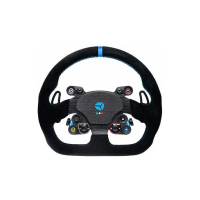

 To Next Page