CyberData Corporation
3 Justin Court, Monterey, CA 93940
www.cyberdata.net
P 831.373.2601 | F 831.373.4193
RING CENTRAL CONFIGURATION GUIDE: SIP PAGING ADAPTER (SPA)
Doc. 931050B Page 30
6.0 Configuration Procedure: Voice-Prompted Paging
When an installation requires more flexibility than auto-answer live paging, the SPA’s paging
extension can be provisioned as an IP phone associated with a user extension. Provisioning as a
Paging Device does not allow the caller to receive audio from the SPA to hear voice prompts
from the SPA’s paging menu or enter DTMF digits for paging menu selections.
Provision the SPA’s extension as an IP phone to enable the following features:
• Playing up to 9 configurable stored pages
• Security code
Add an IP Phone
This section describes the process of creating a user, provisioning an IP phone, and registering
the paging extension that you will use for paging with RingCentral. First, you must designate a
RingCentral User for the SPA.
Use the following steps to create a user and provision an IP phone for the paging extension
through the RingCentral Admin Portal.
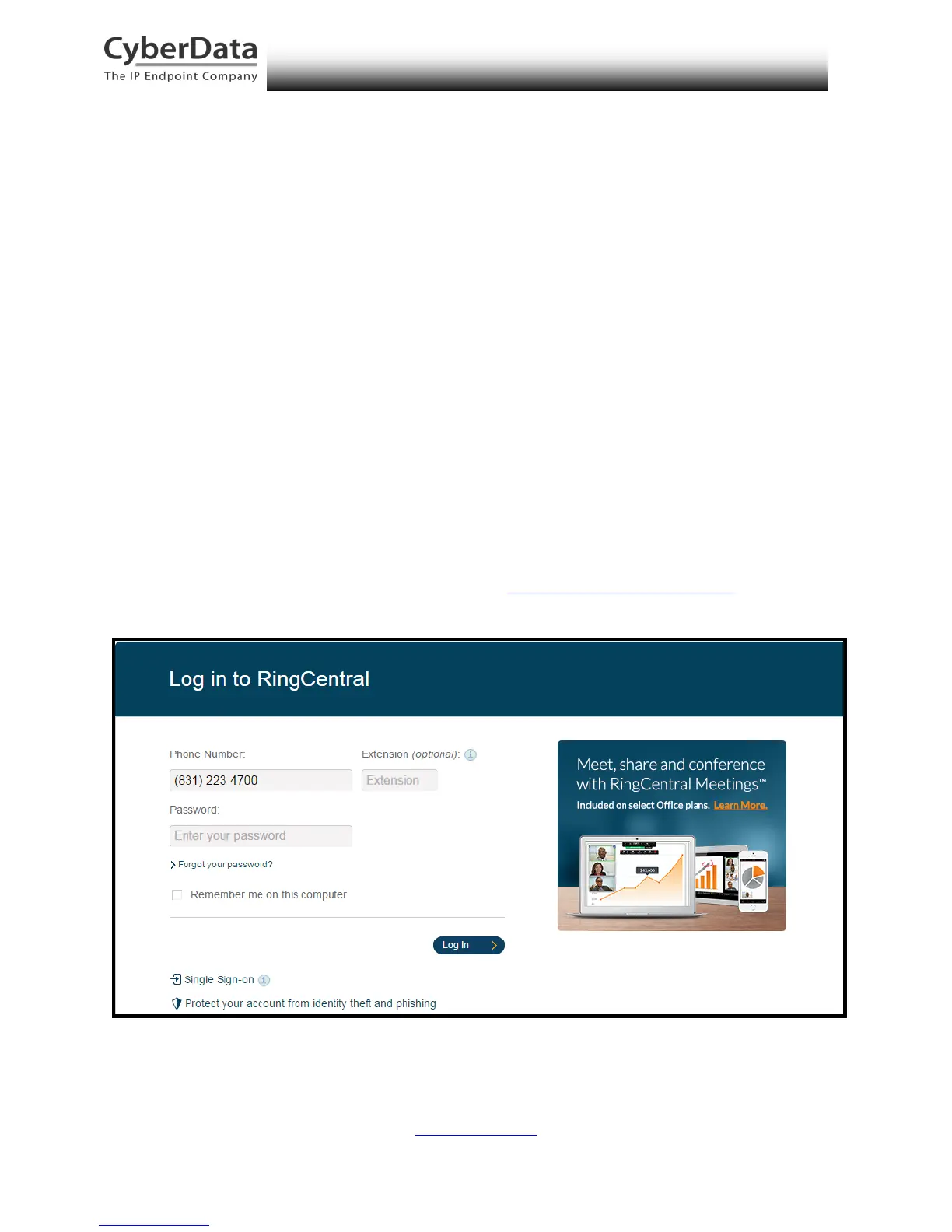
1. Login to the RingCentral Admin Portal at https://service.ringcentral.com.
Figure 6-1. RingCentral Admin Portal Login
2. From the [n] Users menu, click the Add button.



 To Next Page