EasyManua.ls Logo

CyberHome 1600 - User Manual

CyberHome 1600
83 pages
Print Icon
To Next Page IconTo Next Page
Loading...
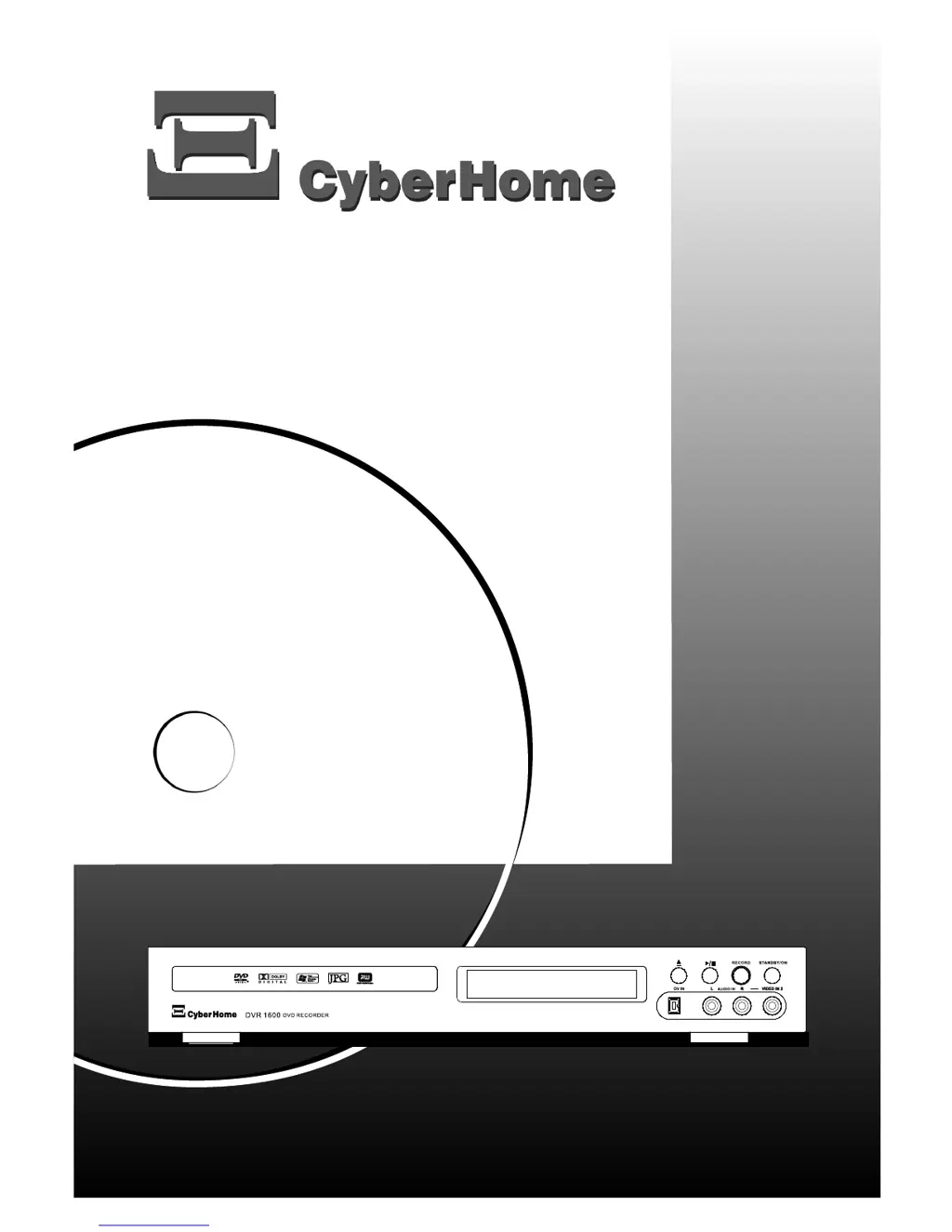
DVR 1600
USER MANUAL

Table of Contents

Questions and Answers

  • J
    jaimedixonAug 16, 2025
    Why CyberHome DVD Recorder has no sound from TV or speakers?
    • K
      Kelly HughesAug 16, 2025
      If you're not getting any sound from your CyberHome DVD recorder, here are a few things to check: * Ensure the volume isn't set to the minimum. * Verify that the audio cables connecting the DVD recorder to your speakers, TV, or receiver are properly connected. * Note that there is no sound during pause or search modes. * Try resetting the sound settings to the original configuration.
  • M
    Mrs. Dominique Bryant DVMAug 19, 2025
    How to fix CyberHome DVD Recorder when the remote control does not work?
    • T
      Tammy PadillaAug 19, 2025
      If the remote control for your CyberHome DVD recorder isn't working, make sure you are aiming it directly at the remote control sensor on the front of the device and that there are no obstacles blocking the signal. Also, the battery may be used up, so try changing it. Finally, ensure you are not using the remote control too far away from the device.
  • R
    Rose ClayAug 22, 2025
    What to do if CyberHome DVD Recorder does not power on?
    • G
      garciamichelleAug 22, 2025
      If your CyberHome DVD recorder isn't powering on, first ensure the power cord is securely plugged into the AC socket. The unit might be in standby mode; try turning it on using the power button on the remote or the standby/on button on the front panel. If it still doesn't power on, disconnect the device from the power outlet for 30 seconds, then plug it back in.
  • E
    erika18Aug 25, 2025
    Why CyberHome DVD Recorder shows no picture on the TV?
    • T
      Tina DavisAug 26, 2025
      If you're not getting a picture from your CyberHome DVD recorder, first ensure the video cable connecting the DVD recorder to your TV is secure. Also, confirm that your TV is set to the correct DVD/Video mode (e.g., AV1 or AV2). If the issue persists, check the video aspect ratio in the OSD menu under “Audio/Video.” Set “TV shape” to 4:3 panscan for a standard TV or 16:9 for a widescreen TV. Also, ensure that your TV set is properly set.
  • W
    wkochAug 30, 2025
    How to fix distorted sound coming from CyberHome DVD Recorder connected to a hi-fi amplifier?
    • L
      laurafarleyAug 31, 2025
      If you're getting distorted sound from your CyberHome DVD recorder when connected to a hi-fi amplifier, and the DVD recorder is connected to the phono input of your amplifier, select a different audio input. The phono input is only for record players without a preamplifier.
  • D
    Diane RileySep 2, 2025
    Why CyberHome DVD Recorder picture is distorted or black-and-white during playback?
    • S
      Sonia WilliamsSep 3, 2025
      If the picture on your CyberHome DVD recorder is distorted or black-and-white during playback, it might be because the TV system of the disc doesn't match your TV (PAL/NTSC). Also, the recording can only be made in colour when the TV channels or the additional connected devices send a colour signal; black-and-white signals without colour information cannot be recorded in colour.
  • C
    Charles LucasSep 5, 2025
    How to fix flickering black-and-white picture on CyberHome DVD Recorder?
    • J
      Joshua MacdonaldSep 6, 2025
      If you're experiencing a flickering black-and-white picture with your CyberHome DVD recorder, check if the device is connected to a VCR or a TV/Video-Set. If so, connect your device directly to the TV, not to the VCR, due to Macrovision copyright protection.
  • B
    Brandi HarveySep 8, 2025
    How to eject a trapped disc from CyberHome DVD Recorder?
    • N
      Nancy PattonSep 8, 2025
      To eject a trapped disc from your CyberHome DVD recorder, disconnect the recorder from the power supply. On the bottom of the recorder, there is one larger oval opening. Push the plastics inside the emergency hole with a slim and plane object (e. g. slotted screwdriver) to the left side (about 2 cm). The tray will then open. Remove the disc from the tray and close the tray again by hand.
  • L
    Lisa SimmonsSep 12, 2025
    Why CyberHome DVD Recorder has no sound signal at the digital output?
    • M
      michael19Sep 12, 2025
      If there's no sound signal at the digital output of your CyberHome DVD recorder, and you've inserted an MP3 disc, the digital audio output is turned off during MP3 playback in accordance with SDMI (Secure Digital Music Initiative). This is not a defect of your DVD recorder.
  • T
    Troy TaylorNov 26, 2025
    What to do if a specific disc does not play on CyberHome DVD Recorder?
    • C
      Corey CohenNov 26, 2025
      If a specific disc isn't playing on your CyberHome DVD recorder, try the following: * Ensure the disc is placed with the labeled side facing up. * Clean the disc if it's dirty. * Check the cables connecting the TV and the DVD recorder. * Select the correct source (DVD) using the “SOURCE” button. * If it is a (Super) Video CD, press the “MENU” button on the remote control while the disc is inserted and select “PBC On” by pressing the “MENU” button again. * For DVDs, press the “SUBTITLE” button on the remote control to switch the subtitles on. * Change the disc if a finalized (finished) DVD+R has been inserted. If the region code of the disc does not match that of the DVD recorder, the disc cannot be used. If recording, check the TV channels stored, the time and date, and the...

Summary

Safety Instructions

Power Cord Protection

Guidelines for safely handling and protecting the AC power cord to prevent hazards.

Placement and Environmental Safety

Recommendations for safe placement, ventilation, and protection from moisture.

Cleaning, Servicing, and Component Safety

Instructions for cleaning the unit and warnings about internal parts and servicing.

Warnings and Disclaimer of Warranty

Key safety warnings for operation, laser product information, and warranty disclaimer.

Introduction

Included Accessories

Lists the accessories provided with the DVD recorder and their order numbers.

Region Code Information

Explanation of DVD region codes and compatibility with the recorder.

Disc Compatibility

Details on usable disc types for playback and recording, including PC-created discs.

Recorder and Disc Care

Guidelines for handling, cleaning, storing, and avoiding specific disc types.

Operation

Control Panel Overview

Description of buttons and functions on the DVD recorder's front control panel.

Rear Panel Connections

Explanation of sockets and ports located on the rear of the DVD recorder.

VFD Display Functions

Details on the Vacuum Fluorescent Display indicators and their meanings.

Operation Display Messages

List of messages that may appear on the display during operation.

Remote Control Operation

Instructions for preparing and replacing the battery in the remote control.

Remote Control Buttons Explained

Detailed explanation of each button on the remote control and its function.

Connecting the DVD Recorder

Connecting to Your TV

Overview of connection methods (SCART, Video, S-Video) for connecting to a TV.

SCART Cable Connection

Step-by-step guide for connecting the DVD recorder to a TV using a SCART cable.

Video and S-Video Cable Connections

Instructions for connecting via composite video (RCA) and S-Video cables.

Connecting Additional Devices

Connecting to SCART and Front Sockets

How to connect external devices to SCART-2 and front panel sockets.

Connecting Audio Devices

Instructions for connecting analogue and digital audio outputs to receivers.

Installing Your DVD Recorder

Initial Setup Process

Guide through the initial installation, including language and country settings.

TV Channel Tuning

Procedures for automatic and manual TV channel search.

Managing TV Channels

How to sort, add, delete, and rename TV channels in the list.

Setting Language, Date, and Time

Instructions for setting OSD language, menu language, and system clock.

Playback

General Playback Guidelines

Overview of playable disc types and common playback issues like region errors.

Inserting and Starting Disc Playback

Steps for inserting discs and initiating playback for DVD-Video discs.

Playing Various Disc Formats

How to play DVD+RW, DVD-R/RW, and (Super) Video CDs.

Playing Audio and Media Files

Instructions for playing Audio CDs, MP3, and WMA discs.

Playing Picture and Mixed Format Discs

Guidance for playing Picture CDs, WMA CDs, and mixed format discs.

Playing Functions

Selecting Playback Sections

Methods to select specific chapters or play from a specific time.

Skipping, Repeating, and Speed Control

Functions for skipping tracks, repeating content, and adjusting playback speed.

Playback Adjustments and Display

Options for slow play, pausing, and controlling playback speed.

Using Bookmarks and Disc Information

How to set bookmarks and display disc playback information.

DVD Menu Navigation

How to use DVD menus to select titles, chapters, audio, and subtitles.

VCD;Audio CD Menu Navigation

How to navigate menus for Video CDs and Audio CDs.

Special Playing Functions

DVD-Video Specific Functions

Functions like DVD menus, subtitle display, and camera angle selection for DVDs.

Video CD Playback Control (PBC)

Enabling or disabling the Playback Control Function for Video CDs.

Media File Features (Random Play)

How to play MP3, JPEG, MPEG, and WMA files in random mode.

Additional Features for JPEG Files

Picture Rotation and Thumbnails

How to rotate JPEG images and view them in thumbnail mode.

Creating JPEG Slideshows

Instructions for starting and displaying a slideshow of JPEG files.

Manual Recordings

Recording Overview and Disc Types

General information on recording, compatible discs, and recording modes.

Input Source and Marker Settings

How to select input sources and insert chapter markers.

Recording Modes and Operations

Details on selecting recording quality and performing manual recordings.

Recording Operations and Information

Performing recordings with and without automatic switch-off, and displaying recording info.

Managing Disc Contents

Disc Information and Editing Overview

General information about stored recording data and the edit menu.

Title Management (Delete, Protect, Rename)

How to delete, protect, unprotect, and rename titles on a disc.

Section Deletion and Disc Formatting

How to delete sections (A-B) and format the disc for compatibility.

Finalizing DVD+R Discs

Procedure for finalizing DVD+R discs for playback on other devices.

Programming a Recording (Timer)

Timer Recording Basics

General information on timer recordings, VPS/PDC, and non-interruptible tasks.

Setting and Managing Timer Recordings

Steps to program a recording, select recurrence, and check status.

Editing and Deleting Programmed Recordings

How to check, change, or delete scheduled timer recordings.

Troubleshooting Timer Recordings

Solutions for common problems encountered with programmed recordings.

User Preferences

Navigating the Setup Menu

Guidelines for moving through the setup menu and accessing help.

Recording Preferences

Settings for recording quality, chapter markers, and timer recordings.

Audio;Video and Output Settings

Adjusting downmix, dynamic range, SPDIF output, and SCART settings.

Picture and Security Settings

Adjusting brightness, contrast, saturation, and password settings.

Channel, Language, and System Settings

Managing TV channels, OSD language, menu language, and audio language.

Clock and System Settings

Setting clock, daylight-saving, time format, screen saver, and version.

Default Settings and Help Menu

Resetting to user defaults and accessing the help menu for FAQs.

Troubleshooting

Device Not Responding or Power Issues

Solutions for power-on problems, unresponsive buttons, and remote control issues.

Disc Playback and Recording Problems

Troubleshooting for discs not playing, recording failures, and specific disc errors.

Picture;Sound Quality and Interference

Resolving issues with picture distortion, sound problems, and signal interference.

Specifications

General Specifications

Details on playable disc types, TV systems, power, and dimensions.

Connection Details

Information on rear and front panel connections and their specifications.

Audio Features

Specifications for audio converters, frequency response, and signal-to-noise ratio.

Glossary

Technical Term Definitions A-D

Definitions for terms like Bit, CD-R/RW, Cinch, Composite Video, Dolby Digital.

Technical Term Definitions D-R

Definitions for terms like DVD formats, kHz, Letterbox, Macrovision, MP3, MPEG, NTSC, PAL, PCM, PDC, Region Code.

Technical Term Definitions S-W

Definitions for terms like SCART, S-Video, SVCD, VCD, VPS, Wide-screen, WMA.

Service Information

CyberHome 1600 Specifications

General IconGeneral
TypeDVD Recorder
Progressive ScanYes
TunerNTSC
Remote ControlYes
Recording FormatsDVD-R, DVD-RW
Disc CompatibilityCD-R, CD-RW
Video Playback FormatsMPEG-4
Audio Playback FormatsCD Audio, MP3, WMA
Output Resolution1080i
ConnectivityComposite, S-Video, Component

Related product manuals