29
Capturing Media
Media Library.
Note: you can right-click on a captured video file and then select Locate File on
Disk to view its saved location on your computer.
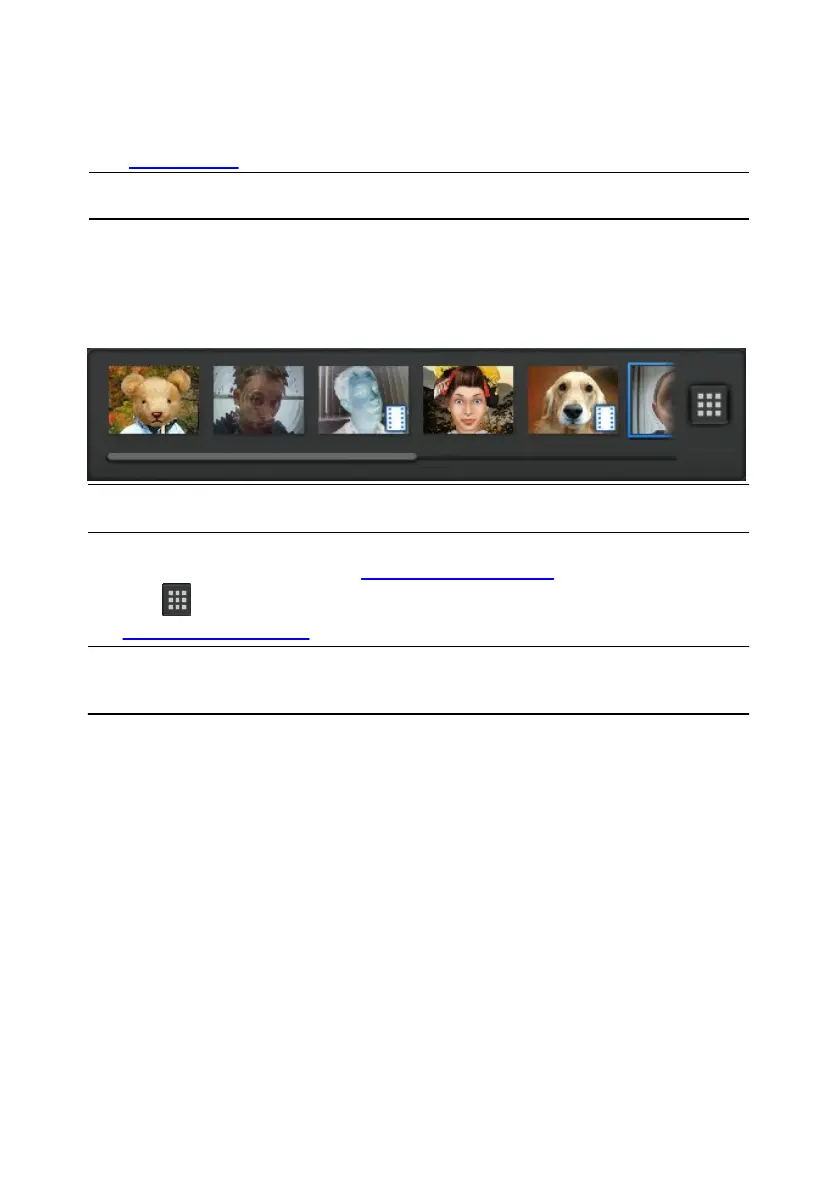
Captured Content
All of your captured snapshots and recorded videos are saved in the captured
content area located beneath the webcam video window.
Note: if you are using a touch enabled device, you can scroll through the media by
dragging your finger across the captured content area.
You can double click on video files to play them back, or on photos to view and
edit them in the Edit window. See Editing Captured Media for more information.
Click the button to view all of the captured media files in the Library window.
See YouCam Media Library for more information.
Note: right click on files in the captured content area for more options including
file deletion, renaming, or viewing its location on your computer. You can also
choose to send a media file to an installed program on your computer.



 To Next Page