5. Connect a PS/2 mouse to the master AutoView unit.
Connecting Computers to the AutoView
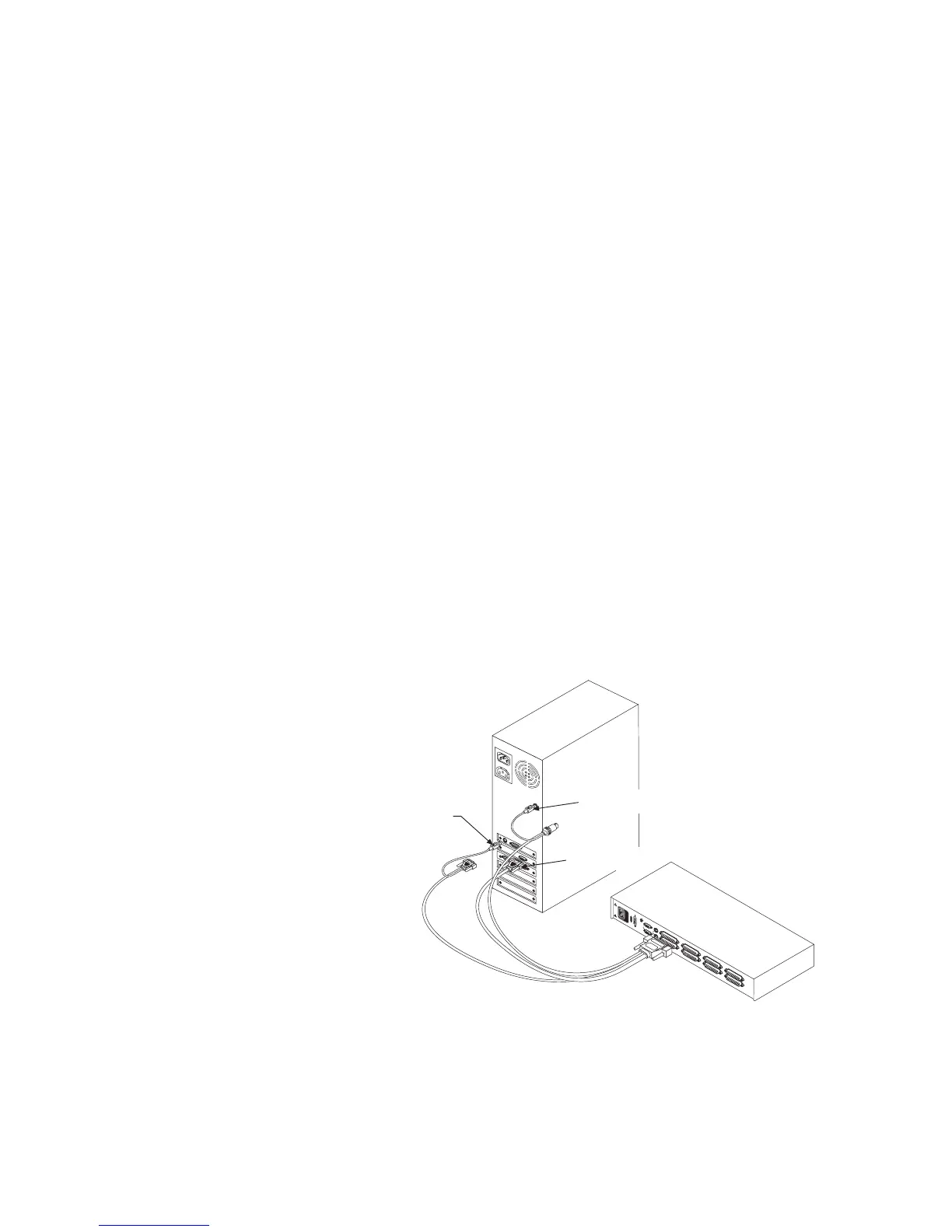
1. Power down the computers that will be part of your AutoView system.
Make sure that both of your AutoView units are turned off.
2. Locate your first input cable. It will have a 25-pin “D” connector at one
end. Plug this cable into any lettered channel port on the rear of the
master AutoView. The other end of the input cable will have five
connectors: a 15-pin “HDD” connector for your video, a 5-pin DIN/6-
pin miniDIN connector for an AT or PS/2 keyboard connection, and a
9-pin serial/6-pin miniDIN connector for a serial or PS/2 mouse
connection. The PS/2 mouse connector is designated by a yellow band
or mouse icon.
Use only the keyboard and mouse connectors that are appropriate forUse only the keyboard and mouse connectors that are appropriate for
Use only the keyboard and mouse connectors that are appropriate forUse only the keyboard and mouse connectors that are appropriate for
Use only the keyboard and mouse connectors that are appropriate for
your PC, and leave the others unconnected.your PC, and leave the others unconnected.
your PC, and leave the others unconnected.your PC, and leave the others unconnected.
your PC, and leave the others unconnected.
Plug these connectors into the appropriate ports on your computer.
3. Locate your next input cable. Repeat step 2 with all the computers that
will be attached to your master AutoView. Next, attach the remaining
computers to the slave AutoView.
31
Appendices
POWER
MSE
KBD
100-240V
MADE IN USA
VIDEO
SERIAL
G
H
E
F
C
D
A
B
PATENT PENDING
T 2A, 250 VAC
MOUSE PORT
KEYBOARD PORT
VIDEO PORT



 To Next Page