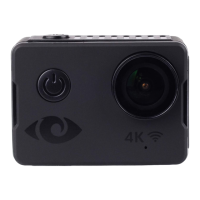
To select next option or file while connecting to HDTV
To switch between VIDEO and PICTURE in STANDBY Mode
Long Press
To TURN OFF the Camera
Table 3 Power Button
5.2 OK Button
OK Button
Short Press
To START / STOP the VIDEO recording in STANDBY mode
To take a picture in PICTURE mode
To START / PAUSE playback in PLAYBACK mode
To START / PAUSE playback while connecting to HDTV
Long Press
To Enter/Exit from WiFi in STANDBY mode
To SWITCH from PLAYBACK mode to real time monitor
Table 4 OK Button
Note:
Touch Screen may be unresponsive when controlling your camera underwater. Set
the Touch Panel Function to Off and use the Power Button to switch between
video and camera mode.
Note:
RESTART the camera if you want to activate the Touch Panel Function.
7. CAMERA OPERATION
6.1 Power ON / OFF
6.1.1 Power ON
To power ON:
1. Short press the POWER BUTTON, Cyclops Gear logo displays.
a. The Blue Working Indicator lights up and subsequently the camera enters STANDBY Mode.
6.1.2 Power OFF
To switch the camera OFF:
1. Long press the POWER BUTTON
a. The Blue Working Indicator turns OFF


 To Next Page
 Loading...