Need help?
Do you have a question about the D-Link DGE-528T and is the answer not in the manual?
Guides setting up a network using the Windows wizard.
Ensures unique computer names and identical workgroup names for connectivity.
Steps to confirm the network adapter is correctly installed in the system.
Utilizes the PING command to test network connectivity.
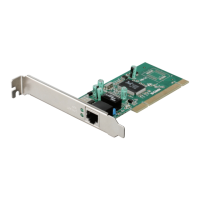
The D-Link DGE-528T Gigabit Ethernet PCI Adapter is designed to enhance network connectivity for small offices and home environments, enabling users to share information and resources efficiently. This adapter facilitates a "connected" environment, allowing for the sharing of files, printers, and other resources. It is compatible with a wide range of operating systems, including Windows 98SE, Me, 2000, XP, Server 2003, and Vista, making it versatile for integration into existing networks or for setting up new peer-to-peer configurations.
The DGE-528T supports both Fast Ethernet and Gigabit Ethernet standards. Fast Ethernet allows for data transfer speeds up to 100 Mbps, while Gigabit Ethernet boosts these speeds to 1000 Mbps. As a dual-speed 100/1000 Mbps adapter, it can seamlessly combine both standards, allowing computers and devices with different speed capabilities to communicate effectively within the same network. This flexibility ensures that users can expand and customize their network as needed, accommodating various speed requirements without compatibility issues. The adapter adheres to industry standards, specifically IEEE 802.3ab for Gigabit Ethernet and IEEE 802.3u for Fast Ethernet, ensuring broad compatibility and reliable performance.
A key feature of the DGE-528T is its auto-negotiation functionality. This allows the adapter to automatically detect and configure the best possible communication parameters with the connected network switch. When the adapter and switch are powered on and connected, they exchange messages to determine the optimal Ethernet type (1000BASE-T Gigabit Ethernet or 100BASE-TX Fast Ethernet) and duplex mode (half-duplex or full-duplex). This process, which takes only a few milliseconds, ensures that the network operates at its highest possible efficiency. If the switch does not support auto-negotiation, the DGE-528T will adjust its settings to match the switch's capabilities. Auto-negotiation reoccurs whenever the network link is restored, maintaining optimal data communications.
The DGE-528T leverages the advanced features of the computer's PCI bus, operating in Bus Master Mode. This allows for direct transfers of Ethernet packet content between the computer's memory and the adapter's controller, significantly reducing the demands on the CPU. By minimizing the CPU's involvement in network operations, the adapter frees up the CPU to handle other tasks, leading to improved overall computing performance, especially in multitasking scenarios. This bus master capability also enhances network throughput by reducing latency during data transmissions and receptions.
Another important feature is Wake On LAN (WOL), an ACPI (Advanced Configuration and Power Interface) function. WOL enables a powered-down (sleeping) computer to be remotely powered on from another station on the network. To utilize WOL, both the DGE-528T adapter and the computer's motherboard must be WOL-capable and ACPI compliant. While the computer is in a low-power state, the WOL-enabled NIC continuously monitors LAN traffic for specific "Wake-up frames." Upon receiving a valid Wake-up frame, the NIC immediately sends a signal to the motherboard to power on the computer. This feature offers practical benefits, such as retrieving forgotten documents from a remote location, initiating long routines or reports before arriving at work, transferring files during off-peak hours when network traffic is low, or allowing IT departments to upgrade software on computers after hours.
Connecting the WOL cable is a straightforward process, though users must ensure compatibility with their motherboard. The WOL cable is an interconnect cable with standard 3-pin connectors on both ends. Users should connect one end to the NIC WOL Connector and the other to the corresponding WOL Connector on the motherboard. It is crucial not to force a connection or alter components if the connectors do not fit, as this could permanently damage the computer. Users may also need to consult their computer's manual for specific BIOS settings related to WOL and potentially download WOL software from Intel or the motherboard manufacturer's website. After connecting the cable, the PC needs to be powered on, and the WOL function or power-on function must be enabled in the PCI/ISA BIOS CMOS Setup, typically found under a "Power Management" category.
The DGE-528T also incorporates IEEE 802.3x compliant flow control for full-duplex operation. This feature provides traffic management capabilities, particularly beneficial when connected directly to a network switch. In a full-duplex environment, if the switch's data buffer is nearing overflow, it can transmit a "Pause frame" to the DGE-528T. This signal prompts the adapter to temporarily halt data transmission, preventing the buffer from overflowing and ensuring no data is lost. This enhancement significantly improves network throughput, helps avoid collisions, and contributes to optimal network performance.
For network setup, the adapter is designed to work seamlessly with Windows XP and Vista's Network Setup Wizard. This wizard guides users through the process of establishing a home or small office network, including sharing an Internet connection, setting up Internet Connection Firewall, and sharing files, folders, and printers. Users can access the wizard through Start > Control Panel > Network Connections and follow the on-screen prompts to configure their network. The wizard helps define computer descriptions, names, and workgroup names, ensuring all computers on the network can communicate properly. It also allows for the creation of a Network Setup Disk, which can be used to configure other computers on the network that may not be running Windows XP or Vista.
Maintenance and troubleshooting are also considered. The manual provides guidance on verifying computer identification and network adapter installation. If network communication issues arise, users are advised to check that each computer has a unique name and that all computers share the same workgroup name. To verify adapter installation, users can access the Device Manager through the Control Panel's System icon. Within Device Manager, under "Network adapters," the D-Link DGE-528T Gigabit Ethernet PCI Adapter should be listed. Any yellow exclamation points or red "X" symbols indicate a problem with the installation, prompting users to re-install drivers or seek technical support.
Cable connections are another critical aspect of network maintenance. Users should ensure that all computers are connected with Category 5 UTP cables and that these cables are undamaged and free from electromagnetic interference. The network cables can be plugged into any port on a hub or switch, with the "Uplink" port reserved for connecting to another hub or switch.
The DGE-528T includes indicators on its back panel to provide visual feedback on network activity. A steady green "LINK" light signifies a good connection with the network switch, while a flashing green "ACT" light indicates that the network adapter is actively sending or receiving data. These indicators are helpful for quickly diagnosing basic connectivity issues.
For more advanced troubleshooting, the manual suggests using the "Ping" utility. Ping (Packet Internet Groper) is a command-line tool used to determine if a specific IP address is accessible. By sending a packet to a target IP address and waiting for a reply, users can verify if a computer is online and communicating on the network. If a ping receives a reply, it suggests that the hardware and cabling are likely functioning correctly. If no reply is received, it points to a potential hardware or cabling problem. Even with successful pings, if networking issues persist, it often indicates a software configuration problem, prompting users to verify all network settings. The process involves opening the Run dialog (Start > Run), typing "command" to open the command prompt, and then typing "ping xxx.xxx.xxx.xxx" (where x's represent the target IP address) to initiate the ping. A successful connection will show four "Reply from" messages.
The DGE-528T is designed for ease of use and robust performance, making it a reliable choice for enhancing network capabilities in various environments.
 Operating Environment
| operating temperature | 0° ~ 40°C |
|---|---|
| storage temperature | -25° ~ 55°C |
| humidity | 5 % ~ 90% non-condensing |
 Power
Power| power consumption | 3.42 Watts |
|---|

 To Next Page