EasyManua.ls Logo

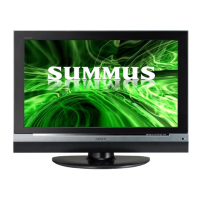
Daewoo DLX-37C7 - User Manual

Daewoo DLX-37C7
45 pages
Print Icon
To Next Page IconTo Next Page
Loading...
INSTRUCTION MANUAL
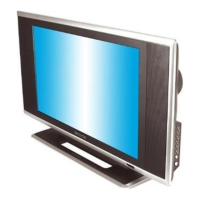
LCD TELEVISION
DLX-32C7
DLX-37C7
DLX-42C7
Proper use guarantees
product life.
Before using the product, be advised
that you read this owner’s manual well
and try to operate it.

Questions and Answers

  • T
    Tracy AguirreAug 14, 2025
    What to do if my Daewoo LCD TV has neither picture nor sound?
    • M
      Michael VargasAug 15, 2025
      If your Daewoo LCD TV shows no picture and no sound, first, ensure that the power cord is properly connected to the socket. Then, verify that the main power switch on the TV is turned on.
  • P
    Philip LiuAug 17, 2025
    Why does my Daewoo LCD TV remote control not work?
    • L
      loriharmonAug 17, 2025
      If your Daewoo LCD TV remote control isn't working, first check if the batteries are dead and replace them if necessary. Also, make sure there are no obstructions between the remote control and the TV's IR sensor.
  • H
    Henry JonesAug 21, 2025
    How to fix stripes on Daewoo LCD TV picture?
    • T
      Teresa AllenAug 21, 2025
      If you see stripes on the picture of your Daewoo LCD TV, it might be due to interference from other electronic devices. Try keeping magnetic or electronic devices away from the TV, such as radios and other televisions.
  • N
    nancy28Aug 25, 2025
    What to do if Daewoo DLX-37C7 has picture but no sound?
    • M
      Marissa CowanAug 26, 2025
      If your Daewoo LCD TV picture is okay but there is no sound, check if the volume control is set to the minimum or mute. Adjust the volume to an audible level.
  • L
    Laura SkinnerAug 27, 2025
    What to do if Daewoo LCD TV says 'NO SIGNAL'?
    • J
      Jeffrey NavarroAug 28, 2025
      If your Daewoo LCD TV displays 'NO SIGNAL' on the screen, check the resolution and frequency of your PC and adjust them to the optimum condition for the LCD TV.
  • K
    Kathryn FreemanAug 31, 2025
    Why is there no color on my Daewoo DLX-37C7 LCD TV?
    • A
      Antonio DavisAug 31, 2025
      If the sound on your Daewoo LCD TV is okay, but there's no color, first check the color control and adjust it properly. Also, verify that the program you are watching is broadcasted in color and not in black & white.
  • Y
    yturnerSep 3, 2025
    How to fix snow noise on Daewoo DLX-37C7 picture?
    • J
      juarezantonioSep 3, 2025
      If the picture on your Daewoo LCD TV has 'snow noise', check if the antenna or its connection is correct. Correct any faults with the antenna or connection cable. Also, check if car traffic or neon signs are disturbing the sound effect.
  • D
    Daniel GreenSep 7, 2025
    Why is stereo sound bad on my Daewoo DLX-37C7?
    • B
      bradley12Sep 7, 2025
      If you are experiencing bad stereo or dual sound on your Daewoo LCD TV, it may be due to the long distance from the station or interference from other radio waves. Change the mode to Mono.
  • Z
    Zachary WalkerSep 10, 2025
    How to center image on Daewoo LCD TV?
    • K
      keith35Sep 10, 2025
      If the image on your Daewoo LCD TV is not centered, run the Auto setup function.

Summary

Safety Caution

Important Safeguards

General Safety Instructions

Follow all safety and operating instructions for TV use and future reference.

Appliance Warnings

Heed all warnings marked on the TV and in the user manual.

Cleaning and Maintenance

Safe cleaning procedures and guidelines for attachments.

Environmental Precautions

Protect the TV from water, moisture, and ensure proper ventilation.

Installation Safety

Secure placement, power source, grounding, and cord protection.

Lightning and Mounting Safety

Protection during storms and safe wall/ceiling mounting.

Electrical and Fire Safety

Avoid overloading, liquid entry, and improper grounding to prevent hazards.

Servicing and Replacement Parts

Refer servicing to qualified personnel and use specified parts.

Heat and Electrical Safety Checks

Keep away from heat, check for proper operation after service.

Product Operation Warnings

Supplied Accessories

Included Items

List of accessories: AC cord, manual, remote, batteries, cable holder, optional mount.

Wire Arrangement Guide

Step-by-step instructions for organizing cables with the provided holder.

Antenna Connection

Indoor Antenna Setup

Connecting indoor antennas using coaxial or feeder cables.

Outdoor Antenna Setup

Connecting VHF/UHF antennas for outdoor reception.

Video Connection

External Source Connectivity

Connecting external video devices via AV input ports.

Camcorder & Video Game Connection

Viewing External Devices

Steps to watch camcorder or video game content on the TV.

DVD Player Connection

Component Cable Connection

Connecting a DVD player using component video/audio cables.

RCA Cable Connection

Connecting a DVD player using standard RCA cables.

Set Top Box (STB) Connection

HDMI Connection for STB

Connecting STB via HDMI for high-quality digital video and audio.

Component Connection for STB

Connecting STB via component cables for analog video and audio.

PC Connection

D-Sub PC Connection

Connecting PC via D-Sub (VGA) cable and audio input.

HDMI PC Connection

Connecting PC via HDMI for digital video and audio.

PC Connection Notes

Important notes on PC resolution, frequency, and signal compatibility.

Cable TV Connection

External Input for Cable TV

Connecting cable TV receiver via Component or AV inputs.

Antenna Input for Cable TV

Connecting cable TV receiver via antenna input using coaxial cable.

Product Identification

Front and Side Controls

Identifies buttons and indicators on the TV's front and side panels.

Rear Panel Ports

Locates and identifies all input and output connections on the rear panel.

Remote Control Operation

Remote Control Functions

Guide to using buttons like Power, Input, Menu, Navigation, and OK.

Battery Installation

Instructions for correctly inserting batteries into the remote control.

Basic Menu Navigation

Picture Menu

Adjusting picture settings like mode, brightness, contrast, and sharpness.

Sound Menu

Adjusting sound settings like mode, equalizer, balance, and volume.

Channel Menu

Managing TV channels, including auto search and editing.

Feature Menu

Accessing features like child lock, language selection, and menu opacity.

Time Menu

Setting the clock, sleep timer, and on/off timers.

Watching TV

Basic TV Operations

Powering on/off, changing channels, selecting input, and muting sound.

Volume Adjustment

Controlling the TV's sound volume using the volume buttons.

Setting Up TV Stations

Automatic Channel Search

Automatically scan and store all available TV channels.

Channel Fine Tuning

Manually adjust channel frequency for improved reception.

Channel Editing

Add or delete channels from the TV's channel list.

Favorite Channels Management

Program and access favorite channels quickly.

Input Signal Selection

Selecting External Video Sources

Switching between video, camcorder, DVD, and cable TV inputs.

Selecting Multimedia Sources

Switching between PC, STB, and other multimedia inputs.

Multimedia Input Compatibility

Table of supported resolutions for HDMI, PC, and Component modes.

Picture Adjustment

Aspect Ratio Control

Adjust the picture's aspect ratio for different viewing modes (16:9, 4:3).

PC Screen Settings

Optimize screen display and adjust PC-specific settings.

Picture Mode Selection

Choose from preset picture modes (Normal, User, Dynamic, Cinema).

Screen Tuning Options

Fine-tune brightness, contrast, color, tint, and sharpness.

Color Temperature Adjustment

Modify the color tone by selecting Warm, Normal, or Cool.

Sound Adjustment

Sound Effect Selection

Apply sound effects like ST Voice and Dynamic Bass.

Balance and Volume Settings

Adjust audio balance and automatic volume control (AVC).

Sound Mode Selection

Select sound modes: Normal, Movie, Music, News.

Audio Equalizer

Fine-tune audio frequencies using the equalizer in User mode.

Multi-Channel Sound (MTS)

Select Mono, Stereo, or SAP audio for analog TV broadcasts.

Closed Caption Feature

Viewing Closed Captions

Enable and display on-screen text messages for programs.

Child Lock Feature

Child Lock Adjustment

Activate or deactivate the child lock to control TV operation.

Additional Features (ETC)

MGDi Demonstration

View a demo of MGDi technology for picture enhancement.

Menu Opacity Setting

Adjust the transparency of the on-screen menu display.

Language Selection

Choose the preferred language for the TV interface.

Time Settings

Current Time Setup

Set the TV's internal clock to the correct time.

On Timer Configuration

Schedule the TV to turn on at a specific time and channel.

Off Timer Configuration

Schedule the TV to turn off automatically after a set time.

Sleep Timer Setup

Set the TV to turn off automatically after a specified duration.

Channel Banner

Channel Information Display

Shows current channel, favorite status, audio mode, and time.

Troubleshooting

Common Issues and Solutions

Troubleshoot common problems like no picture, no sound, or picture noise.

PC Connection Issues

Resolve PC connection problems such as 'No Signal' or centering.

Product Specifications

Daewoo DLX-37C7 Specifications

General IconGeneral
BrandDaewoo
ModelDLX-37C7
CategoryLCD TV
LanguageEnglish

Related product manuals