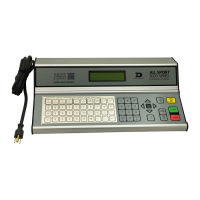
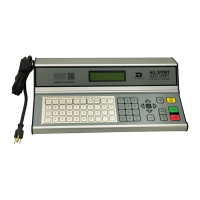
This document outlines the operational procedures for the Daktronics 5000 Series control console, specifically tailored for use at Carleton University. It details how to manage game time, scores, penalties, and team names on an electronic display board.
The control console is designed with a clear layout to facilitate easy operation during sporting events. The buttons for the Home team are located on the far left of the game clock display, highlighted in green. The Guest team buttons are positioned in the middle of the game clock display, also outlined in green. The menu and time-related buttons are situated on the far right side of the game clock display, marked in black. This color-coded and spatially organized layout helps operators quickly identify and access the necessary controls.
Setting the Game Time
To set the main game clock, the operator must press the 'Set Main Clock' button. When inputting time, the numbers are entered from right to left. For example, to set the clock for 15 minutes, the operator would input '1500'. The colon that separates minutes and seconds is automatically included by the system.
The period number, which indicates the current period of play, needs to be adjusted manually. To change the period, the operator repeatedly presses the 'Period +1' button until the desired period number is displayed. The system supports period numbers ranging from 0 to 9. This manual adjustment ensures that the operator has precise control over the game's progression.
Setting the Score
Adding goals to either the Home or Guest team's score is a straightforward process. The operator simply selects the 'Score+1' button corresponding to the team that scored. The system automatically increments the score by one point.
To reduce a team's score, for instance, in cases of an incorrect entry or a rule adjustment, the operator locates the 'Score -1' button for the relevant team. Pressing this button automatically subtracts one point from that team's score. This feature allows for quick corrections during a game.
Managing Penalties
The console provides comprehensive functionality for managing player penalties. To record a penalty, the operator first chooses either the Home or Guest 'Player Penalty' button. After pressing the button, the operator enters the player's number, which can be a single or double digit, and then presses 'Enter'. Next, the penalty minutes are typed in, filling from right to left (e.g., '200' for a two-minute minor penalty), followed by another press of 'Enter'. This detailed input ensures that all relevant penalty information is accurately displayed.
To delete a penalty, the operator presses either the Home or Guest 'Delete penalty' button. An arrow up/down button, located on the right side of the console, is used to navigate through the list of active penalties to select the one to be removed. Once the correct penalty is highlighted, pressing 'Enter' deletes it from the display.
Editing an existing penalty is also possible. The operator presses the 'Edit' button, located on the right side, and then selects the Home or Guest 'Player Penalty' button. The arrow up/down button is again used to find the specific penalty that needs modification. After selecting the penalty and pressing 'Enter', the operator can make the necessary edits and then presses 'Enter' again to save the changes. This flexibility allows for real-time adjustments to penalty information as situations evolve during a game.
Customizing Team Names (For Pad A only)
For facilities equipped with an electronic display, such as CUA, the Daktronics 5000 Series allows for the customization of team names on the scoreboard. This feature is accessed by sliding out the Home and Guest section panel display from the left side of the game clock. This reveals a letter keyboard, which is used for inputting custom team names.
To begin, the operator presses the 'Menu' button. Using the down arrow key, they navigate through the options list until "Home Roster" is highlighted, then press 'Enter'. With the Home/Guest panel display slid out, the operator uses the revealed alphabet keyboard to type in the Home team's name. After typing, 'Enter' is pressed. The system then prompts for the Home Abbreviation; the operator presses 'Enter' again to skip this if not needed.
Next, the option for "Guest Roster" will appear. The operator presses 'Enter' and uses the alphabet keyboard to type in the Guest team's name. After inputting the name, 'Enter' is pressed, followed by another 'Enter' to skip the Guest Abbreviation. To exit the menu, the operator presses 'Menu' again.
Once the team names are set, the Home/Guest panel display must be re-inserted into its original position. It is crucial to remember that at the end of the game, the team names should be changed back to their default settings of "Home" and "Guest" to prepare for subsequent events.
A useful feature for customizing team names is the ability to create blank spaces. To insert a blank space within a team name, the operator simply presses the 'space' button on the keyboard. This allows for proper formatting and readability of team names on the display.
The Daktronics 5000 Series control console is designed for intuitive and efficient operation, providing comprehensive control over game information for various sporting events. Its structured interface and detailed functionalities ensure that operators can manage game time, scores, penalties, and team displays with accuracy and ease.


 To Next Page

 General