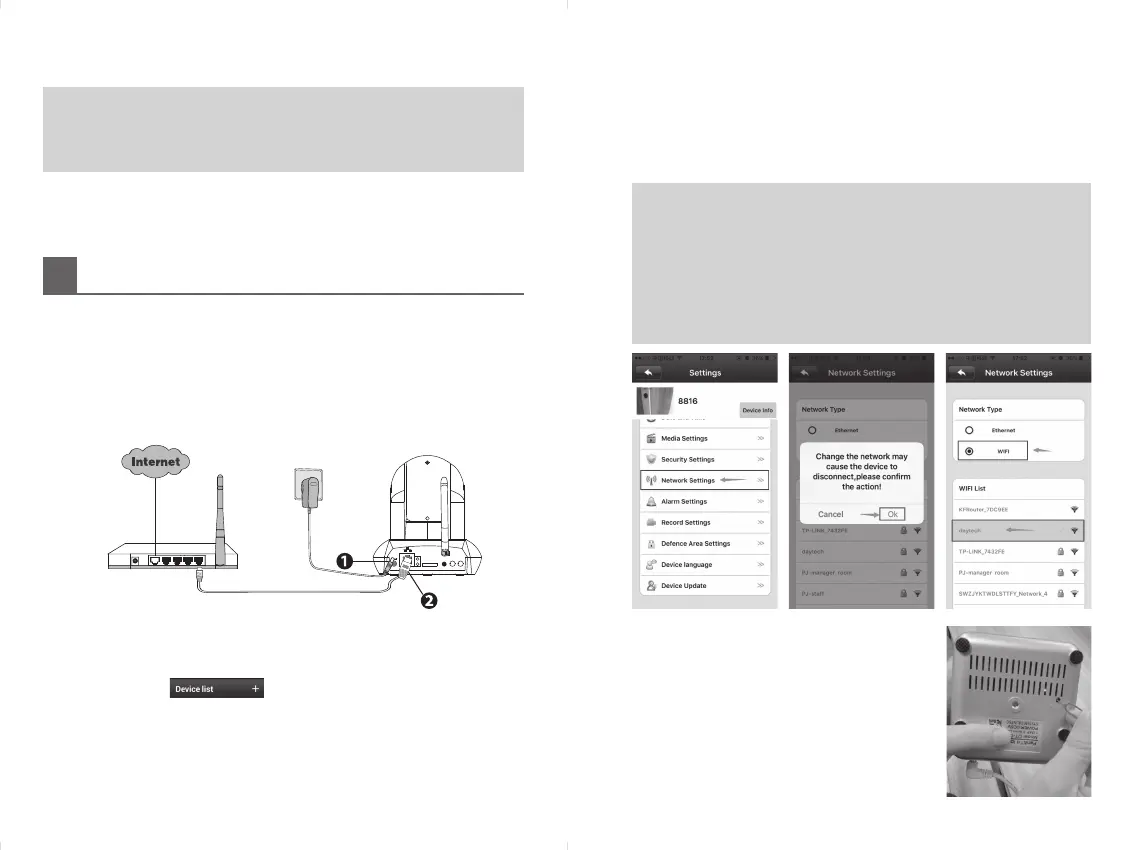
the wi that your phone is using → click OK → input wi pass-
word → connecon succeed (a Tick icon appear before the wi
name) → plug out the cable.
For other people want to access the IP Camera, just refer to
above 3.1.5 instrucons: manual add, then input ID/password.
(not need to insert router cable again)
3.1.7 To keep your privacy, please change the password.
NOTE:
y
Aer connecon succeed, you can plug out the cable and move
camera to other room, then connect power, the camera can work
normally, not need any other operaons.
y
Refer to the above point 3.1.6 if the camera can not access Wi
successfully, go back to the App “Device list” page, if you can view
and control the camera normally, it means access wi successfully.
y
Please reset camera, if you fail to access wi.
How to reset it: press “Reset” buon for 5
seconds → hear a prompt sound → cut o
power.
Download from APP store
Search “Yoosee” directly on the APP Store or Google Play, then install it.
Before you connue, please note:
y
Make sure your wireless router is enabled DHCP, and connected to internet.
y
Make sure your smart phone is connected to your wireless router and
located near the camera.
Register An Account
You can use email to register and create a password contains 6-30 char-
acters including digitals and leers.
3
Add IP Camera
(there are two ways)
3.1 Wired Connecon Switch Wireless (Recommend!)
3.1.1 Connect the camera with power adapter, and wait for 20 sec-
onds, unl hear “di-di-di” sound from camera.
3.1.2 Connect the camera with router by Ethernet cable, make sure
your smart phone is connected to your wireless router. (camera
and smart phone need in same router).
IN
OUT
ANT
SD
AUDIO
WPS
o
3.1.3 Run the Yoosee APP on your smart phone, register an account
then log in.
3.1.4 Click the top right corner “+” of the device list, please see as
shown:
3.1.5 Choose “Manual Add” , then input Camera ID number and orig-
inal password.
3.1.6 Aer connecon, if you don’t want to use cable,we can switch
wired to wireless,please follow the below steps: Run on Yoosee
App → “Seng” → “Network Sengs” → access wi → choose


 To Next Page
 Loading...