The PhotoCake IV System is a comprehensive print-on-demand system designed for creating edible images for cakes and other confectionery. It comprises a touch screen monitor, a PhotoCake controller, a printer, and a merchandising kit.
Function Description
The PhotoCake IV System allows users to print custom edible images directly onto edible media using edible ink. This system is ideal for bakeries, grocery stores, and other businesses that offer personalized cakes and desserts. The touch screen monitor provides an intuitive interface for selecting and customizing images, while the controller manages the printing process. The printer is specifically designed to handle edible ink and media, ensuring food safety and quality.
Important Technical Specifications
The system includes a PhotoCake IV (Touchscreen) monitor, a PhotoCake controller, and an Epson printer (models 4100/4105 or 2830/2850 are supported). The system requires three power cables, which must all be plugged into the provided power strip. The cables are color-coded and labeled for easy setup:
- Blue #3 cable: Connects the monitor (#3 side) to the blue port on the controller.
- Pink C plug: Connects to the back of the monitor.
- Sea Foam plug: Connects to the back of the controller.
- Red #2 cable: Connects the printer (#2 side) to the red port on the controller.
- Red A cable: Connects the printer (A side) to the power strip.
- Blue B cable: Connects the controller (B side) to the power strip.
- The monitor's power cable also plugs into the power strip.
The system uses specific edible ink cartridges designed for Epson printers. Users should ensure they are using PhotoCake edible ink for optimal performance and food safety.
Usage Features
The PhotoCake IV System is designed for ease of use, from setup to daily operation.
Unboxing and Setup:
- Remove Components: Carefully remove the monitor, controller, and printer from their respective boxes.
- Printer Preparation: Remove all blue tape and any padding from the printhead inside the printer.
- Cable Connection: Follow the labeled cable connections as described in the technical specifications. It is crucial to plug all three power cables into the provided power strip and avoid plugging anything else into it.
- Printer Output Tray: Pull out the built-in output tray and lift its flap. Then, attach the included enhanced output tray, ensuring the lifted flap goes through the hole in the enhanced tray.
- Touch Screen Calibration: Attach the stylus from the merchandising kit to the corner of the touchscreen monitor. Power on the controller and monitor. The system will prompt you to touch and hold different parts of the screen using the stylus to calibrate the touch functionality.
Installing Printer Ink:
The ink installation process varies slightly depending on the Epson printer model (4100/4105 or 2830/2850).
- For Epson 4100/4105:
- Navigate to the "Maintenance" icon using the right arrow, then press OK.
- Select "Ink Cartridge Replacement" using the down arrow, then press OK.
- Press OK at the warning.
- Lift the printer top and wait for the printhead to stop.
- Remove the cartridge from its packaging and peel off the yellow tab.
- Insert the cartridge into the clearly marked slot, label facing left, and press down until it clicks.
- Close the printer top and press OK.
- The printer will initialize the cartridges, which may take a few minutes.
- For Epson 2830/2850:
- Navigate to the "Settings" icon using the right arrow, then press OK.
- Navigate to the "Maintenance" icon using the right arrow, then press OK.
- Navigate to the "Ink Cartridge Replacement" icon using the right arrow, then press OK.
- When prompted "Replace ink cartridges," lift the printer top and press the diamond-shaped button.
- Wait for the printhead to stop.
- Remove the cartridge from its packaging and peel off the yellow tab.
- Insert the cartridge into the clearly marked slot, label facing left, and press down until it clicks.
- Close the printer top and press OK.
- The printer will initialize the cartridges, which may take a few minutes.
Note: A sticker on your printer will indicate if you have an E or U model, and the sticker's color will match the appropriate ink cartridge packaging.
Merchandising Kit:
The system comes with a merchandising kit that includes help sheets, a power strip, samples of edible ink, edible media, and a stylus for the touchscreen.
Maintenance Features
Regular maintenance is crucial for extending the life of your PhotoCake IV system, especially the printer.
Daily Maintenance:
- Print Every Day: To prevent ink from drying and clogging the printhead, print an image daily. If no customer orders are available, perform a color test.
- Color Test Procedure:
- From the main menu, select "Maintenance."
- Select "Color Test."
- Follow the on-screen instructions. (Standard printer paper can be used for color tests.)
- Power On: Leave the printer powered on. It will occasionally run minor maintenance cycles when not in use.
Weekly Maintenance:
- Exterior Cleaning: Wipe the outer surface of the printer with a damp cloth and allow it to air dry before use.
- Roller Cleaning: Clean the printer rollers (located inside the printer cover and printer bed) with a damp cloth. Ensure the printer is off before cleaning. Use a damp cloth, not a soaking wet one, to avoid dripping moisture inside the printer. Allow the rollers to air dry completely before using the printer again.
For additional information and support, users can refer to the Decorator Guide included with the system or visit Decopac.com/publications/photocake for more resources.

 Need help?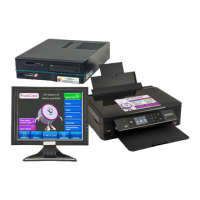

 To Next Page
 General