Mobile DataSettings
Carrier LTE 100%8:08 AM
Wi-Fi Assist
Mobile DataSettings
Carrier LTE 100%8:08 AM
Wi-Fi Assist
1 2
Settings → Mobile Data
Wi-Fi
Settings
Carrier 100%8:08 AM
Deeper START
Wi-Fi
Wi-Fi
Wi-FiSettings
Carrier 100%8:08 AM
Deeper START
No Internet Connection
!
1 2
Settings → Wi-Fi
Pair your Deeper START with an
iPhone or iPad
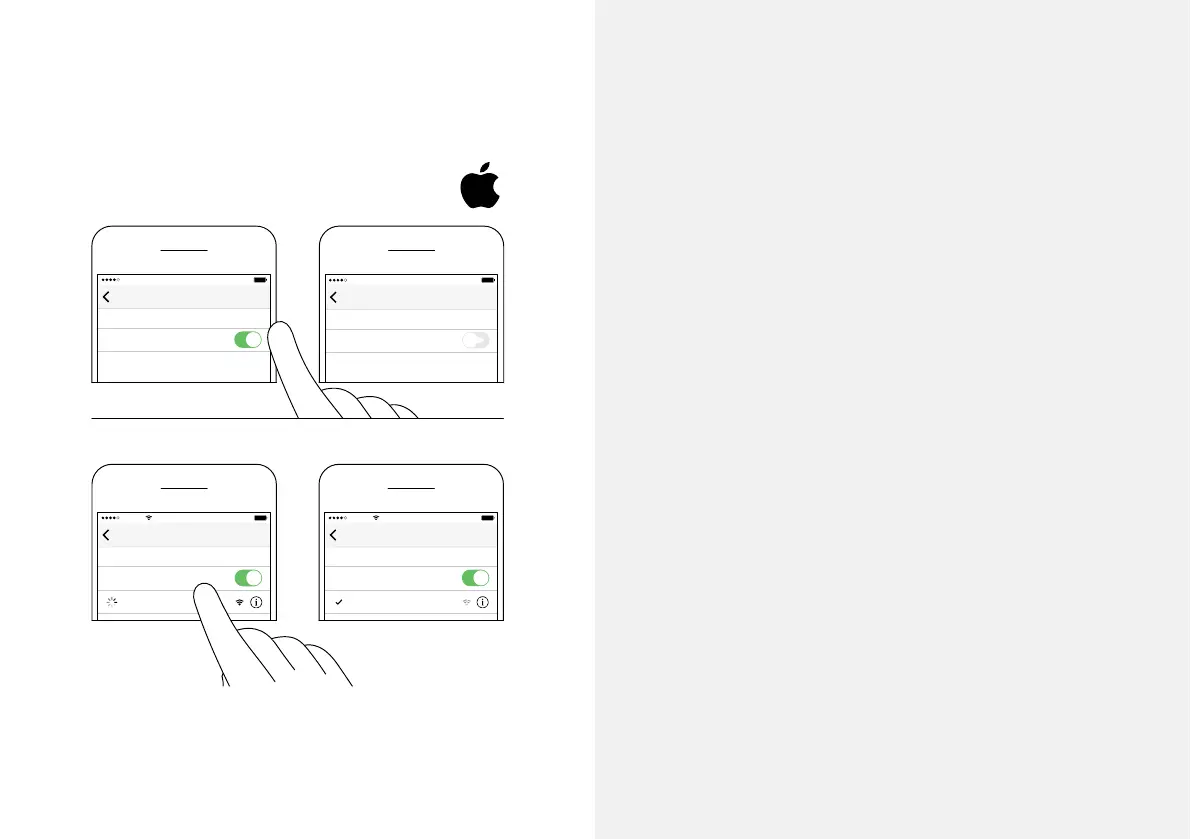
If you use an iPhone or iPad, follow these steps:
– Be sure that your shnder is switched on (either connected
to a power source or in the water);
– Open Settings in your mobile device, then open
Mobile Data and make sure that the Wi-Fi Assist
function is turned o. This is important because when
this function is active, the connection with your Deeper
START may be unstable.
– Then open Settings in your mobile device, then Wi-Fi
and turn it on.
– Find your Deeper START in the list of available Wi-Fi
networks and click it.
Your Deeper START is now connected with your iPhone or
iPad - you might see No Internet Connection written.
Don’t worry, this is normal. It simply means that your
mobile device’s Wi-Fi connection is now being used for
your Deeper START and not the internet.
8


 To Next Page
 Loading...