- Check if the status of GPS is green. Once your Deeper has established a good GPS connection, the GPS status
will be shown as “GPS found”. After casting out your Deeper, please double check the GPS status. If it has turned
back “Looking for GPS”, wait a few moments for the GPS connection to be re-established.
- Check the conditions and surroundings.GPS signals can be affected by weather conditions and obstacles.
The signal may be weaker if there are heavy clouds or rain. It can also be blocked by overhead obstacles like
branches and power lines.
- Reel in your Deeper at a slow and steady pace. If you reel in too fast, the Deeper may submerge
underwater and lose the GPS connection.
Connection and playback
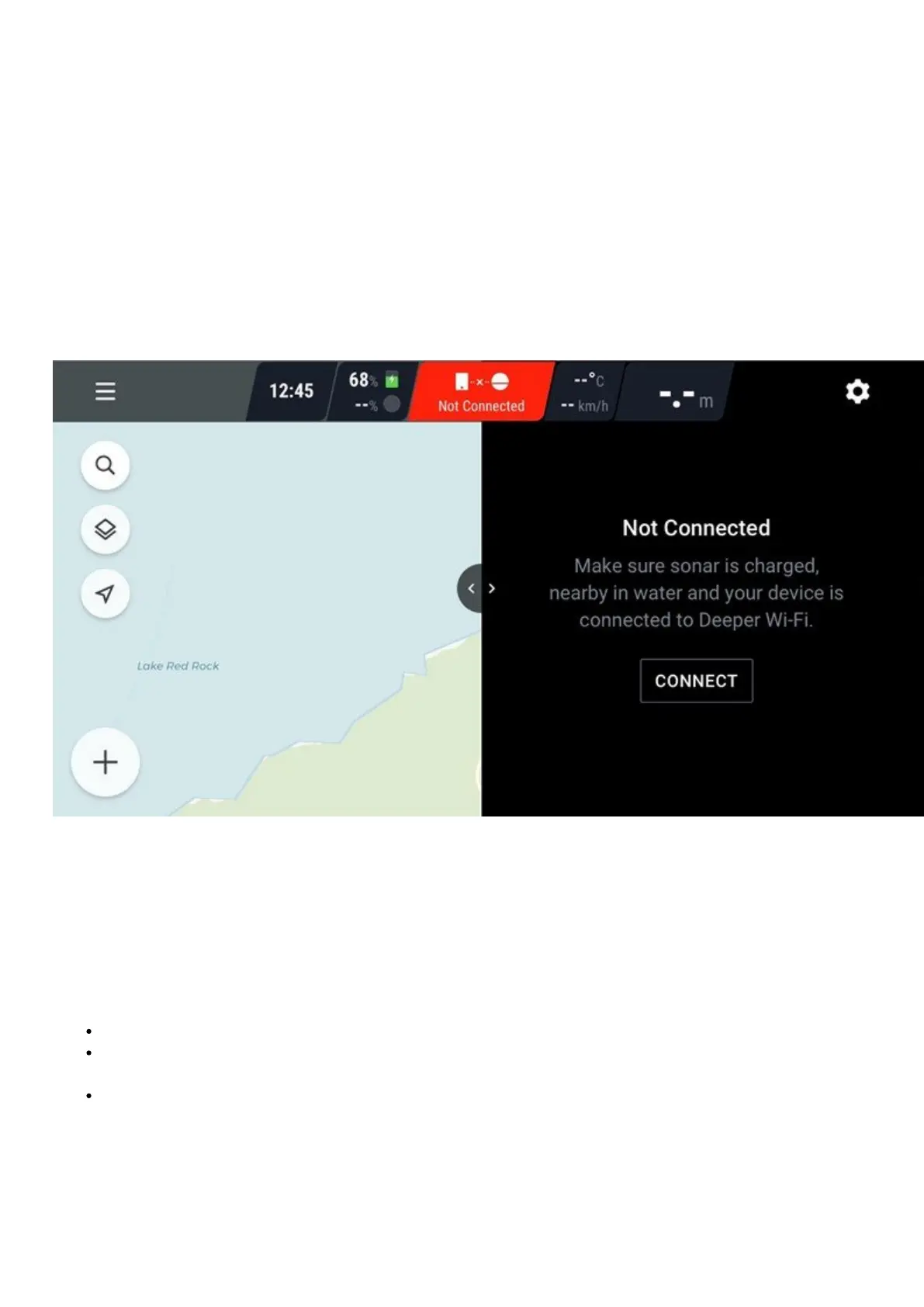
In order to connect to your Deeper sonar, please do the following:
1.
Put your Deeper Sonar in the water close to the shore, up to 5 meters / 16 feet from your smartphone.
2.
Go to the Wi-Fi connections (settings) of your smartphone. In the list of available Wi-Fi connections, find
your Deeper Sonar and connect to it. If it asks for a password – it’s 12345678
3.
Then, open the Fish Deeper app and connect to your sonar. Make sure that the app is granted access to
determine your location, and GPS is enabled on your phone.
Note:
Make sure the app is granted location access permission, and the GPS of your phone is enabled.
If your Deeper is left out of water for longer than 5 minutes, it will automatically turn off. So, you will need to
reconnect to it via Wi-Fi of your smartphone prior to using again.
You might see an error “no internet connection” when connecting to your sonar via WiFi. You can ignore this
error message.


 To Next Page
 Loading...