to increase the colorful appearance of the video image
Saturation adjustment is available only for video input.
Resets your monitor's color settings to the factory defaults.
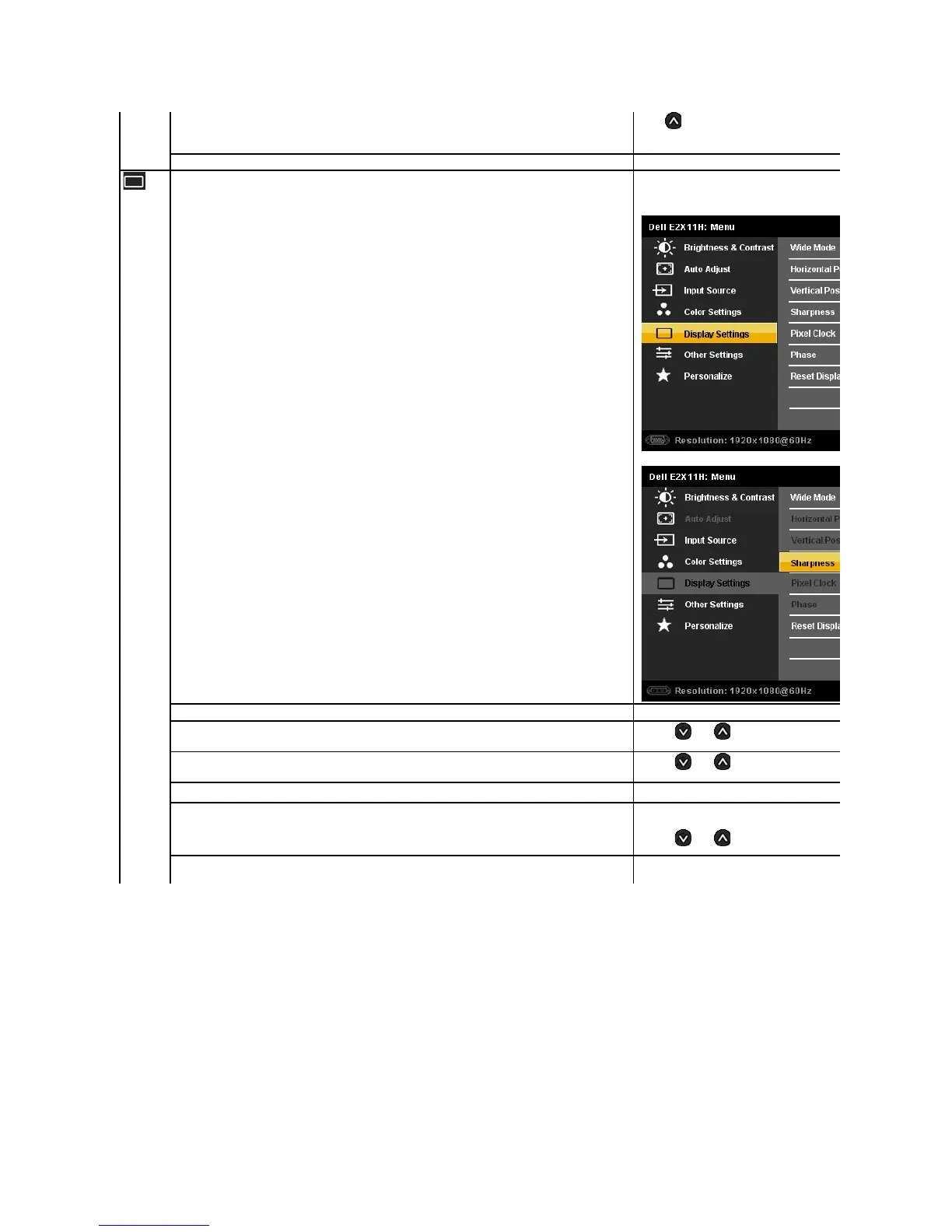
Use the Display Settings to adjust image.
Display Setting submenu for VGA input
Display Setting submenu for DVI-D input
Adjust the image ratio as 4:3 or full screen.
buttons to adjust image left and right. Minimum is '0' (
WhenusingaDVIsource,theHorizontalPositionsettingisnotavailable.
buttons to adjust image up and down. Minimum is '0' (
WhenusingaDVIsource,theVerticalPositionsettingisnotavailable.
This feature can make the image look sharper or softer. Use
he Phase and Pixel Clock adjustments allow you to adjust your monitor to your preference.
Use the and buttons to adjust
If satisfactory results are not obtained using the Phase adjustment, use the Pixel Clock (coarse) adjustment and then use Phase


 To Next Page