EasyManua.ls Logo

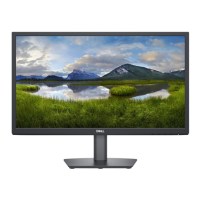
Dell E2222H - User Manual

Dell E2222H
49 pages
Print Icon
To Next Page IconTo Next Page
Loading...
Dell E2222H
User’s Guide
Monitor Model: E2222H
Regulatory Model: E2222Ht/E2222Hf

Other manuals for Dell E2222H

Questions and Answers

  • R
    Rebecca ChaseSep 4, 2025
    Why is the screen image too small on my Dell Monitor?
    • J
      Jason SmithSep 4, 2025
      To address a screen image that is too small on your Dell Monitor: * Check the Aspect Ratio setting in the Display settings OSD. * Reset the monitor to Factory Settings (Factory Reset).
  • B
    Benjamin PetersonSep 18, 2025
    What to do if I have safety related issues with my Dell E2222H Monitor?
    • J
      jaredmillerSep 18, 2025
      If you encounter safety-related issues with your Dell Monitor: * Do not perform any troubleshooting step. * Contact Dell immediately.
  • S
    scottherreraSep 16, 2025
    What to do for stuck-on pixels on Dell E2222H Monitor?
    • Z
      Zachary SchultzSep 16, 2025
      To address stuck-on pixels on your Dell Monitor: * Cycle power On-off. * Note that a pixel that is permanently off is a natural defect that can occur in LCD technology.
  • A
    Amy ThomasSep 14, 2025
    What to do for missing pixels on Dell E2222H?
    • D
      Derrick FosterSep 14, 2025
      To address missing pixels on your Dell Monitor: * Cycle power On-off. * Note that a pixel that is permanently off is a natural defect that can occur in LCD technology.
  • J
    joshua14Sep 12, 2025
    How to prevent image retention on Dell Monitor?
    • J
      Jason ThomasSep 12, 2025
      To address image retention on a Dell Monitor: * Set the screen to turn off after a few minutes of screen idle time. These can be adjusted in Windows Power Options or Mac Energy Saver setting. * Alternatively, use a dynamically changing screensaver. * Change the Response Time in the Display OSD to Fast or Normal depending on your application and usage.
  • M
    mckaytimothySep 12, 2025
    How to troubleshoot intermittent problems on Dell E2222H Monitor?
    • B
      Brenda StrongSep 12, 2025
      To resolve intermittent problems with your Dell Monitor: * Try different Preset Modes in Color settings OSD. Adjust R/G/B value in Custom Color in Color settings OSD. * Change the Input Color Format to RGB or YPbPr in the Color settings OSD. * Run the built-in diagnostics.
  • B
    Brooke RogersSep 9, 2025
    How to fix a Dell E2222H Monitor with no video and power LED off?
    • T
      Thomas ThomasSep 9, 2025
      To resolve a Dell Monitor with no video and the power LED off: * Ensure the video cable connecting the monitor and the computer is properly connected and secure. * Verify the power outlet is functioning properly using other electrical equipment. * Ensure the power button is pressed. * Ensure the correct input source is selected via the Input Source menu.
  • P
    porterjoshuaSep 7, 2025
    What to do if I cannot adjust my Dell E2222H with the buttons?
    • L
      Laura LeeSep 7, 2025
      If you cannot adjust the Dell monitor with the buttons on the bottom of the panel: * Turn off the monitor, unplug the power cord, plug it back, and then turn on the monitor. * Check if the OSD menu is locked. If yes, press and hold the Exit button (button 4) for four seconds to unlock. * Check the signal source. Ensure that the computer is not in standby or sleep mode by moving the mouse or pressing any key on the keyboard. * Check if the video cable is plugged in properly. Disconnect and reconnect the video cable if necessary. * Reset the computer or video player. * Due to different video formats (aspect ratio) of DVDs, the monitor may display in full screen. * Run the built-in diagnostics.
  • A
    Amber SpearsSep 5, 2025
    Why is my Dell E2222H showing the wrong color?
    • A
      allisonlisaSep 5, 2025
      If your Dell Monitor displays the wrong color: * Try different Preset Modes in Color settings OSD. Adjust R/G/B value in Custom Color in Color settings OSD. * Change the Input Color Format to RGB or YCbCr/YPbPr in the Color settings OSD. * Run the built-in diagnostics.
  • J
    John ManningAug 20, 2025
    What to do if my Dell E2222H Monitor has no video but the power LED is on?
    • S
      Sharon Webster DDSAug 20, 2025
      To troubleshoot a Dell Monitor with no video but the power LED on: * Increase brightness and contrast controls using the OSD. * Perform monitor self-test feature check. * Check for bent or broken pins in the video cable connector. * Run the built-in diagnostics. * Ensure the correct input source is selected via the Input Source menu.

Summary

Notes, Cautions and Warnings

About your monitor

Package contents

Lists items included in the monitor package.

Product features

Details the technical capabilities and design of the monitor.

Identifying features and controls

Front view

Identifies buttons and indicators on the monitor's front panel.

Back and Side Views

Details labels, features, and connections on the monitor's back and side panels.

Bottom Ports

Shows ports located on the monitor's bottom edge.

Monitor specifications

Resolution specifications

Preset display modes

Lists supported display resolutions and timings.

Electrical specifications

Physical characteristics

Environmental characteristics

Pin assignments

D-Sub 15-pin connector

Details pinouts for the VGA connector.

DP 20-pin connector

Details pinouts for the DisplayPort connector.

Setting up the monitor

Connecting the stand

Instructions for attaching the monitor stand.

Connecting and Organizing Cables

Steps to connect the monitor and guidance on managing cables.

Removing the stand

Instructions for detaching the monitor stand.

Operating your monitor

Turning on the monitor

Basic procedure to power on the monitor.

Using the front panel controls

Explains the function of buttons on the monitor.

OSD Lock Function

How to lock and unlock monitor control buttons.

OSD Controls and Navigation

Details OSD navigation buttons, menu access, and common settings.

OSD Warning Messages

Displays messages related to OSD functions like brightness and locking.

Setting Display Resolution

How to configure the optimal screen resolution.

Using Tilt Adjustment

Instructions for adjusting the monitor's tilt angle.

Troubleshooting

Self-test

Procedure to check monitor functionality independently.

Built-in diagnostics

Using the monitor's diagnostic tool for screen issues.

Common problems

Table of common issues and their solutions.

Product-specific problems

Specific issues related to monitor controls and display.

Appendix

Safety instructions

General safety precautions for using the monitor.

Regulatory Information

FCC notices and other regulatory compliance details.

Contact Dell Support

Information on how to get support from Dell.

Dell E2222H Specifications

General IconGeneral
Panel typeVA
Color gamut72 %
Pixel pitch0.249 x 0.241 mm
Screen shapeFlat
Pixel density103 ppi
Response time10 ms
Backlight typeLED
Display diagonal21.45 \
Anti-glare screenYes
Display technologyLCD
Native aspect ratio16:9
Vertical scan range50 - 75 Hz
Maximum refresh rate60 Hz
Response time (fast)5 ms
Horizontal scan range30 - 83 kHz
Viewable size, vertical260.28 mm
Contrast ratio (typical)3000:1
Display number of colors16.7 million colors
Display diagonal (metric)54.48 cm
Viewable size, horizontal478.66 mm
Display brightness (typical)250 cd/m²
Headphone out-
DisplayPort version1.2
HDMI ports quantity0
Tilt angle range-5 - 21 °
Panel mounting interface100 x 100 mm
AC input voltage100 - 240 V
Power supply typeInternal
AC input frequency50 - 60 Hz
Energy efficiency scaleA to G
Power consumption (max)19 W
Power consumption (off)0.3 W
Power consumption (typical)12.1 W
Package weight4140 g
Operating altitude0 - 5000 m
Non-operating altitude0 - 12192 m
Storage temperature (T-T)-20 - 60 °C
Operating temperature (T-T)0 - 40 °C
Storage relative humidity (H-H)5 - 90 %
Operating relative humidity (H-H)10 - 80 %
Product colorBlack
Heavy metals freeHg (mercury)
Market positioningOffice
Doesn't containPVC/BFR
Sustainability certificatesENERGY STAR, RoHS
Cables includedAC, DisplayPort, VGA
Harmonized System (HS) code85285210
Weight and Dimensions IconWeight and Dimensions
Bezel width (top)12.8 mm
Depth (with stand)171 mm
Width (with stand)504.26 mm
Height (with stand)384.17 mm
Weight (with stand)2590 g
Bezel width (bottom)16.9 mm
Depth (without stand)49.64 mm
Height (without stand)295.38 mm
Weight (without stand)2260 g

Related product manuals