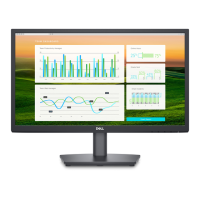
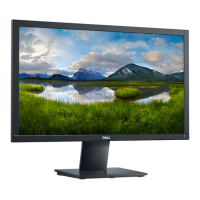
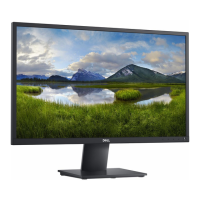
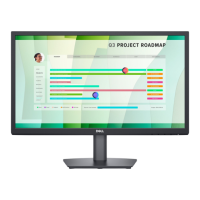
How to fix geometric distortion on Dell E2222H?
- MMr. Matthew LongSep 2, 2025
To correct geometric distortion on a Dell Monitor: * Reset the monitor to Factory Settings (Factory Reset). * Adjust horizontal and vertical using OSD.
How to fix geometric distortion on Dell E2222H?
To correct geometric distortion on a Dell Monitor: * Reset the monitor to Factory Settings (Factory Reset). * Adjust horizontal and vertical using OSD.
How to solve synchronization problems on Dell E2222H?
To resolve synchronization problems with your Dell Monitor: * Reset the monitor to Factory Settings (Factory Reset). * Perform monitor self-test feature check to determine if the scrambled screen appears in self-test mode. * Check for bent or broken pins in the video cable connector. * Restart the computer in safe mode.
How to fix horizontal/vertical lines on Dell E2222H Monitor?
To resolve horizontal or vertical lines on a Dell Monitor: * Reset the monitor to Factory Settings (Factory Reset). * Perform monitor self-test feature check and determine if these lines are also in self-test mode. * Check for bent or broken pins in the video cable connector. * Run the built-in diagnostics.
How to improve poor focus on Dell E2222H Monitor?
To correct poor focus on a Dell Monitor: * Eliminate video extension cables. * Reset the monitor to Factory Settings (Factory Reset). * Change the video resolution to the correct aspect ratio.
What to do if Dell E2222H is missing color?
If you are experiencing missing color on your Dell Monitor: * Perform monitor self-test feature check. * Ensure that the video cable connecting the monitor to the computer is connected properly and is secure. * Check for bent or broken pins in the video cable connector.
Why is my Dell E2222H video shaky/jittery and how to fix it?
To fix a Dell Monitor with shaky or jittery video: * Reset the monitor to Factory Settings (Factory Reset). * Check environmental factors. * Relocate the monitor and test in another room.
How to solve brightness problems on Dell E2222H?
To address brightness problems on your Dell Monitor: * Reset the monitor to Factory Settings (Factory Reset). * Adjust brightness and contrast controls using OSD.
Lists items included in the monitor package.
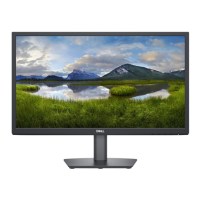
Details the technical capabilities and design of the monitor.
Identifies buttons and indicators on the monitor's front panel.
Details labels, features, and connections on the monitor's back and side panels.
Shows ports located on the monitor's bottom edge.
Lists supported display resolutions and timings.
Details pinouts for the VGA connector.
Details pinouts for the DisplayPort connector.
Instructions for attaching the monitor stand.
Steps to connect the monitor and guidance on managing cables.
Instructions for detaching the monitor stand.
Basic procedure to power on the monitor.
Explains the function of buttons on the monitor.
How to lock and unlock monitor control buttons.
Details OSD navigation buttons, menu access, and common settings.
Displays messages related to OSD functions like brightness and locking.
How to configure the optimal screen resolution.
Instructions for adjusting the monitor's tilt angle.
Procedure to check monitor functionality independently.
Using the monitor's diagnostic tool for screen issues.
Table of common issues and their solutions.
Specific issues related to monitor controls and display.
General safety precautions for using the monitor.
FCC notices and other regulatory compliance details.
Information on how to get support from Dell.
| Panel type | VA |
|---|---|
| Color gamut | 72 % |
| Pixel pitch | 0.249 x 0.241 mm |
| Screen shape | Flat |
| Pixel density | 103 ppi |
| Response time | 10 ms |
| Backlight type | LED |
| Display diagonal | 21.45 \ |
| Anti-glare screen | Yes |
| Display technology | LCD |
| Native aspect ratio | 16:9 |
| Vertical scan range | 50 - 75 Hz |
| Maximum refresh rate | 60 Hz |
| Response time (fast) | 5 ms |
| Horizontal scan range | 30 - 83 kHz |
| Viewable size, vertical | 260.28 mm |
| Contrast ratio (typical) | 3000:1 |
| Display number of colors | 16.7 million colors |
| Display diagonal (metric) | 54.48 cm |
| Viewable size, horizontal | 478.66 mm |
| Display brightness (typical) | 250 cd/m² |
| Headphone out | - |
| DisplayPort version | 1.2 |
| HDMI ports quantity | 0 |
| Tilt angle range | -5 - 21 ° |
| Panel mounting interface | 100 x 100 mm |
| AC input voltage | 100 - 240 V |
| Power supply type | Internal |
| AC input frequency | 50 - 60 Hz |
| Energy efficiency scale | A to G |
| Power consumption (max) | 19 W |
| Power consumption (off) | 0.3 W |
| Power consumption (typical) | 12.1 W |
| Package weight | 4140 g |
| Operating altitude | 0 - 5000 m |
| Non-operating altitude | 0 - 12192 m |
| Storage temperature (T-T) | -20 - 60 °C |
| Operating temperature (T-T) | 0 - 40 °C |
| Storage relative humidity (H-H) | 5 - 90 % |
| Operating relative humidity (H-H) | 10 - 80 % |
| Product color | Black |
| Heavy metals free | Hg (mercury) |
| Market positioning | Office |
| Doesn't contain | PVC/BFR |
| Sustainability certificates | ENERGY STAR, RoHS |
| Cables included | AC, DisplayPort, VGA |
| Harmonized System (HS) code | 85285210 |
| Bezel width (top) | 12.8 mm |
|---|---|
| Depth (with stand) | 171 mm |
| Width (with stand) | 504.26 mm |
| Height (with stand) | 384.17 mm |
| Weight (with stand) | 2590 g |
| Bezel width (bottom) | 16.9 mm |
| Depth (without stand) | 49.64 mm |
| Height (without stand) | 295.38 mm |
| Weight (without stand) | 2260 g |