Operating your monitor │ 35
Icon Menu and
submenus
Description
• Menu Buttons: All Menu/function buttons (except the Power
button) are locked and not accessible by the user.
• Power Button: Only the Power button is locked and not accessible
by the user.
• Menu + Power Buttons: Both the Menu/function & Power
buttons are locked and not accessible by the user.
The default setting is Disable.
NOTE: To unlock the button(s), press and hold key of
the monitor for 4 seconds
Reset Menu
Select this option to restore default menu settings.
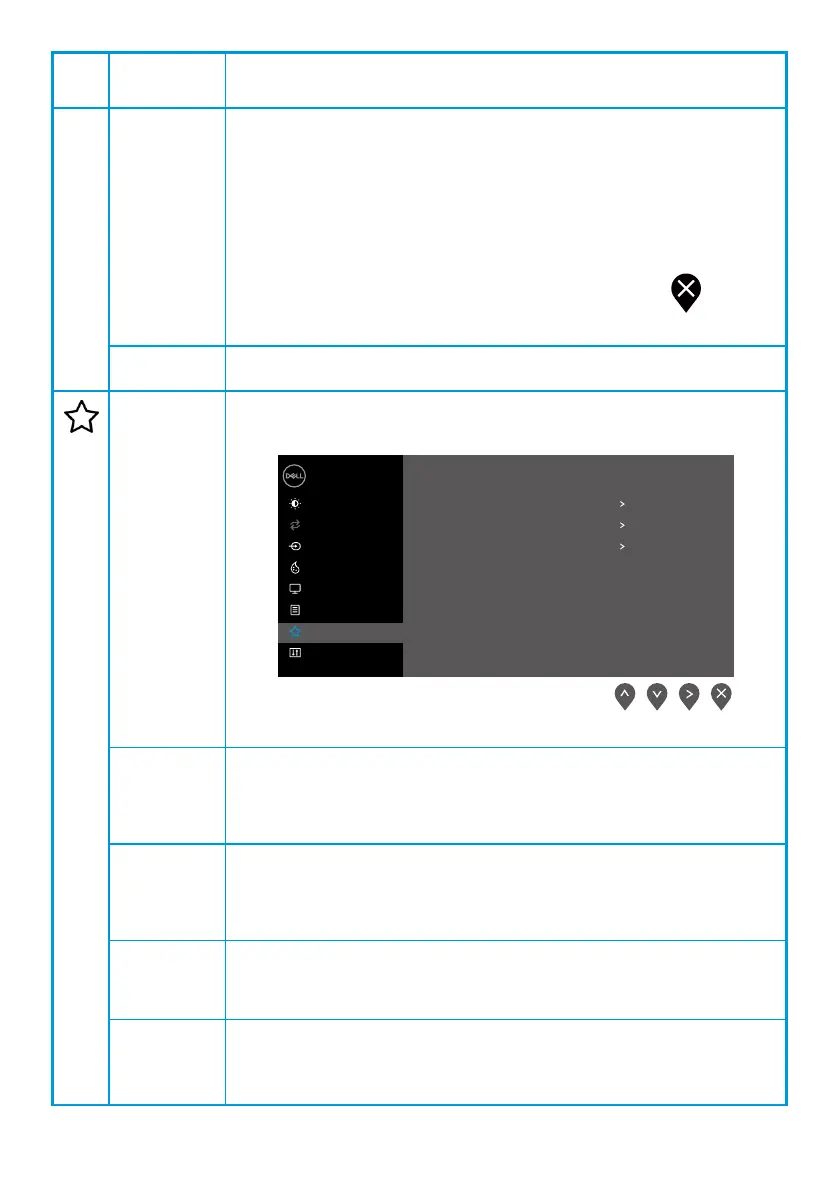
Personalize Selecting this option allows you to set two shortcut keys and power
LED indicator function.
Dell 22 Monitor
Brightness / Contrast
Auto Adjust
Input Source
Color
Display
Menu
Personalize
Others
Shortcut Key 1
Shortcut Key 2
Power Button LED
Reset Personalization
Preset Modes
Brightness / Contrast
On in On Mode
Shortcut
Key 1
Allow you to select one of the following: Preset Modes, Brightness/
Contrast, Auto Adjust, Input Source, Aspect Ratio, to set the shortcut
key 1.
Shortcut
Key 2
Allow you to select one of the following: Preset Modes, Brightness/
Contrast, Auto Adjust, Input Source, Aspect Ratio,to set the shortcut
key 2.
Power
Button LED
Allow you to set the power LED indicator On in On Mode or Off in On
Mode to save energy.
Reset
Personalization
Allow you to restore shortcut key to the default setting.



 To Next Page