EasyManua.ls Logo

Dell EMC PowerVault ME4 Series - User Manual

Dell EMC PowerVault ME4 Series
9 pages
Print Icon
To Next Page IconTo Next Page
Loading...
Setting Up Your
Dell EMC PowerVault ME4
Series Storage System
© 2019 Dell Inc. or its subsidiaries.
2019-10
1 Before you begin
WARNING: Before you set up and operate your Dell EMC storage system,
review the safety instructions that came with it.
Unpack storage system equipment
An ME4 Series storage system includes:
2 Mount the enclosures
WARNING: Potential injury: chassis is heavy.
Use at least two people to mount a 2U chassis. Use a mechanical lift to mount a 5U chassis.
The rack may fall over if allowed to become top-heavy. Load the rack from the
bottom up with the heaviest chassis at the bottom.
Secure the controller enclosure to the rack using the mounting screws located in the
plastic bag.
2U enclosure
1. Remove the rack mounting rail kit from the box and inspect for damage:
a. Set each location pin at the rear of the rail into a rear rack post hole. Attach the bracket
to the rear rack post: use the washers and screws supplied. Leave the screws loose.
b. Extend the rail to fit between the front and rear rack posts, and attach the
bracket to the front rack post using the washers and screws supplied.
c. Tighten the two clamping screws located along the inside of the rear section of
the rack bracket.
d. Repeat the above sequence of steps for the companion rail.
2. Install the enclosure into the rack:
a. Keeping the enclosure level, carefully insert the chassis slides into the rack rails
and push fully in.
b. Tighten the mounting screws in the rear kit brackets.
Scan to see how-to videos, documentation,
and troubleshooting information.
Quick Resource Locator
Dell.com/QRL/Storage/ME4series
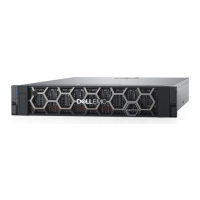
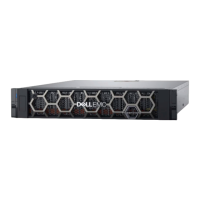
Figure 1. 2U enclosure
Figure 3. 2U rack mount
Figure 4. 5U rack mount
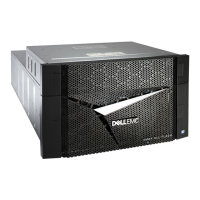
Figure 2. 5U enclosure
c. Remove the enclosure until it reaches the end and hard stops approximately 400 mm
(15.75 inches). Tighten the mounting screws on the front of the rail kit bracket.
d. Return the enclosure to the fully home position.
5U enclosure
The 5U enclosure is shipped without the disks installed. Before mounting, also
remove the rear panel modules to reduce the enclosure weight.
1. With the preassembled rails at their shortest length, locate the rail location
pins inside the front of the rack, and extend the length of the rail assembly to
position the rear location pins. Ensure the pins are fully inserted in the square or
round holes in the rack posts.
2. Fully tighten all clamping screws and middle slide locking screws.
3. Ensure the four rear space clips (not shown) are fitted to the edge of the rack post.
4. Slide the enclosure until it is fully seated on its rails.
A B C
1
2
7
6
8
3
4
5
9
Item Description Item Description
1 Front rack post - square hole 6 Clamping screw (B)
2 Rear rack post - square hole 7 2U enclosure fastening screw (C)
3 Left rail 8 Clamping screw (B)
4 Rail location pins
9
Exploded view of Ops panel cover, to
show left ear ange fastening screw (A)
5 Locking screw
Item Description Item Description
1 Fastening screws (A) 6 Middle slide locking screws
2 Left rail 7 Rear left portion of 5U chassis
3 Rear rack post - square hole 8 Front rack post - square hole
4 Clamping screw (B)
Front left portion of 5U chassis
shown for reference
5 Rail location pins
A B C
8
3
4
1
7
2
5
6
1
4
9
Figure 6. 5U dual–controller cabling (reverse method)
Figure 5. 2U dualcontroller cabling: maximum 10 enclosures (reverse method)
0A
1A
2A
3A
0B
1B
2B
3B
0A
1A
2A
9A
0B
1B
2B
9B
5. Fasten the front and rear of the enclosure using the enclosure fastening screws.
CAUTION: Once the enclosure is mounted, dispose of the lifting straps.
The straps are not suitable for reuse.
Reinsert the rear panel modules, and install the disks into the drawers accessed from
the front panel per the instructions in the
Dell EMC PowerVault ME4 Series
Storage System Deployment Guide
.
Expansion cables (1 per expansion module)
Optional enclosure bezel with key (1 per
2U enclosure)
I/O module blank (2U single-controller
storage system only)
Disk drive blank (if 2U storage system is
not fully populated)
Appropriate rackmount kit for 2U or 5U
enclosure
Documentation
2U or 5U enclosure
Power cables (2)
Separately packaged disk drives (5U
enclosure only)
Fibre Channel or iSCSI SFP+ transceivers or
cables (1 per host port)
Host cables (1 per controller module host port)
Develop a configuration plan
Before installing the storage hardware, develop a conguration plan where you can
record host server information, switch information, and network information.
Consider plans for multipath/failover
Redundancy is provided by multipathing, which allows alternate paths if a data path
fails. It is recommended to use multipathing, so that volumes are mapped to ports in
more than one Fibre Channel or iSCSI fabric.
Connect optional expansion enclosures
You can connect a maximum of nine 2U expansion enclosures or three 5U expansion
enclosures to a 2U or a 5U controller enclosure. A 2U controller enclosure can be connected
to a mixture of 2U12 and 2U24 expansion enclosures, or 5U84 only. A 5U controller enclosure
can only be attached to 5U expansion enclosures. Each expansion enclosure includes two
expansion modules.
Figure 5 shows reverse cabling of a dual-controller 2U enclosure and supported
2U expansion enclosures configured with dual expansion modules. Figure 6 shows
reverse cabling of a dual-controller 5U enclosure and supported 5U expansion
enclosures configured with dual expansion modules. Reverse cabling allows any
expansion enclosure to fail—or be removed—while maintaining access to other
enclosures. The middle SAS ports on expansion modules are not used.
3 Connect to the management
network
Each controller’s network port must be connected to a management network.
The network port provides access to management interfaces and is used to send
notifications, SNMP traps, and support data. See figures 7 and 8.
1. Connect an RJ45 Ethernet cable to the network port on each controller.
2. Connect the other end of each Ethernet cable to a network that your
management host can access (preferably on the same subnet).
Notes, cautions, and warnings
NOTE: Indicates important information that helps you make better use of your
product.
CAUTION: Indicates potential damage to hardware or loss of data
and tells you how to avoid the problem.
WARNING: Indicates a potential for property damage, personal
injury, or death.
Figure 7. 2U SAN connections
Question and Answer IconNeed help?

Do you have a question about the Dell EMC PowerVault ME4 Series and is the answer not in the manual?

Summary

Before You Begin

Unpack Storage System Equipment

Details on unpacking and identifying all components of the Dell EMC ME4 Series storage system.

Develop Configuration Plan

Guide to creating a configuration plan for host server, switch, and network information.

Multipath and Failover Planning

Considerations for planning multipathing and failover for data redundancy.

Mounting Enclosures

2 U Enclosure Mounting

Step-by-step instructions for mounting the 2U enclosure into a server rack.

5 U Enclosure Mounting

Instructions for mounting the 5U enclosure, including weight considerations.

Connect Expansion Enclosures

Optional Expansion Enclosures

Information on connecting optional 2U and 5U expansion enclosures to controller enclosures.

Connect to Management Network

Management Network Setup

Connecting the controller's network port to a management network for access and notifications.

Cable Host Servers to Storage

Fibre Channel Host Connections

Instructions for cabling host servers using Fibre Channel connections to controllers.

iSCSI Host Connections

Instructions for cabling host servers using iSCSI connections to controllers.

SAS Host Connections

Instructions for cabling host servers using SAS connections to controllers.

Power On Storage System

Connecting Power Cables and Powering On

Procedure for connecting power cables and powering on the storage system components.

Configure Storage System

Initial System Configuration

Steps for initial configuration of the Dell EMC storage system using the web interface.

Perform Host Setup

Windows and Linux Host Connectivity

Configure connectivity for Fibre Channel, iSCSI, and SAS on Windows and Linux hosts.

VMware ESXi Host Connectivity

Configure connectivity for Fibre Channel, iSCSI, and SAS on VMware ESXi hosts.

Overview

The Dell EMC PowerVault ME4 Series Storage System is a robust and scalable storage solution designed for various data management needs. This system is engineered to provide reliable data storage, efficient management, and flexible connectivity options for host servers. It supports both 2U and 5U enclosure configurations, allowing for adaptability to different rack environments and storage capacity requirements.

Function Description:

The primary function of the Dell EMC PowerVault ME4 Series is to provide high-performance, redundant data storage for host servers. It acts as a centralized repository for data, enabling efficient access and management. The system supports various connectivity protocols, including Fibre Channel (FC), iSCSI, and SAS, making it versatile for integration into diverse network infrastructures. Redundancy is a core aspect of its design, achieved through multipathing, which ensures continuous data access even if a data path fails. This failover capability is crucial for maintaining business continuity and data availability. The system is designed to be managed through a dedicated management network, allowing administrators to configure, monitor, and maintain the storage system remotely. It also supports expansion enclosures, enabling users to scale their storage capacity as their needs grow, with options for both 2U and 5U expansion units.

Usage Features:

The Dell EMC PowerVault ME4 Series offers several features that enhance its usability and integration into existing IT environments:

  • Flexible Enclosure Options: The system comes in 2U and 5U enclosure sizes, providing flexibility in rack space utilization. The 2U enclosure is suitable for environments with limited rack space, while the 5U enclosure offers higher disk drive capacity.
  • Scalability: Users can connect up to nine 2U expansion enclosures or three 5U expansion enclosures to a single controller enclosure. This allows for significant expansion of storage capacity, accommodating growing data demands without requiring a complete system overhaul. The system supports a mixture of 2U12 and 2U24 expansion enclosures, or 5U84 only, depending on the controller enclosure type.
  • Multipathing/Failover: Redundancy is built into the system through multipathing, which creates alternate data paths. This feature ensures that if one path fails, data access is maintained through another, minimizing downtime and ensuring high availability. It is recommended to map volumes to ports in more than one Fibre Channel or iSCSI fabric for optimal redundancy.
  • Diverse Host Connectivity: The system supports multiple host server connection methods:
    • Fibre Channel (FC): Allows for high-speed, dedicated connections to host servers, either directly or through switches. Each initiator can be zoned with single or multiple host ports for flexible configurations.
    • iSCSI: Provides block-level data access over standard Ethernet networks. It supports both dedicated switches for iSCSI traffic and VLANs for different types of IP traffic, offering network flexibility.
    • SAS (Serial Attached SCSI): Enables direct attachment to host servers, providing a cost-effective solution for high-performance direct-attached storage.
  • Management Network Integration: Each controller includes a dedicated network port for management. This port facilitates access to management interfaces, enabling remote configuration, monitoring, and the sending of notifications, SNMP traps, and support data. This centralized management simplifies administration tasks.
  • Intuitive Setup Wizard: The system features a "Welcome!" panel and setup wizards (System Settings, Storage Setup, Host Setup) that guide users through the initial configuration process, making it easier to get the system up and running.
  • Web-based Management Interface: Configuration and management are performed through a web browser (Mozilla Firefox, Google Chrome, or Internet Explorer), providing a familiar and accessible interface for administrators. HTTPS is used for secure access during deployment.
  • Support for Single Controller Operation: For single-controller storage systems, there is an option to configure the system to operate with only one controller, which can be useful in specific deployment scenarios.

Maintenance Features:

The Dell EMC PowerVault ME4 Series incorporates several features designed to simplify maintenance and ensure long-term reliability:

  • Modular Design: The system is designed with modular components, such as controller modules and disk drives, which can be easily replaced or upgraded. For 5U enclosures, disk drives are installed into drawers accessed from the front panel, simplifying maintenance.
  • Easy Rack Mounting: The system includes appropriate rackmount kits for both 2U and 5U enclosures. The mounting process is detailed, with instructions for securing the chassis to the rack using screws and rail kits. For 5U enclosures, the rear panel modules and disks can be removed before mounting to reduce weight, making installation safer and easier.
  • Firmware Updates: The management interface supports firmware updates, which are recommended as a first step when accessing Storage Manager. Keeping the firmware up-to-date ensures optimal performance, security, and access to the latest features.
  • Documentation and Support: Comprehensive documentation, including the "Dell EMC PowerVault ME4 Series Storage System Deployment Guide" and "Administrator's Guide," is available to assist with setup, configuration, and troubleshooting. A Quick Resource Locator (QRL) provides access to how-to videos, documentation, and troubleshooting information via QR code.
  • Safety Guidelines: The manual emphasizes safety warnings, such as using at least two people for mounting a 2U chassis and a mechanical lift for a 5U chassis due to their weight. It also advises loading the rack from the bottom up to prevent it from becoming top-heavy and falling over.
  • Redundant Power Supplies: While not explicitly detailed in the provided pages, storage systems of this caliber typically include redundant power supplies to ensure continuous operation in case of a power supply failure. The power-on sequence emphasizes powering on expansion enclosures before the controller enclosure, and host servers last, to ensure proper system initialization.
  • IP Conflict Avoidance: A note advises against turning on more than one unconfigured controller enclosure at a time to avoid IP conflicts, which is a crucial maintenance consideration during initial setup.

In summary, the Dell EMC PowerVault ME4 Series Storage System is a comprehensive storage solution that combines high performance, scalability, and robust redundancy features with user-friendly management and maintenance capabilities, making it suitable for a wide range of enterprise storage requirements.

Dell EMC PowerVault ME4 Series Specifications

General IconGeneral
Product TypeStorage Array
Host ConnectivityFibre Channel, iSCSI, SAS
RAID Levels0, 1, 5, 6, 10, 50, 60
Cache MemoryUp to 32 GB per controller
Form Factor2U
Drive SupportSAS
Storage TypeBlock
Controller TypesDual Active/Active
Host InterfaceiSCSI, Fibre Channel, SAS
Power SupplyRedundant
Management InterfaceWeb-based GUI, CLI, SNMP
Operating Temperature10°C to 35°C
Warranty3 Years
Maximum Raw CapacityUp to 3.84PB
Maximum Host Ports16 Ports per Controller

Related product manuals