
 Need help?
Do you have a question about the Dell Inspiron 13-7373 and is the answer not in the manual?
The Dell Inspiron 13 7000 2-in-1 is a versatile computer designed for various uses, offering both laptop and tablet functionalities. This device is part of the Inspiron 13-7373 series, identified by regulatory model P83G001 and regulatory type P83G.
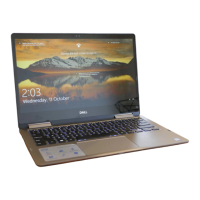
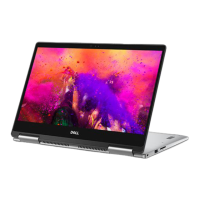
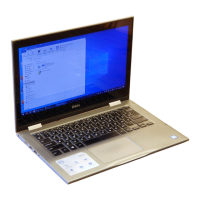
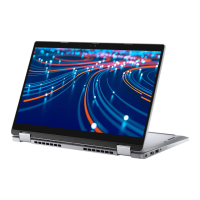
The Inspiron 13 7000 2-in-1 serves as a portable computing solution, capable of adapting to different user needs through its multiple modes: Notebook, Tablet, Stand, and Tent. This adaptability makes it suitable for productivity, entertainment, and presentations.
The device features a power and battery-status light/hard-drive activity light on the front, which indicates the battery charge status or hard-drive activity. This light can be toggled between these two functions by pressing Fn+H. When indicating hard-drive activity, it turns on when the computer reads from or writes to the hard drive. As a power and battery-status light, a solid white light signifies that the power adapter is connected and the battery has more than 5% charge. An amber light indicates that the computer is running on battery and the battery has less than 5% charge. The light is off when the power adapter is connected and the battery is fully charged, or when the computer is running on battery with more than 5% charge, or when the computer is in sleep state, hibernation, or turned off.
On the left side, the computer includes a power-adapter port for connecting the power adapter to supply power and charge the battery. It also has a USB 3.1 Gen 1 (Type-C) port/DisplayPort, which allows connection of peripherals like external storage devices, printers, and external displays, supporting data transfer speeds up to 5 Gbps. For DisplayPort functionality, a USB Type-C to DisplayPort adapter (sold separately) is required. An HDMI port is present for connecting to a TV or other HDMI-in enabled devices, providing video and audio output. A USB 3.1 Gen 1 port with PowerShare is available for connecting peripherals and charging USB devices, even when the computer is turned off. If the computer is off or in hibernate state, the power adapter must be connected to use the PowerShare feature, which needs to be enabled in the BIOS setup program. A headset port allows connection of headphones or a headset (headphone and microphone combo).
The right side of the device features an SD-card slot for reading from and writing to SD cards, and a USB 3.1 Gen 1 port for connecting external storage devices and printers, with data transfer speeds up to 5 Gbps. A security-cable slot (for Noble locks) is also included to help prevent unauthorized movement of the computer.
The base of the computer houses a touchpad, which allows users to move the mouse pointer, left-click by tapping, and right-click by two-finger tapping. Dedicated left-click and right-click areas are also provided. The power button is located on the base; pressing it turns on the computer if it's off, in sleep state, or in hibernate state, and puts it into sleep state if it's on. Holding the power button for 4 seconds forces a shut-down. The power-button behavior can be customized in Power Options. The bottom of the computer includes left and right speakers for audio output. A Service Tag label is also present, providing a unique alphanumeric identifier for Dell service technicians to identify hardware components and access warranty information.
The display features a left microphone and a right microphone for digital sound input, used for audio recording and voice calls. An infrared emitter emits infrared light, enabling the infrared camera to sense and track motion. The infrared camera enhances security when paired with Windows Hello face authentication. A standard camera allows for video chat, photo capture, and video recording. A camera-status light turns on when the camera is in use.
The Inspiron 13 7000 2-in-1 is designed for ease of setup. To begin, users connect the power adapter and press the power button. The operating system setup guides users through connecting to a network and signing in to or creating a Microsoft account. If connecting to a secured wireless network, the password will be prompted.
Dell provides several applications to enhance the user experience. The "Register your computer" application helps users register their device. The "Dell Help & Support" app offers assistance and information. "SupportAssist" is a tool for checking and updating the computer.
The device's keyboard includes shortcut keys that provide quick access to various functions. These shortcuts may vary slightly depending on the keyboard language configuration, but the keys used for the shortcuts remain consistent. For example, F1 mutes audio, F2 decreases volume, F3 increases volume, F4 plays the previous track/chapter, F5 plays/pauses media, F6 plays the next track/chapter, F8 switches to an external display, F9 initiates a search, F10 toggles keyboard backlight, F11 decreases brightness, and F12 increases brightness. Fn + PrtScr toggles wireless on/off. Other Fn key combinations include Fn + B for Pause/Break, Fn + Insert for Sleep, Fn + S for Toggle scroll lock, Fn + H to toggle between power and battery-status light/hard-drive activity light (note that hard-drive activity light is only supported on computers with M.2 SATA Solid State Drive), Fn + R for System request, Fn + Ctrl for Open application menu, Fn + Esc for Toggle Fn-key lock, Fn + PgUp for Page up, Fn + PgDn for Page down, Fn + Home for Home, and Fn + End for End. Users can switch the primary behavior of the function keys (F1-F12) between multimedia key mode and function key mode by pressing Fn+Esc.
The Inspiron 13 7000 2-in-1 supports the creation of a USB recovery drive for Windows. This is a crucial maintenance feature for troubleshooting and fixing problems that may occur with the operating system. An empty USB flash drive with a minimum capacity of 16 GB is required. The process involves connecting the USB flash drive, searching for "Recovery" in Windows, clicking "Create a recovery drive," confirming the User Account Control prompt, selecting "Back up system files to the recovery drive," choosing the USB flash drive, clicking "Create," and then "Finish." This process can take up to an hour.
Reinstalling Windows using a USB recovery drive is also possible. This process formats the hard drive and removes all data, so backing up data is essential. Before reinstalling, ensure the computer has more than 2 GB of memory and more than 32 GB of storage space. The steps involve connecting the USB recovery drive, restarting the computer, pressing F12 after the Dell logo appears to access the boot menu, selecting the USB recovery device under UEFI BOOT, choosing the keyboard layout, clicking "Troubleshoot" in the "Choose an option" screen, clicking "Recover from a drive," and then choosing either "Just remove my files" for a quick format or "Fully clean the drive" for a complete format, and finally clicking "Recover." This process can also take up to an hour and will restart the computer.
Dell provides extensive self-help resources through its website (www.dell.com) and dedicated applications like "Dell Help & Support" and "Get started." These resources offer information on Dell products and services, online help for the operating system, troubleshooting information, user manuals, setup instructions, product specifications, technical help blogs, drivers, and software updates. Users can learn about product specifications, operating system, setting up and using the product, data backup, and troubleshooting/diagnostics. To find relevant information, users can use the "Detect Product" feature or manually locate their product through a drop-down menu. For specific issues, entering keywords in the "Knowledge Base" search box on www.dell.com/support can retrieve related articles.
For further assistance, users can contact Dell for sales, technical support, or customer service issues via www.dell.com/contactdell. It's important to note that availability of services may vary by country and product. If an active internet connection is unavailable, contact information can be found on the purchase invoice, packing slip, bill, or Dell product catalog.
It is recommended to use a Dell coin-cell battery for the computer, as Dell does not provide warranty coverage for problems caused by using accessories, parts, or components not supplied by Dell.






 To Next Page
 General