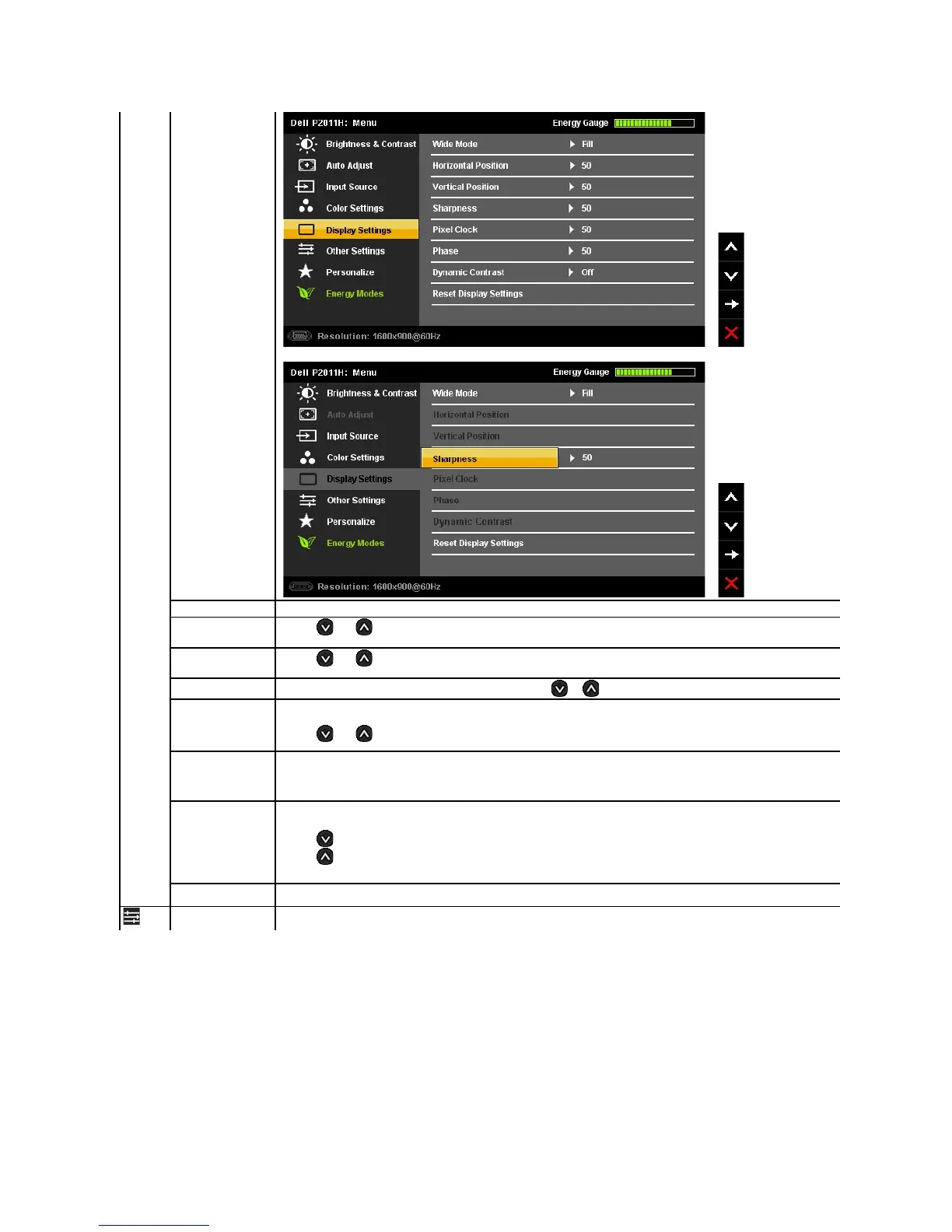
Display Setting submenu for DVI-D input
Adjust the image ratio as 4:3 or full screen.
Use the and buttons to adjust image left and right. Minimum is '0' (-). Maximum is '100' (+).
NOTE: WhenusingaDVIsource,theHorizontalPositionsettingisnotavailable.
Use the and buttons to adjust image up and down. Minimum is '0' (-). Maximum is '100' (+).
NOTE: WhenusingaDVIsource,theVerticalPositionsettingisnotavailable.
This feature can make the image look sharper or softer. Use or to adjust the sharpness from '0' to '100'.
The Phase and Pixel Clock adjustments allow you to adjust your monitor to your preference.
Use the and buttons to adjust for best image quality.
If satisfactory results are not obtained using the Phase adjustment, use the Pixel Clock (coarse) adjustment and then use Phase
NOTE: Pixel Clock and Phase Adjustments are only available for "VGA" input.
The Dynamic Contrast adjustment helps the user to get a higher contrast if you choose Game preset, Movie Preset, Sports Preset
and Nature Preset.
Use the button to enable the Dynamic Contrast adjustment.
Use the button to disable the Dynamic Contrast adjustment.
NOTE: Dynamic Contrast is not available (greyed out) in Energy Smart modes.
Select this option to restore default display settings.
Select this option to adjust the settings of the OSD, such as, the languages of the OSD, the amount of time the menu remains on


 To Next Page