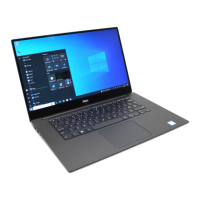
Base
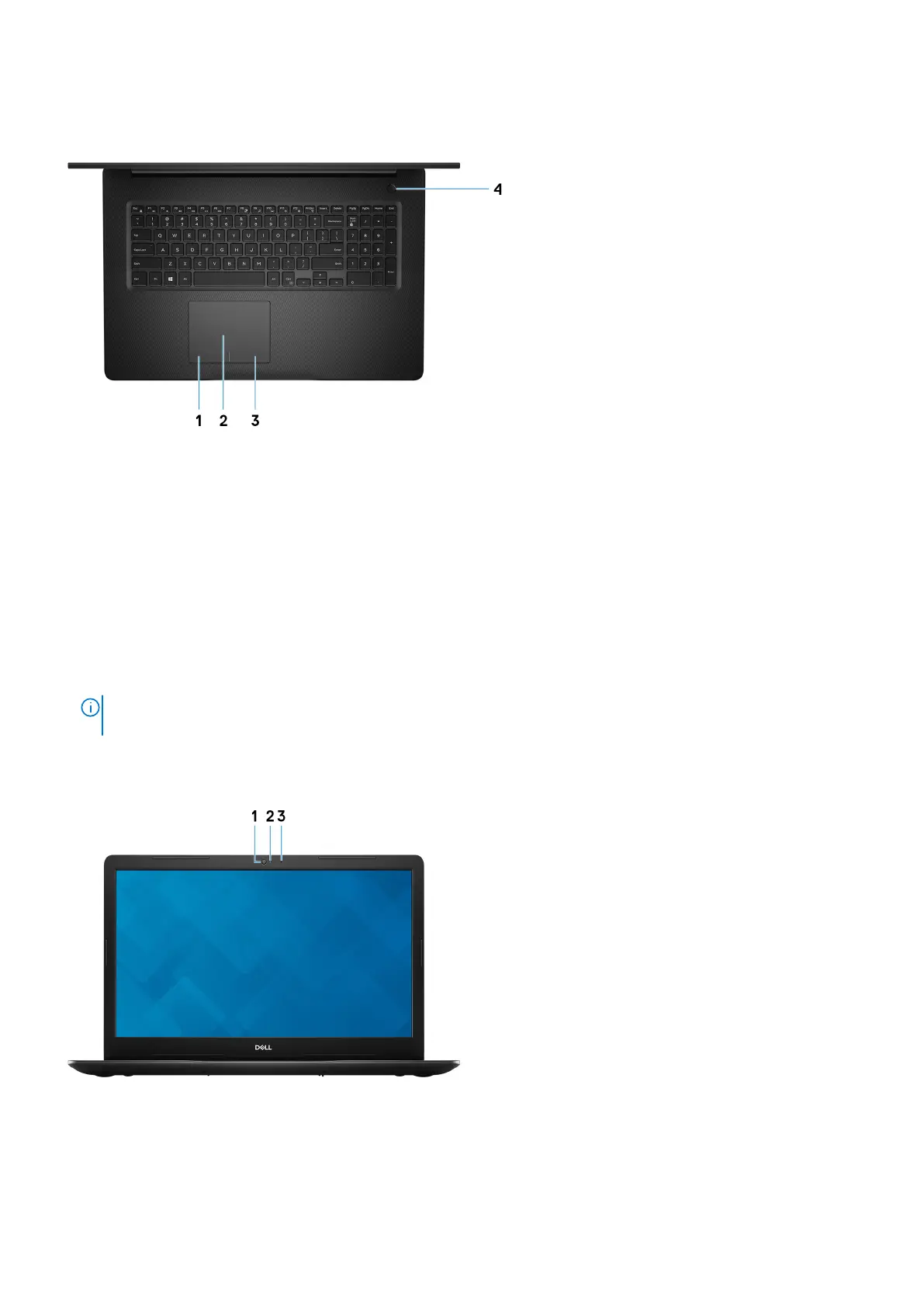
1. Left-click area
Press to left-click.
2. Touchpad
Move your finger on the touchpad to move the mouse pointer. Tap to left-click and two finger tap to right-click.
3. Right-click area
Press to right-click.
4. Power button with optional fingerprint reader
Press to turn on the computer if it is turned off, in sleep state, or in hibernate state.
When the computer is turned on, press the power button to put the computer into sleep state; press and hold the power button for 4
seconds to force shut-down the computer.
If the power button has a fingerprint reader, place your finger on the power button to log in.
NOTE:
You can customize power-button behavior in Windows. For more information, see
Me and My Dell
at
www.dell.com/support/manuals.
Display
1. Camera
Enables you to video chat, capture photos, and record videos.
2. Camera-status light
Turns on when the camera is in use.
8
Views of Inspiron 3785



 To Next Page