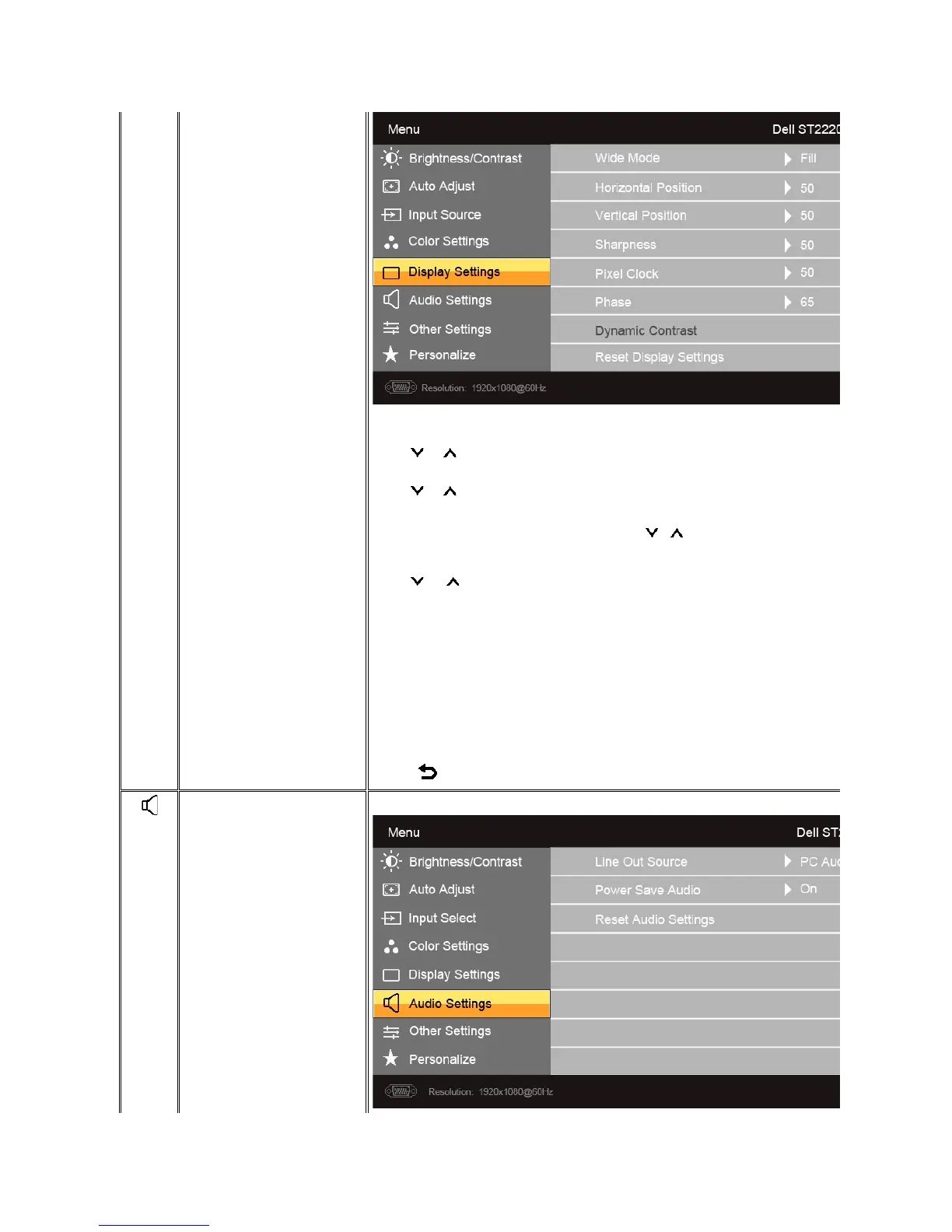
Adjusts the image ratio as 4:3 or full screen.
NOTE: Wide Mode adjustment is not required at maximum preset resolution 1920 x 1080.
Use the and buttons to adjust image left and right. Minimum is '0' (-). Maximum is '100' (+).
Use the and buttons to adjust image up and down. Minimum is '0' (-). Maximum is '100' (+).
This feature can make the image look sharper or softer. Use or
to adjust the sharpness from '0' to '100' .
The Phase and Pixel Clock adjustments allow you to adjust your monitor to your preference. These settings are accessed through the main OSD menu, by selecting 'Display Settings'.
Use the and buttons to adjust for best image quality.
IfsatisfactoryresultsarenotobtainedusingthePhaseadjustment,usethePixelClock(coarse)adjustmentandthenusePhase(fine),again.
Allowsyoutoincreasethelevelofcontrasttoprovidesharperandmoredetailedimagequality.
Resets the display settings to the factory default settings.
Press the buttontogobacktoorexitthemainmenu.


 To Next Page