Need help?
Do you have a question about the Dell Vostro 3525 and is the answer not in the manual?
Details the different processor types supported by the Vostro 3525.
Provides details on the chipset used in the Vostro 3525.
Details memory slots, type, speed, and configuration options.
Lists available storage types, interface, and maximum capacity.
Details specifications of the AC power adapter.
Lists battery specifications, including type, voltage, and dimensions.
Details display types, technology, resolution, and refresh rate options.
Provides specifications for the integrated Graphics Processing Unit (GPU).
Details specifications for the optional discrete Graphics Processing Unit (GPU).
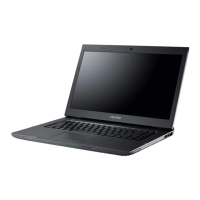
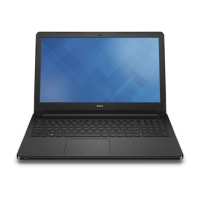
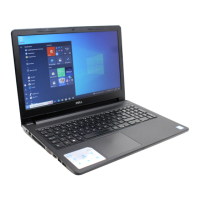
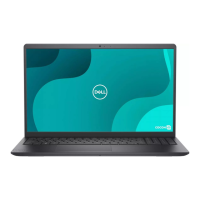
The Dell Vostro 3525 is a versatile laptop designed for everyday computing tasks, offering a balance of performance and user-friendly features. This manual provides comprehensive guidance on setting up, using, and maintaining your device to ensure optimal performance and longevity.
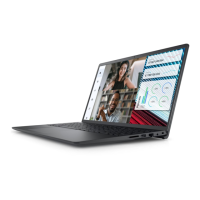
The Vostro 3525 serves as a personal computer, capable of handling a wide range of applications from basic document processing and web browsing to more demanding tasks like multimedia consumption and light productivity. It features a display for visual output, a keyboard and touchpad for input, and various ports for connecting external devices and networks. The integrated camera and microphones facilitate video conferencing and audio recording. Its core functionality is driven by a processor, chipset, and memory, all working together to run the chosen operating system, whether it's Windows or Ubuntu. The device is designed to be portable, allowing users to work or study on the go, supported by an internal battery for untethered operation.
Setting up your Vostro 3525 is a straightforward process. Begin by connecting the power adapter to ensure the battery is charged and then press the power button to turn on the computer. The system may enter a power-saving mode if the battery is low, so connecting the adapter is crucial for the initial boot. Once powered on, you will be guided through the operating system setup. For Ubuntu users, Dell provides knowledge base articles for installation and configuration support. Windows users are advised to connect to a network for updates, sign in with a Microsoft account (or create an offline account if no internet is available), and provide contact details on the Support and Protection screen. Dell also pre-installs several useful applications, accessible from the Windows Start menu, to enhance your user experience.
The laptop is equipped with a variety of ports to expand its functionality. On the right side, you'll find an SD-card slot, supporting Secure Digital (SD), Secure Digital High Capacity (SDHC), and Secure Digital Extended Capacity (SDXC) cards, allowing for easy transfer of photos and files. A USB 2.0 port is available for connecting external storage devices or printers, offering data transfer speeds of up to 480 Mbps. A network port (RJ45) enables wired internet access with speeds up to 10/100/1000 Mbps. For audio needs, a headset (headphone and microphone combo) port is included. A security-cable slot (wedge-shaped) provides a physical security option to deter theft.
On the left side, a power-adapter port is dedicated to charging the battery and powering the computer. A power and battery-status light indicates the current power state and battery charge level: solid white for charging, solid amber for low or critical charge, and off when fully charged. This light also serves as a diagnostic indicator on some models. An HDMI 1.4 port allows connection to external displays or TVs for video and audio output. Multiple USB 3.2 Gen 1 ports (Type-A and optional Type-C depending on the chassis configuration) offer faster data transfer speeds of up to 5 Gbps for compatible devices.
The Vostro 3525 features a full-sized keyboard with some keys having dual symbols for alternate characters or secondary functions, accessed by pressing Shift or Fn, respectively. The function keys (F1-F12) at the top of the keyboard are primarily configured for multimedia control, such as muting audio (F1), decreasing/increasing volume (F2/F3), or playing/pausing media (F4). Their behavior can be customized in the BIOS setup program. An optional fingerprint reader integrated into the power button provides a convenient and secure way to log in. The touchpad allows for precise cursor control, with tapping for left-click and two-finger tapping for right-click. It also supports various gestures for navigation within Windows, as detailed in Microsoft's knowledge base.
For communication and multimedia, the laptop includes an integrated camera (HD RGB or FHD RGB depending on the model) and microphones (left and right, or dual-array for aluminum chassis). An optional privacy shutter can be slid to cover the camera lens when not in use, enhancing privacy. A camera-status light indicates when the camera is active. The speakers provide audio output, complemented by internal-speaker amplifiers and external volume controls accessible via keyboard shortcuts.
The display panel, available in High Definition (HD) or Full High Definition (FHD), provides visual output. Dell's ComfortView mode, configurable through the Dell CinemaColor application, reduces harmful blue light emissions, aiming to minimize eye strain during extended screen time. This feature complies with TÜV Rheinland's low blue light requirements. Recommendations for reducing eye strain include positioning the display at an optimal distance, frequent blinking, looking away from the screen periodically, and taking regular breaks.
Dell provides several tools to help maintain your Vostro 3525. The Dell Product Registration app allows you to register your computer, while Dell Help & Support offers access to assistance. My Dell acts as a centralized hub for Dell applications, articles, warranty status, and software updates. SupportAssist is a smart technology that proactively optimizes settings, detects issues, removes viruses, and notifies you about system updates. It automatically sends system state information to Dell for troubleshooting when an issue is detected. Dell Update ensures your computer receives critical fixes and the latest device drivers. Dell Digital Delivery facilitates the download of purchased software applications that are not pre-installed.
The power and battery-status light can also serve as a diagnostic indicator on certain computer models. Refer to the Troubleshooting section in your computer's Service Manual for more information on interpreting these diagnostic codes. For general troubleshooting and support, Dell's knowledge base (accessible via www.dell.com/support) offers articles, videos, manuals, and documents. You can search by keyword, topic, or model number. Your computer's unique Service Tag or Express Service Code can be used to access relevant support resources specific to your device.
The Vostro 3525 is designed to operate within specific temperature and humidity ranges. It's crucial to ensure that the air vents, located on the bottom of the laptop, are not blocked during operation to prevent overheating. Operating or storing the device outside the recommended temperature and storage ranges may impact the performance and longevity of its components. The manual provides detailed operating and storage environment specifications, including temperature, humidity, vibration, and shock tolerances.
To ensure optimal battery life and performance, Dell recommends regularly charging the battery. If the battery is completely depleted, connect the power adapter, turn on the computer, and then restart it to reduce power consumption. The Dell Power Manager application allows you to control charging time, duration, and start/end times for enhanced battery management.
By following these guidelines for usage and maintenance, you can ensure your Dell Vostro 3525 remains a reliable and efficient tool for your daily needs.
 General
| Processor | AMD Ryzen 5 5625U |
|---|---|
| RAM | 8GB DDR4 |
| Storage | 256GB SSD |
| Operating System | Windows 11 Home |
| Display | 15.6-inch FHD (1920 x 1080) |
| Graphics | AMD Radeon Graphics |
| Battery | 3-cell, 41Whr |
| Ports | 2x USB 3.2 Gen 1, 1x USB 2.0, 1x HDMI 1.4, 1x RJ-45 |
| Wireless | Wi-Fi 802.11ac, Bluetooth 5.0 |

 To Next Page