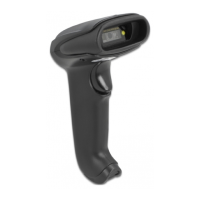
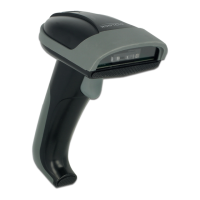
Safety instructions
• Protect the product against moisture
• Protect the product against direct sunlight
• Do not look directly into the LED diode of the scanner
Battery charging
You can charge the scanner's battery by using the included USB cable. For this,
plug the USB Type-B connector into the scanner and the USB-A connector into a
USB A female on a laptop or desktop PC.
Beep sounds
Three short beeps Scanner is activated
One short beep Bluetooth connection is established
Two short beeps The scanner successfully reads a conguration
barcode.
Two long beeps Bluetooth connection disconnected
Three short beeps a) The scanner reads a barcode although it is not
connected.
b) The scanner reads an unexpected barcode during
conguration. (Scan [ABORT] to cancel and restart)
Two long beeps Out of range / Bad connection
One long beep Device switches o
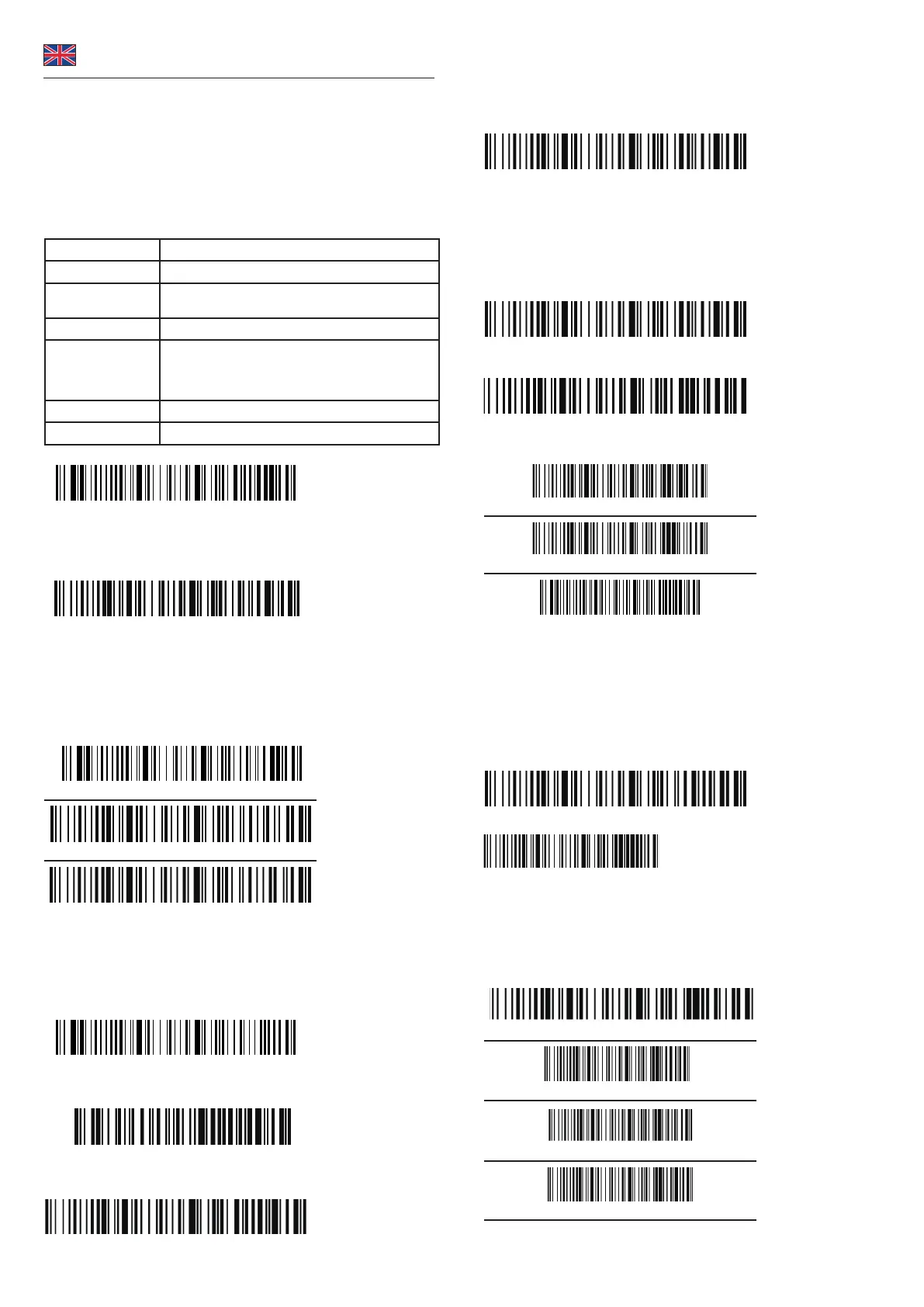
Reset scanner
Connect with Bluetooth
To connect the device to Bluetooth, start the scanner , press trigger for 8 seconds
and scan the barcode below and turn on the Bluetooth on your smartphone,
notebook or tablet.
Now connect to "Scanner HID". If the connection was successful, you will hear a
short tone.
If your system does not automatically connect to Bluetooth, you need to add the
Bluetooth device rst.
Or alternatively, for other proles, select the desired barcode for the Bluetooth
communication protocol.
Bluetooth HID Mode
Bluetooth SPP Mode
Bluetooth BLE Mode
Change name of Scanner
You have the possibility to change the name of the scanner via Bluetooth.
You need to generate a name in advance using a barcode generator with the help
of the barcode.
Scan the barcode below
Then scan the barcode you generated to change the name of the scanner.
If you select the code from the example below, the name of the scanner changes
to "Scanner 123".
With the following barcode you can x the name of the scanner
English
To change the name permanently, you need to turn o the Bluetooth completely,
remove the device from the list, reconnect and add the device again.
Hide keyboard (iOS)
With the code below you can enter the menu to activate or hide the keyboard of
your IOS device.
Attention: if the scanner enters the matching state and does not successfully
pair with Bluetooth within 1 minute, a double tone will be displayed to indicate a
mismatch and return to scan mode
Menü to pull up and hide keyboard
This code below allows you to move up and down the keyboard by pressing the
button twice.
Pull twice to pull up keyboard
This code below switches the function o again.
pull twice to hide keyboard
Sound and vibration setting
Switch o sound
Switch on sound
Turn on vibration
Connect via 2,4 GHz
Alternatively to Bluetooth, you can connect the scanner to your system via the 2.4
GHz frequency band.
Normally the scanner connects to the dongle automatically after it is connected to
the system.
If not, please follow the instructions below.
For this, scan the dongle menu of the scanner
Connect to the dongle with the barcode below
Then plug the dongle into the USB socket provided for this purpose. If the
connection was successful you will hear a beep. The blue light shines continuously
Attention: if the scanner enters the matching state and does not successfully pair
up within 1 minute, a double beep is displayed indicating a mismatch and returns
to scan mode
Set standby time
Standby after 1 minute
Standby after 5 minutes
Standby after 10 minutes
Standby after 30 minutes


 To Next Page
 Loading...