The Delstar DS 700 is a compact netbook designed for portability and basic computing tasks, running on the Microsoft Windows CE operating system.
Function Description:
The Delstar DS 700 serves as a personal computing device, primarily focused on internet access and web browsing. Its design caters to users who require a lightweight and portable solution for tasks such as email, document viewing, and multimedia consumption. The Windows CE operating system, while efficient and requiring minimal resources, is optimized for these lighter tasks and may encounter limitations with resource-intensive applications or large file sizes.
Important Technical Specifications:
- Processor: Samsung 533 MHz CPU
- RAM: 128 MB
- Storage: 2GB Solid State Drive (HDD)
- Operating System: Windows CE
- Display: 7" WVGA LCD Backlights (800 x 480 resolution)
- Network:
- Wireless LAN 802.11 b/g
- 10/100M Ethernet Controller
- Expansion: SD Card Slot
- Audio: Dual speakers
- Input/Output:
- 3 x USB 2.0 ports
- Microphone jack
- Headphone jack
- RJ45 (Ethernet) port
- Battery: 3-cell battery, offering approximately 3 hours of usage on a full charge.
- Weight: 900g (including battery)
Software Package:
The netbook comes pre-installed with a suite of essential software:
- Word Viewer
- Presentation Viewer
- Spreadsheet Viewer
- Fast Launch User Desktop Interface
- Document Creator
- Spreadsheet Creator
- Presentation Creator
- PDF Viewer
- Media Player
Usage Features:
- User Interface: The Delstar DS 700 features a "Fast Launch User Desktop Interface" with a blue "UI" icon on the desktop, providing quick access to various programs like Web browser, YouTube, Skype, IM, Document, Spreadsheet, Presentation, and Media Player.
- Powering On/Off: To turn on, press and hold the "Power" button on the lower right side of the screen for 2 seconds. To shut down, drag the pointer to the bottom of the screen to reveal the toolbar, click the Start button, and select "shutdown."
- Date and Time Adjustment: It is crucial to adjust the date and time before accessing the internet to maintain security certificates. This is done by moving the cursor to the bottom of the screen to view the toolbar, clicking the Start button, selecting "settings," then "control Panel," and double-clicking the "Date and Time" icon. Users should set the correct time zone, date, and time, then click "OK."
- Battery Level Check: Battery level can be checked by clicking "start," selecting "settings," then "control panel," and double-clicking the "power" icon.
- Wireless Network (Wi-Fi) Connectivity:
- Double-click the UI icon on the desktop to access the Quick Launch interface.
- Click the Wi-Fi on/off button, then click "ON."
- Drag the pointer to the bottom of the screen to pull up the toolbar.
- Double-click the computer icon with a red X (if present) on the right side of the toolbar.
- In the WiFi window, click the "wireless information" tab.
- The netbook will search for available networks. Select an available network and click "connect."
- In the "wireless network properties" screen, click "OK."
- Back in the "WIFI" window, click "OK" in the upper right corner.
- For networks requiring a WEP key, double-click the secured network, and fill in the Network name and Password.
- Wired Network Connectivity: Connect an Ethernet cable to the back of the Netbook, then navigate to Start/Control Panel/Network connections to view the LAN connection and speed.
- Microsoft Remote Desktop Client: The device supports remote desktop access to other computers. Instructions for setup are provided via a Microsoft link.
- Skype: Pre-equipped with Skype software for internet calls, instant messaging, file transfer, and video conferencing. Access by clicking the Skype icon and signing in.
- Instant Messaging: Features an instant messaging solution with support for MSN, AIM, Yahoo, Google, ICQ, Myspace, and Facebook. Access via the "IM" icon on the desktop or quick launch screen.
- YouTube: A dedicated YouTube icon allows direct access to the video sharing website for uploading, viewing, and sharing video clips.
- Document, Spreadsheet, Presentation, Media Player: Dedicated icons and software for creating, reading, and editing Microsoft Word, Excel, and PowerPoint documents, as well as playing audio, video, and viewing images from SD cards, the internet, or USB flash media.
Maintenance Features:
- Battery Charging: The first charge should be a full 12 hours to maximize battery life. Subsequent charges will be shorter.
- External USB Equipment: When using external USB devices, ensure the Netbook is connected to the AC adapter, as USB-powered devices will increase battery consumption.
- File Saving Recommendation: Users are advised to save files to an SD Memory Card. This facilitates file transfer and protects data from computer crashes.
- Reset Feature: In case of a system freeze or lock-up, a master reset button is located on the bottom of the unit. Using a small jeweler's screwdriver or bent paper clip to press this button will restore the netbook to factory default settings, similar to formatting the hard drive and reinstalling Windows CE. This process takes approximately 30 seconds. After a reset, users must remember to set the date and time again before connecting to the internet.

 Need help?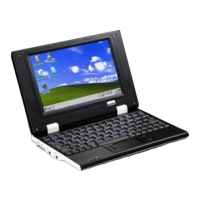

 To Next Page
 General