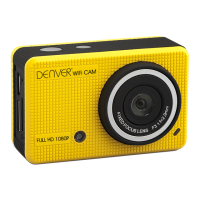
ACT-5030W Quick Start Guide
ENG 2
1. Definition of keys of remote controller
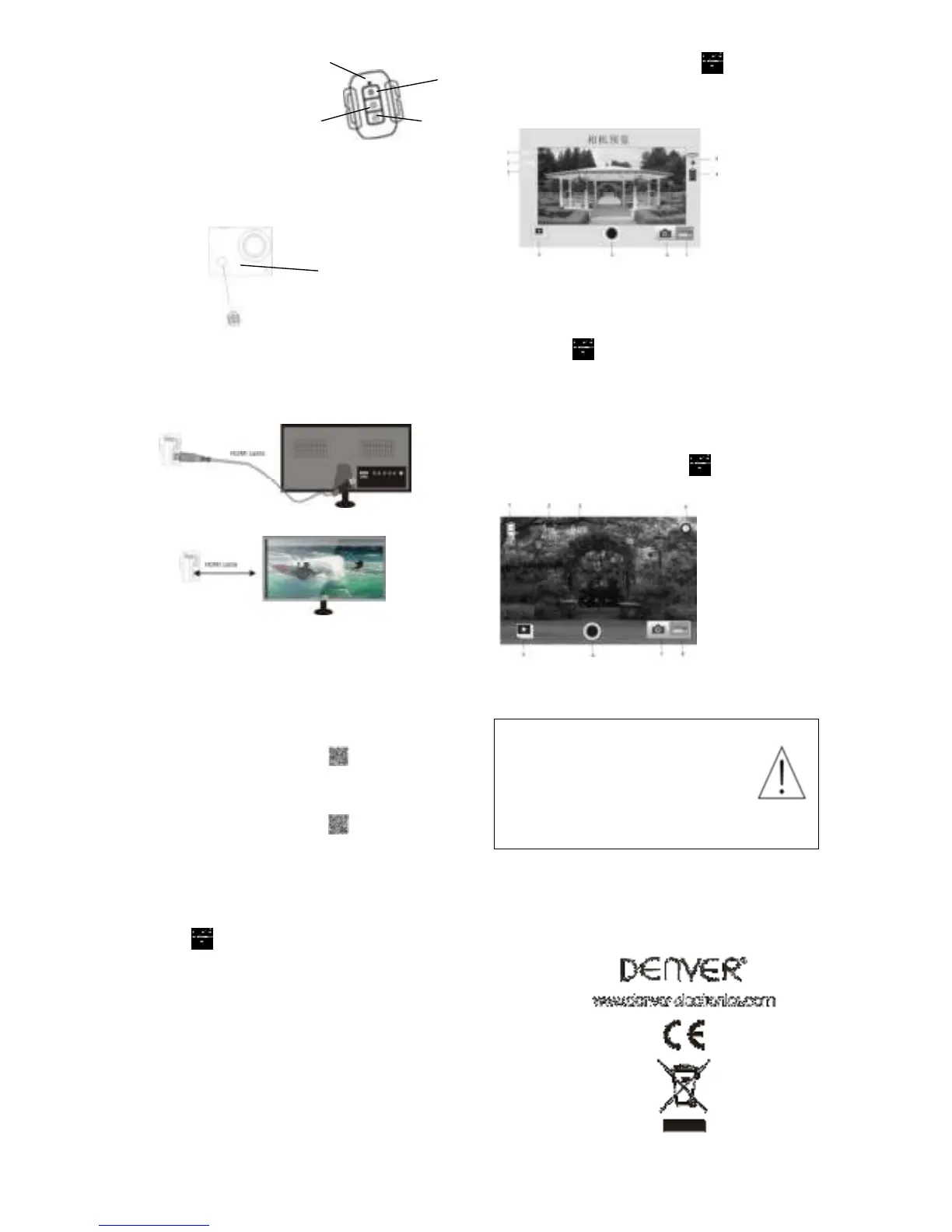
Keys of remote controller are as shown
in the right figure:
2. Use of remote controller:
Using the remote controller, you can achieve functions of power on, video recording,
shooting and power off without operating on the camera. Just point the signal transmission
port of the remote controller at IR signal receiving lamp of the camera, and press
corresponding keys to achieve functions of power on, video recording, shooting and power
off.
Connect device to HDTV:
Connect the video camera to an HDTV with a HD cable as shown in the following figure,
display signals in the camera will be output into the HDTV automatically, and you can
browse HD videos and photos that are recorded or taken in the HDTV.
APP (for Android and iOS System)
I. How to Obtain the APP Installation Program
1. For the Android System, you can search “DENVER ACTION CAM 1” in the Play Store to
obtain corresponding installation programs, and then you can install them according to the
indicated steps or through scanning the two-dimensional code
.
2. For the IOS System, you can search “DENVER ACTION CAM 1” in the APP Store to
obtain corresponding installation programs, and then you can install them according to the
indicated steps or through scanning the two-dimensional code
.
II. Camera WIFI and System Applications
Android Applications
1. Please install the DENVER ACTION CAM 1 application program (provided by the
Supplier or the Internet) for the Android mobile phone or tablet PC, and then the Display
Screen will show the Icon
;
2. Insert a Storage Card into the Camera and then power it on. Press the WIFI key to conduct
WIFI connection, and the Screen of the Camera will show the WIFI signal Icon with the
external screen revealing WIFI Connecting.
3. Enable the WIFI function of the Android mobile phone or tablet PC, and try to find the AP
Name
DENVER ACT-5030W; please conduct connection between them till the system reveals a
successful connection; if you are conducting WIFI connection for the first time, please input
the password: 1234567890.
4. Tap and enable the Application Program Icon
on the Android mobile phone or
tablet PC; you can directly view the preview picture transmitted by the Camera (see the
following picture), and then conduct relevant operations.
IOS Applications
1. Please install the DENVER ACTION CAM 1 application program (provided by the
Supplier or the Internet) for the IOS mobile phone or tablet PC, and then the Display Screen
will show the Icon
;
2. Insert a Storage Card into the Camera and then power it on. Press the WIFI key to conduct
WIFI connection, and the Screen of the Camera will show the WIFI signal Icon with the
external screen revealing WIFI Connecting.
3. Enable the WIFI function of the IOS mobile phone or tablet PC, and try to find the AP
Name
DENVER ACT-5030W; please conduct connection between them till the system reveals a
successful connection; if you are conducting WIFI connection for the first time, please input
the password: 1234567890.
4. Tap and enable the Application Pro gram Icon
on the IOS mobile phone or tablet PC;
you can directly view the preview picture transmitted by the Camera (see the following
picture), and then conduct relevant operations.
Warning
• Lithium battery inside!
• Do not try to open the product!
• Do not expose to heat, water, moisture, direct
sunlight!
CAUTION!
ALL RIGHTS RESERVED, COPYRIGHT
DENVER ELECTRONICS A/S


 To Next Page
 Loading...