This document provides a quick start guide for the Denver NBD-14105ES laptop, outlining its features, basic operations, specifications, and regulatory information.
Function Description
The Denver NBD-14105ES is a portable laptop designed for general computing tasks, running on the Windows 10 operating system. It features a 14.1-inch TN panel display, an Intel Celeron N4020 processor, 4GB of RAM, and 64GB of ROM for storage. The device is equipped with essential connectivity options including Wi-Fi, Bluetooth, and various USB ports. It also includes a front camera for video calls and a built-in microphone for audio input. The laptop's design emphasizes ease of use with a standard keyboard and touchpad for direct operation.
Important Technical Specifications
- Processor: Intel Celeron N4020
- RAM: 4GB
- Storage (ROM): 64GB
- Display: 14.1" TN Panel
- Wi-Fi Networking: IEEE 802.11 b/g/n
- Bluetooth: 4.0
- Operating System: WINDOWS 10
- Audio Output: 3.5mm headphone jack
- USB Host: 1xUSB3.0, 1xUSB2.0
- HDMI: MINI HDMI x1
- Camera: Front 0.3MP
- Power: Rechargeable Li-poly battery
- Power Adapter: DC IN 12V, 2A
- Speakers: 2x1 W speakers
- Operating Frequency Range (Wi-Fi): 2.400 ~ 2.4835GHz
- Operating Frequency Range (Bluetooth): 2.400 ~ 4.000GHz
- Max Output Power (Wi-Fi): 16dBm
- Max Output Power (Bluetooth): 8dBm
- Charger Output Voltage: 12V
- Charger Output Current: 2A
- Charger Output Power: 24W
- Charger Average Active Efficiency: >86.2%
- Charger Efficiency at Low Load (10%): >76.8%
- Charger No-load Power Consumption: <0.1W
Usage Features
The NBD-14105ES offers a straightforward user experience, starting with its physical components:
- Power Button: Located on the device, it's used to start the laptop, close the screen panel, or put the computer into dormancy mode and wake it up.
- Front Camera: Integrated for taking pictures and shooting videos.
- Touchpad: Allows direct operation of the device, serving as a mouse.
- Keyboard Board: Provides direct input for typing and other commands.
- Indicators:
- Caps Lock indicator: A blue light when Caps Lock is active.
- Charging indicator: A red light when the charging connector adapter is plugged in.
- Work light: A bright blue light indicating the machine is operating.
- Microphone: Transmits audio signals during use.
- DC Charging Base: For connecting the 12V/2A charger.
- USB Interfaces: Multiple ports (1xUSB3.0, 1xUSB2.0) for connecting U disks, mice, and keyboards.
- Mini-HDMI Interface: For High-Definition Multimedia connections.
- Headphone Jack: For transmitting audio signals to external speakers or headphones.
- Micro SD Card Slot: A built-in memory card reader supporting Micro SD format.
- Speakers: Built-in 2x1 W speakers for audio output without additional connected devices.
Interface Introduction (Windows 10)
The laptop runs Windows 10, featuring a start screen with various application programs displayed as "magnets" for easy access. Users need to log on with a Microsoft account for full application functionality.
Applications Introduction
Users can access all applications from the Home page. To add applications to the Start screen:
- Right-click on the desired application's Properties icon.
- Select "fixed at the beginning of the page."
To remove an application from the Start screen:
- Right-click on the application.
- Select "undock from the start page."
Clicking the Windows home button (either via touchpad/USB mouse) brings up the menu bar. This bar typically includes:
- File manager
- Settings
- Power supply options (sleep, shutdown, restart)
- All applications
After logging in, users can set up language or text dialogue for searches. Without logging in, only text searches are available.
Accessible by clicking on the notification menu.
Multitasking Operating Interface
Clicking the Desktop task view allows users to manage multi-tasking and multi-desktop windows.
Basic Operations
- Sleep, Restart, Power Off: These functions are managed by a short press of the power button for hibernation, or through the power options in the menu bar for sleep, restart, or full shutdown.
How to Change Language
The manual provides a visual guide for changing the system language through the "Time & language" settings, specifically under "Region & language," where users can add or modify languages.
Maintenance Features
The manual includes important information regarding environmental responsibility and proper disposal of the device and its components:
- Waste Material Handling: Electric and electronic equipment, including batteries, contain materials that can be hazardous. They should not be disposed of with general household waste but must be handled correctly and separately.
- Crossed-Out Trash Can Symbol: This symbol on the device signifies that it should not be discarded with household waste but disposed of separately.
- Battery Disposal: Used batteries must be submitted to appropriate and designated facilities for recycling to ensure compliance with legislation and to prevent environmental harm.
- Collection Points: All cities have established collection points where electric and electronic equipment and batteries can be submitted free of charge at recycling stations or other collection sites. Information on these facilities is available from local technical departments.
The device is manufactured by SHENZHEN HENGTAIYING TECHNOLOGY CO.,LTD and distributed by DENVER ELECTRONICS A/S. It complies with Directive 2014/53/EU, with the full EU declaration of conformity available on the denver-electronics.com website.

 Need help?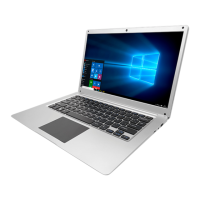

 To Next Page
 General