Kurzanleitung / Quick guide
CU155+ / CU165 / RF-TOUCH
11.04.2018 89905 1.0 2 / 2
Teach-in for the RF-TOUCH or app: To start using the RF-TOUCH or a Bluetooth
®
device, the wireless link with the CU155+ / CU165 must first be established. In order to use a Bluetooth
®
device (a tablet or smart phone) with your system, you will first need to download and install the "OKIN" app for your device.
Automatic teach-in the RF-TOUCH
Connect the CU155+ / CU165 to the power supply.
The CU155+ / CU165 is now in pairing mode for 120 sec,
which is divided as follows: During the first 60 sec, an RF-
TOUCH can be discovered (the teach-in). During the next 60
sec, a Bluetooth
®
device can be discovered.
The blue LED is illuminated during this teach-in phase for the
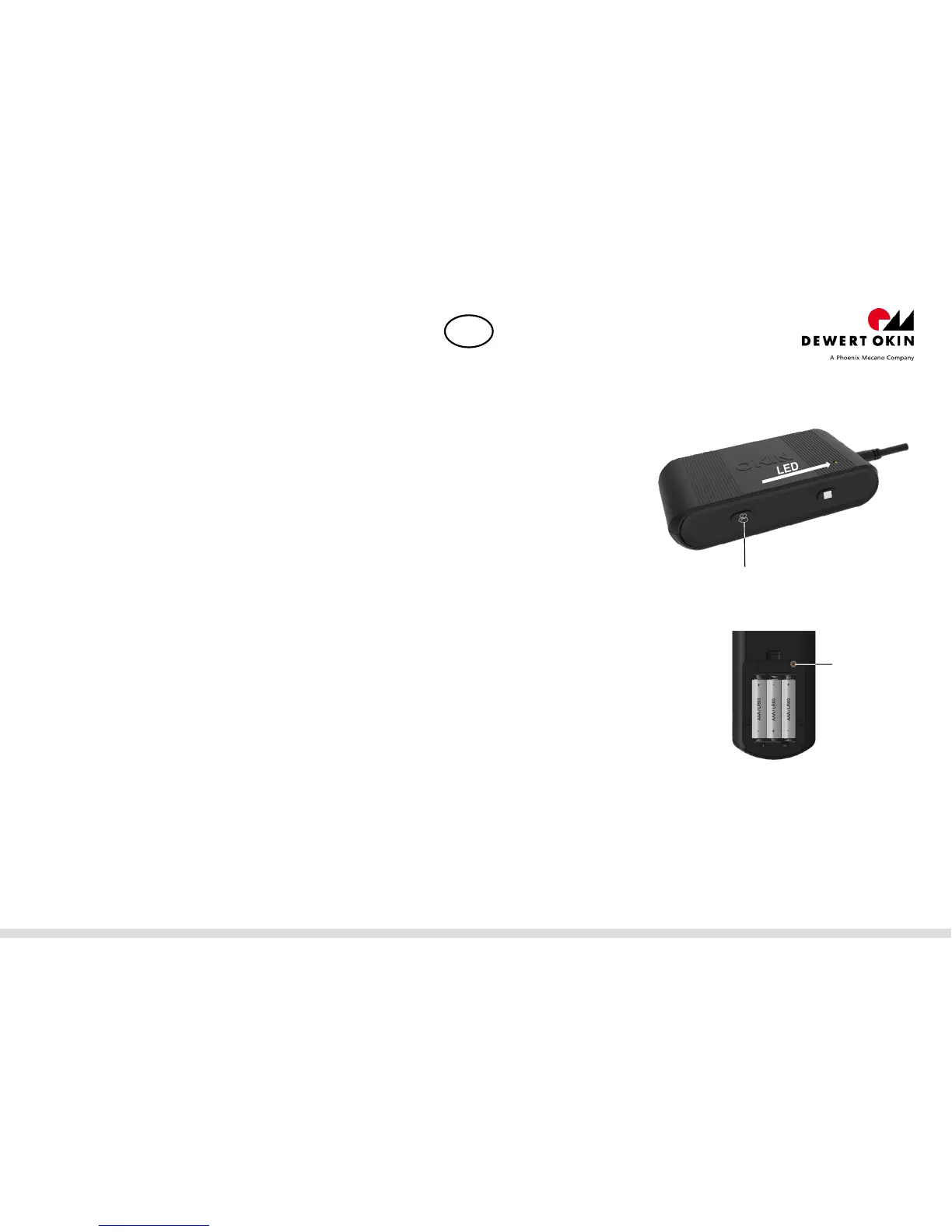
RF-TOUCH. Press and hold the button (P) (located in the
battery compartment of the RF-TOUCH). If the LED is blinking,
the pairing phase is finished.
The blue LED for pairing with a Bluetooth
®
device starts
flashing.
The blue LED switches off when the Bluetooth
®
pairing
process has timed out or when the device has connected
successfully.
If, during the RF-TOUCH teach-in process, you press any
button on an already paired RF-TOUCH, then it switches to the
Bluetooth
®
teach-in mode.
If the RF-TOUCH or a Bluetooth
®
device is discovered during
the pairing phase, then this pairing mode is automatically
ended. The blue LED switch off.
Repeat the automatic teach-in process. First, remove the plug
from the power supply. Then wait 60sec and insert the plug
back into the power supply. You can now start the new teach-
in process.
Teach-in the RF-TOUCH
The system must be connected to the power supply.
Quickly press the Pairing button (a) twice on the
CU155+ / CU165, the LED will illuminate blue. The
CU155+ / CU165 is now in pairing mode for 120 sec,
which is divided as follows: During the first 60 sec, an RF-
TOUCH can be discovered (the teach-in). During the next
60 sec, a Bluetooth
®
device can be discovered.
The blue LED is illuminated during this teach-in phase for
the RF-TOUCH. Press and hold the button (P) (located
in the battery compartment of the RF-TOUCH). If the LED
is blinking, the pairing phase is finished.
The blue LED for pairing with a Bluetooth
®
device starts
flashing.
The blue LED switches off when the Bluetooth
®
pairing
process has timed out or when the device has connected
successfully.
If, during the RF-TOUCH teach-in process, you press any
button on an already paired RF-TOUCH, then it switches
to the Bluetooth
®
teach-in mode.
If the RF-TOUCH or a Bluetooth
®
device is discovered
during the pairing phase, then this pairing mode is
automatically ended. The blue LED switch off.
Note! Only commission one system at a time. Never configure multiple systems simultaneously.
Reset to factory default
Give the Pairing button (a) 4x short press in succession. The LED lights on.
Now actuate the Pairing button (a) one times. The LED lighting extinguishes.
The RF-TOUCH is deactivated.
Remove the Bluetooth
®
device separately from the list of paired devices in the Bluetooth
®
settings (Tablet / Smartphone).
Initialization of the RF-Touch
Do not touch the touch surface (surface with the icons) of the RF-TOUCH while the unit is being commissioned or while the batteries are being changed.
GB
P
a


 To Next Page
 Loading...