11
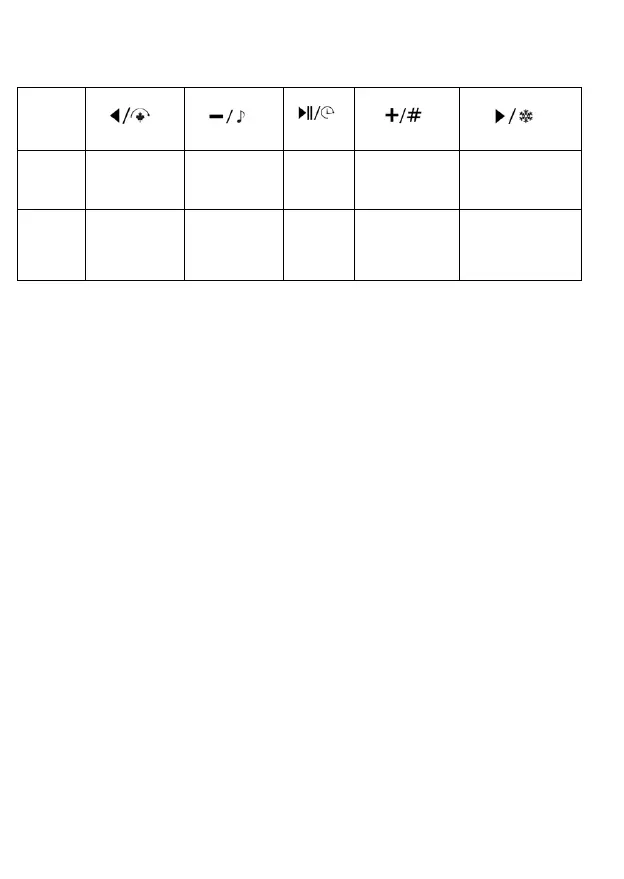
Below is a quick overview of the DGT Pi button symbols, their related symbols as used in the menu
on the display and the action that will follow when pressing that button:
Move up in
current
(sub-)menu
Move down in
current
(sub-)menu
Enter menu or
confirm selection
Important: Please read following notes before starting DGT Pi and accessing the menu:
1. Power up DGT Pi by connecting the micro USB power connector (DGT Pi will completely
reboot).
2. A power up can also be done, if the DGT Pi is already connected to the power adapter by
pressing the clock power button at the bottom of the DGT Pi (Only works if DGT Pi was in
shutdown stage / sleep mode).
3. Shutdown can be done by pressing the power button at the bottom of DGT Pi.
4. Shutdown can also be done by pressing the and buttons simultaneously.
5. Use and to go through the menu tree.
6. Use and – to go through the current menu selection list.
7. Important: Future firmware versions may result in menu text and option variations.
8. Text between quote marks ” “ is as displayed on the DGT Pi display.
9. Text between brackets ( ) is for information only.
Menu structure for the easy method
Below is an overview of the used display menu structure.
Mode Normal ”ok mode” (mode set, exit menu)
Brain ”ok mode” (mode set, exit menu)
Analysis ”ok mode” (mode set, exit menu)
Kibitz ”ok mode” (mode set, exit menu)
Observe ”ok mode” (mode set, exit menu)
Ponder ”ok mode” (mode set, exit menu)
Remote ”ok mode” (mode set, exit menu)
(return to Normal)


 To Next Page