Chapter 10: Pro Tools Main Windows 145
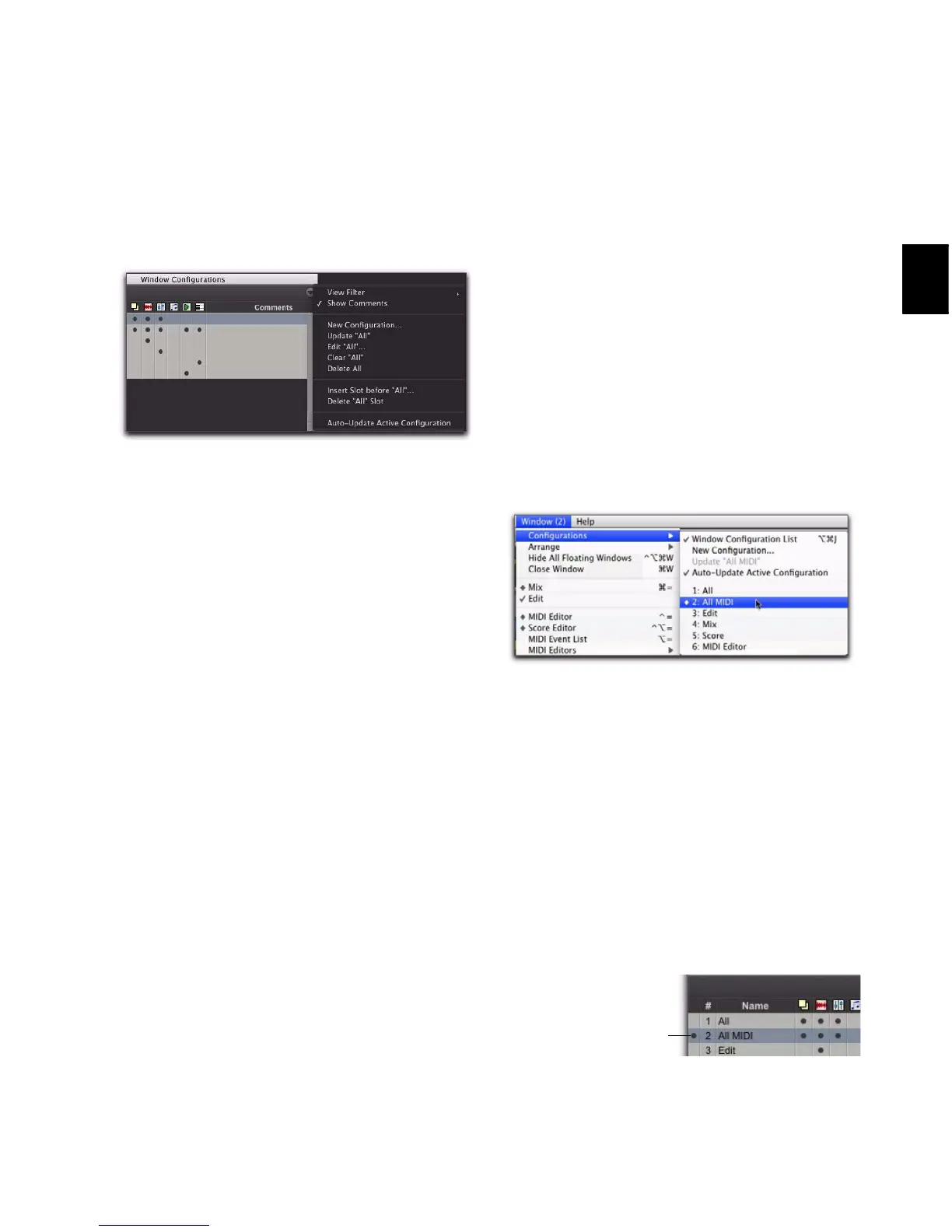
Window Configuration List Pop-Up Menu
You can select viewing and sorting options,
along with commands for creating and remov-
ing Window Configurations, from the pop-up
menu in the Window Configuration List.
View Filter Lets you show or hide Window Con-
figuration filter icons in the Window Configura-
tion List as well as show or hide Window Con-
figurations with Window Layout, Edit Window
Settings, Mix Window Settings, Score Editor
Window Settings, MIDI Editor Window Set-
tings, or Transport Window Settings.
Show Comments Lets you show or hide Com-
ments in the Window Configuration List.
New Configuration Creates a new Window Con-
figuration. This command is also available from
Window > Configurations.
Update <Name> Updates the selected Window
Configuration with any changes to the layout
and settings of windows depending on the Win-
dow Configuration’s properties. This command
is also available from Window > Configurations.
Edit <Name> Opens the Edit Window Configu-
ration dialog where you can edit the properties
of the selected Window Configuration.
Clear <Name> Clears the selected Window Con-
figuration without deleting the slot (number).
Delete All Deletes all Window Configurations.
Insert Slot Before <Name> Inserts a new slot be-
fore the selected Window Configuration and, if
necessary, increments the number of each fol-
lowing slot.
Delete <Name> Slot Deletes the selected Win-
dow Configuration and its slot (number), and
renumbers each subsequent slot.
Auto-Update Active Configuration Automatically
updates the active Window Configuration as
you make changes to the layout and settings of
windows. If Auto-Update Active Configuration is
enabled, the number of the active configuration
is also displayed in the Window menu. This
command is also available from Window > Config-
urations.
Active Window Configuration
The active Window Configuration is indicated
by a diamond to the left of the Window Config-
uration Number in the Window Configuration
List and in the Configurations submenu (Win-
dow > Configuration). If Auto-Update Active Config-
uration is enabled, the number of the active con-
figuration is also displayed in the Window menu.
Only Window Configurations that include Win-
dow Layout can be made active.
Window Configuration List pop-up menu
Number of active Window Configuration displayed in
Window menu
Active Window Configuration


 To Next Page
 Loading...