Pro Tools Reference Guide166
Default Track Names
When creating new audio, Auxiliary Input, Mas-
ter Fader, VCA Master, MIDI, and Instrument
tracks, Pro Tools names them as “Audio,”
“Aux,” “Master,” “VCA,” “MIDI, or “Inst” ac-
cordingly and numbers them consecutively. For
example, when you create the first two audio
tracks in a new session, their default names are
“Audio 1” and “Audio 2.” You can rename
tracks and also log comments for each track.
Naming Tracks
Track names are used to auto-name recorded au-
dio files and regions (see “Default Track Names”
on page 166).
To rename a track:
1 Do one of the following:
• In the Mix or Edit window, double-click the
Track Name button for the track you want
to rename.
– or –
• In the Track List, or Mix or Edit window,
Right-click the track name for the track you
want to rename.
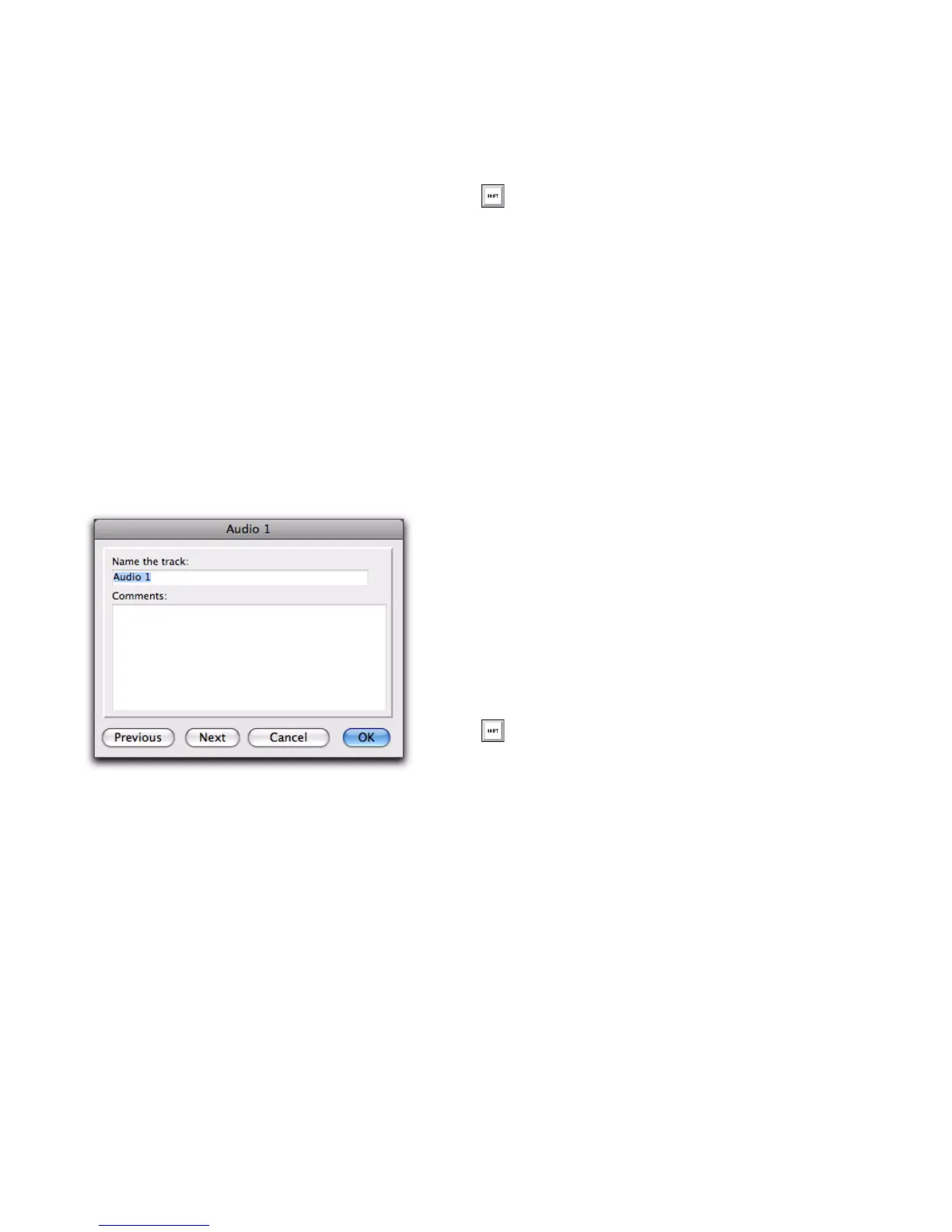
2 In the Track Name/Comments dialog, type a
new track name.
3 Click Previous or Next to rename other dis-
played tracks.
4 Click OK.
Adding Comments to Tracks
To add comments to a track, do one of the
following:
From the track channel strip, click directly in
the Comments area, type any comments for the
track, and press Enter (Windows) or Return
(Mac).
– or –
In the Edit or Mix window, double-click the
Track Name button for a track. Then click di-
rectly in the Comments area, type any com-
ments for the track, and press Enter (Windows)
or Return (Mac).
Track Numbering
With Track Number view enabled, each track is
assigned a number corresponding to its position
in the Mix and Edit Windows. When tracks are
reordered, they are renumbered to maintain po-
sitional sequence.
To enable Track Number view:
Choose View > Track Number.
Track Name/Comments dialog
To move to the previous or next track in the
Track Name/Comments dialog, you can
press Control (Windows) or Command
(Mac) and use the Up/Down or Left/Right
Arrows.
To enter a carriage return in the Comments
area, press Shift+Enter (Windows) or
Shift+Return (Mac) on the alphanumeric
keyboard.


 To Next Page
 Loading...